Once the Order reaches the status of  , it can be processed. Specifically, it is possible to send a notification e-mail with instructions to manage the Order to the Supplier indicated during the Order configuration phase (see Orders -> Order Configuration -> Suppliers) using the button
After the Order is sent, it will remain in the [Pending] status until specific actions are taken by the Supplier who received the Order. For an Order in this status , three scenarios can occur. Specifically, the Supplier can:
- Accept the Order using the [Accept] button
 :
:
- Acceptance implies that all the information related to the Positions within the Order, as configured by the Platform User, is accepted as is. The Order then moves to the [Accepted] status
 .
.
- Reject the Order using the [Reject] button
 :
:
- Rejection prevents any further processing of the Order, which moves to the [Rejected] status
 and can no longer be processed but will remain available in read-only mode.
- Propose a modification to one or more Positions within the Order using the [Modify] button
 ->
->  next to each Position:
- This initiates the ODA Negotiation Cycle, which opens a new modification window for the Position requested for changes by the Supplier, allowing them to adjust the Delivery Date.
- The changes can be saved by pressing the [Save] button
 or discarded by pressing the [Discard] button
  in the modification window.
 - Once saved, the modified Position can be further adjusted using the [Modify] button
 until the formal submission of the change request for Order evaluation is done via the [Submit] button
- The changes can be saved by pressing the [Save] button

In the event of a new proposal by the Platform User to change the Delivery Date, Quantity, Unit of Measure, and/or Unit Price of one or more Items, the Supplier is notified that the Order containing Items they initially modified regarding Delivery Date, Quantity, Unit of Measure, and/or Unit Price has been further modified and requires their intervention. More specifically, the Supplier can:
- Accept the Further Modified Order
- Action: Click the button to accept
 .
. - Consequence:
- Acceptance implies that all information about the Items contained in the modified Order is accepted as configured by the Platform User, and the Order moves to a completed status
- Acceptance implies that all information about the Items contained in the modified Order is accepted as configured by the Platform User, and the Order moves to a completed status
- Action: Click the button to accept
- Reject the Further Modified Order
- Action: Click the button to reject.
- Consequence:
- Rejection prevents further processing of the Order, which moves to a read-only state and can no longer be worked on.
- Propose Modifications
- Action: Use the button next to the Items to propose modifications
 .
. - Details:
- This opens a new window for modifying the Delivery Date, Quantity, Unit of Measure, and/or Unit Price.
- The modification can be saved by pressing the save button or discarded by pressing the discard button in the new modification window.

- Further Modifications:
- Once saved, the modified Item can be further changed until the formal submission of the request for evaluation of the changes made to the Order by pressing the corresponding button.
- Action: Use the button next to the Items to propose modifications
Propose a change to one or more Positions within the Order from the button  ->
->  next to all Positions
a. The continuation of the ODA Negotiation Cycle, as previously done, opens a new window for the modification of the Position data, located below the Position subject to change request by the Supplier, from which it can modify the Delivery Date, Quantity, Unit of Measure and/or Unit Price
i. The change can be saved by pressing the button  or discarded
  by pressing the button present in the new edit window
2. Once saved, the modified Position can be further modified by the button  until formal submission of the request for evaluation of the changes made to the Order by the button
The process described in this paragraph can be repeated indefinitely until the Order reaches one of two final states: either completed  or rejected
  , reachable via the buttons that can be pressed by either the Platform User or the Supplier User based on the negotiation phase in which the Order is located.
This refers to whether the Supplier has submitted a modification proposal for at least one Item or whether the Platform User has proposed a modification in response to a modification proposal from the Supplier. The acceptance  and rejection buttons
  are visible only to Users who need to decide on the proposal submitted by the other User.
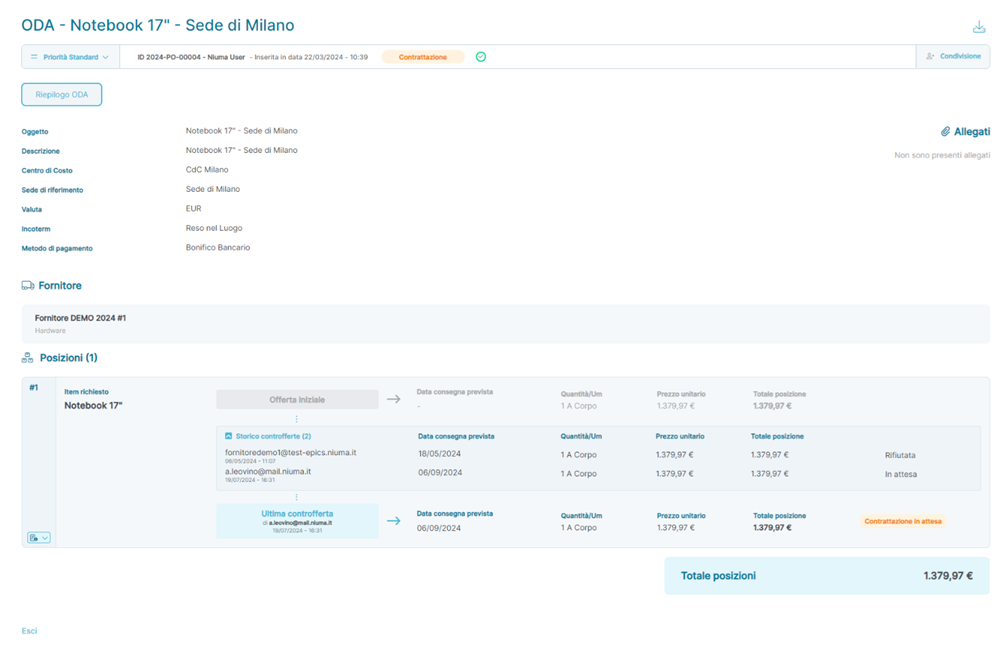
Example of a Purchase Order (ODA) Summary Section - Supplier View (Sent Order)
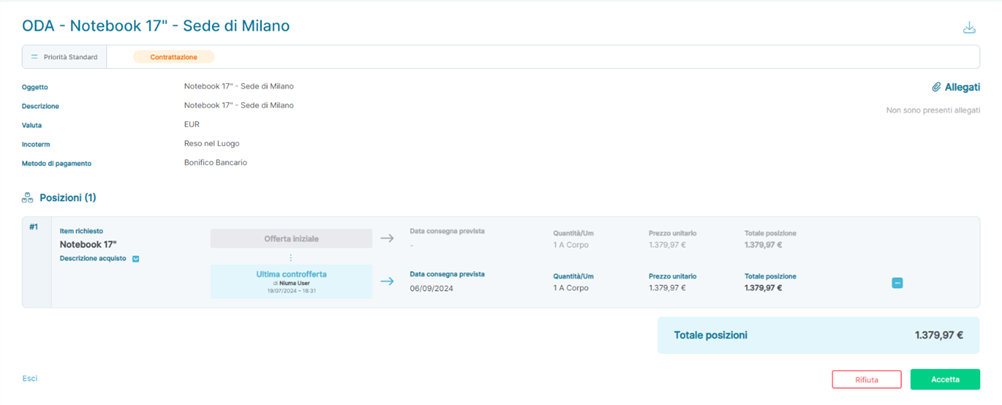
Example of a Purchase Order (ODA) Summary Section with Negotiated Position - Supplier View
ODA Negotiation Process
The ODA Negotiation process can be initiated by either the Supplier User or a Platform User. In the following paragraphs, we will analyze the process in detail, divided according to which User starts the ODA Negotiation Cycle.
Negotiation ODA - Supplier
For an Order placed in the state  is provided that the Supplier may manifest the occurrence of a problem in respecting the Delivery Date, in providing the indicated Quantities or requesting an adjustment to the Unit Price for all or a subset of the Order’s Positions.
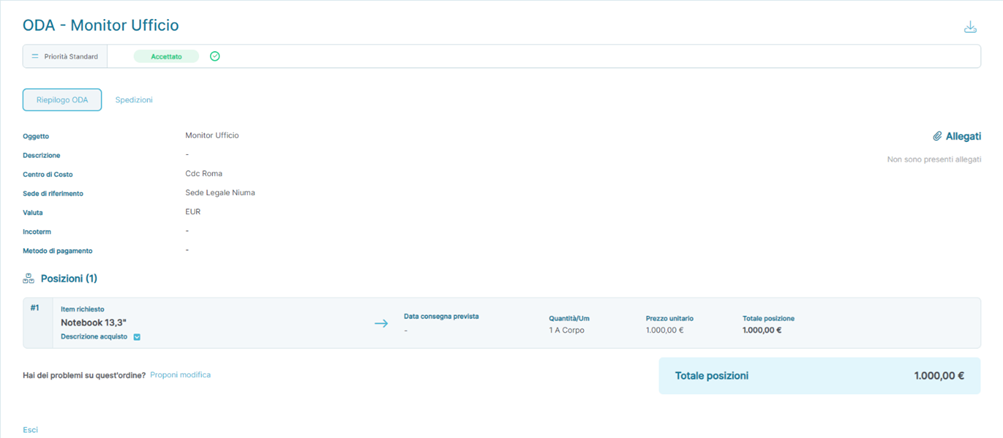
Example section Summary of a Purchase Order (ODA) passed in Accepted status - View Supplier
In details:
The Supplier accesses the ODA Summary, where the ODA Negotiation section becomes available, which was not visible in previous Order statuses. This section can be reached through the designated menu 
a) By pressing the appropriate button  , the Platform displays a new section where the Supplier can indicate the modifications they wish to propose for one or more Items.
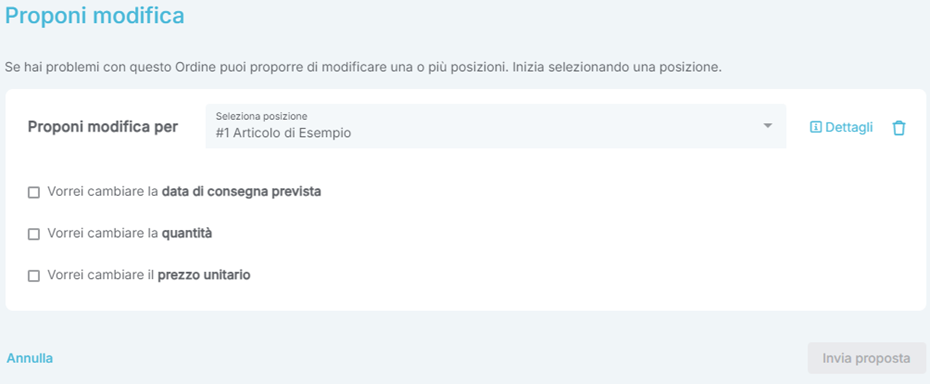
Example #1 section Propose Modification of a Purchase Order (ODA) in Accepted status - Supplier view
2. Once the Supplier fills in the new Delivery Date, Quantity, and/or Unit Price, they can submit the modification proposal using the designated button  .
.
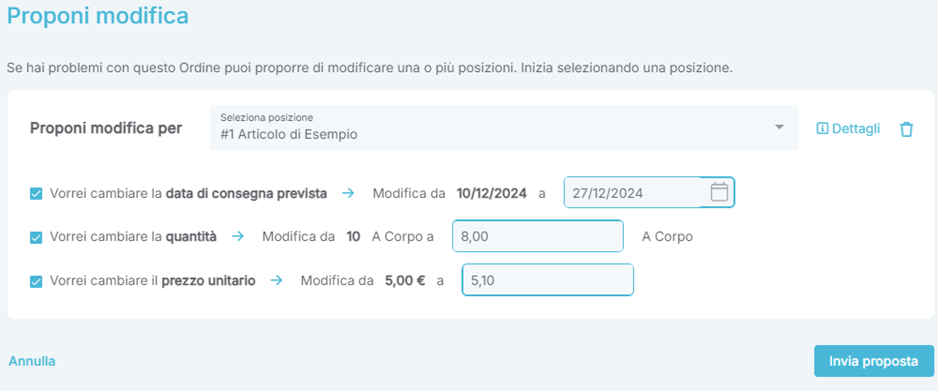
Example #2 section Propose Modification of a Purchase Order (ODA) in Accepted status - Supplier view
IMPORTANT #1: It is important to note that it is possible to propose changes to one, some, or all of the fields available in the ODA Negotiation functionality (Delivery Date, Quantity, Unit Price).
IMPORTANT #2: Additionally, to confirm the submission of the modification proposal, the Supplier is required to include a detailed note justifying the request.
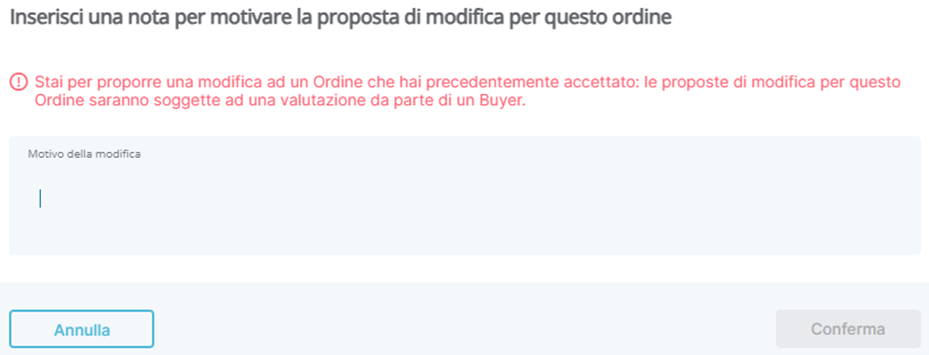
Upon pressing the button  to submit the proposal, the Order remains in its current state
  , but the ODA Summary section updates to inform the Supplier that the Order is pending evaluation by a Platform User regarding the proposed modifications.
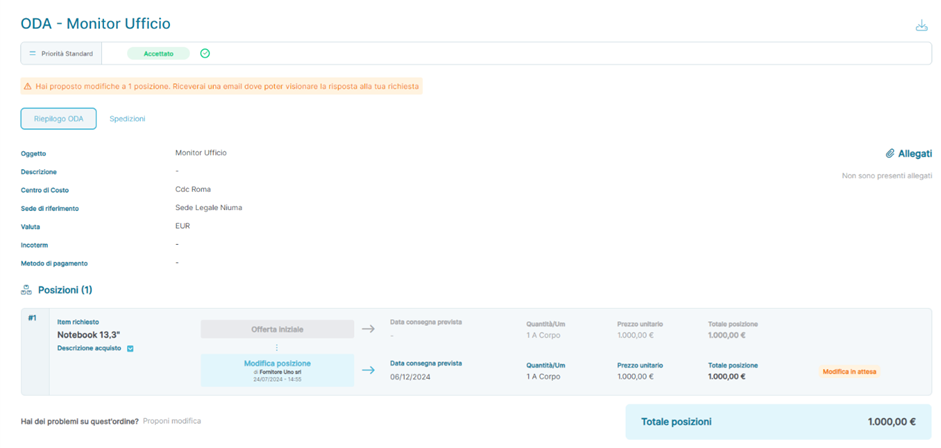
Example section Summary of a Purchase Order (ODA) with Modification Proposal - Supplier View
At this point, the Supplier awaits feedback from the Platform User. By accessing the ODA Summary, the Platform User can verify which Item is subject  to the Modification Proposal and the details of the request, found within the designated section of the Item concerned.
Based on the received proposal, the Platform User can decide to either accept all Modification Proposals globally by pressing the corresponding button or act on the Modification Proposals for individual Items using the specific button.
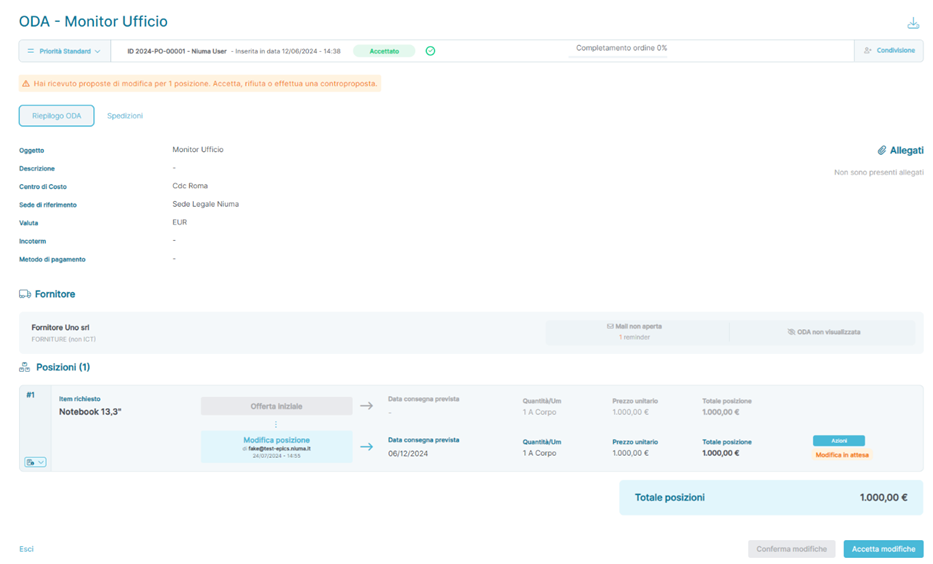
Example section Summary of a Purchase Order (ODA) with Modification Proposal - Internal User View
When the button is pressed, the Platform will present two possible actions regarding the Modification Proposal sent by the Supplier.
a) The first action informs the Supplier that their proposed change to the Delivery Date has not been accepted.  In this scenario, the Order remains in its current state, and the Delivery Date considered valid by the Platform is the one prior to the Modification Proposal.
b) Act on the Change Proposals of individual Positions from the button 
i. At the press of the button, the Platform will show two actions that can be performed for the Change Proposal sent by the Supplier
1.  , which informs the Supplier that its proposal to change the Delivery Date has not been accepted
a. In this scenario  the Order remains in state and the Delivery Date deemed valid by the Platform is that preceding the Proposed Amendment
2.  , which allows the Platform User to propose a Delivery Date, Quantity and/or Unit Price, which will then be subject to acceptance or rejection by the Supplier
a. The Platform considers the Counter-proposal of the Platform User as a rejection of the Amendment Proposal received from the Supplier and the subsequent sending of a new Amendment Proposal: if rejected,
the Platform considers the Position valid in the state in which it was before sending the Change Proposal by the Supplier allows the Platform User to propose their own Delivery Date, Quantity, and/or Unit Price, which will then be subject to acceptance or rejection by the Supplier.

Example section Summary of a Purchase Order (ODA) in mode - Internal User View
In the case of Proposed Changes for more than one Position, the Platform User may decide to accept some Proposed Changes, reject others and, at the same time, make his own Proposal for a Change according to the rules set out in the previous points, Thus finding itself in the situation of having an Order with all the different types of shares made available by the ODA Negotiation combined. In detail, the Platform will show the button  that, if pressed, will modify the Proposals of individual Positions based on the actions performed on each of them, in detail:
• If there are Positions for which you have pressed  , the Delivery Date, the Quantity and/or the Unit Price deemed valid by the Platform are those prior to the Amendment Proposal
• If there are Positions for which you have been pressed  , the Platform considers the Counter-proposal of the Platform User as a rejection of the Amendment Proposal received from the Supplier and the subsequent sending of a new Amendment Proposal:
o If refused, the Platform considers the Position valid in the state in which it was before sending the Change Proposal by the Supplier
• If there are Positions for which they have not been completed  , the Platform implicitly accepts the Amendment Proposal submitted by the Supplier
ODA Negotiation – Platform User
For an Order that has entered the status  , the Platform User can express the intent to modify the Delivery Date, Quantity, or Unit Price for all or a subset of the Positions associated with the Order.
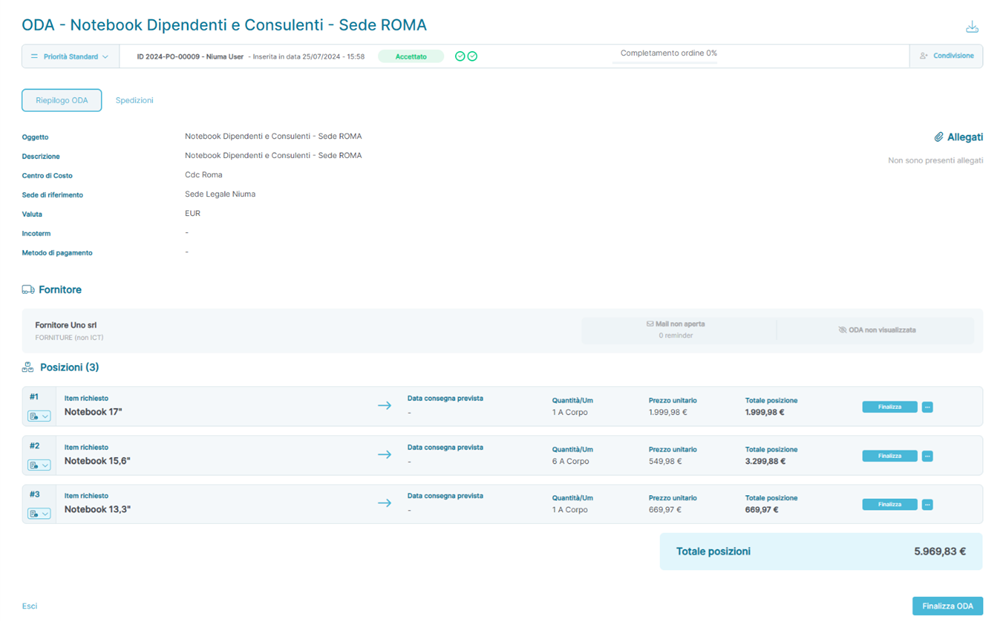
Example of the Order Summary (ODA) section for an Order in "Accepted" status - Internal User View
In detail:
- The Platform User accesses the ODA Summary, where next to each Position associated with the Order, the button is visible.
- a. By pressing the button
 , the Platform will display the only action that can be taken for the Modification Proposal: i. Propose Changes, which allows the Platform User to suggest their own Delivery Date, Quantity, and/or Unit Price, which the Supplier will either accept or reject.

Example of the Order Summary (ODA) section in Negotiation Mode - Internal User View
2. Once the Modification Proposal has been entered and saved using the Save button  , the Platform User can formally send it to the Supplier by pressing the Send button .
3. The Supplier, upon accessing the ODA Summary of an Order with Positions subject to Modification Proposals requested by the Platform User, will see an informational banner outlining the possible actions they can take. Specifically:
a. If they are not interested in accepting the Modification Proposal, they can press the Reject button  located next to all the Positions subject to the Modification Proposal made by the Platform User.
b. If they are interested in accepting the Modification Proposal, they can press the Accept button  located at the bottom of the page.
The Platform will consider all Modification Proposals for Positions where the Reject button  was not pressed as accepted.
Contracts
When clicking on the icon  in the sidenav, the User is redirected to the Contracts section, where they can view a list containing information on Contracts already registered on the Platform. Below is an example screenshot of the page:
In detail, the fields present are:
- Subject: Displays the name assigned to the Contract during its creation.
- Contract Code: Optionally displays a Code assigned to the Contract.
- Supplier: Displays the name of the Supplier with whom the Contract was signed.
- Cost Center: Displays the Cost Center associated with the Contract.
- Status: Indicates the Contract's status on the Platform.
- The status can take the following values:
- Draft: The Portal User has created a new Contract but chose to exit before completing all required fields and saved the entered information for future completion.
- Active: A Contract becomes Active if, after being generated, the Contract Validity field has only the Start Date filled in, or if the End Date is also provided and it is in the future.
- Expired: A Contract becomes Expired if the End Date in the Contract Validity field has passed.
- The status can take the following values:
- ODA: Indicates the number of Purchase Orders (ODA) generated from the Contract's Positions.
- % Budget Spent: Graphically indicates the percentage of the budget spent, which is calculated from the quantities of individual Positions that have been converted into Orders.
- It can display different colors, which can be combined, for example:
 No Orders Generated: Indicates that the Contract has not generated any Orders.
 Orders in Draft Status: Indicates that all Contract Positions have generated an Order that is in Draft status.
- The light blue color indicates that the Order is awaiting processing. By hovering over the icon
 , the percentage of the Position's quantities converted into Orders can be checked.
- The light blue color indicates that the Order is awaiting processing. By hovering over the icon
 Partial Orders Generated: Indicates that only a subset of the Contract's Positions have generated at least one Order.
 Partial Orders Approved: Indicates that only a subset of the Contract's Positions have generated at least one Order that has been approved (if an ODA approval flow is required).
- The blue color indicates that the Order has been approved and subsequently accepted by the Supplier.
 50% or More of Positions Processed: Indicates that more than 50% of the Positions have generated Orders or have been accepted by the Supplier.
- The yellow color indicates that the Order is awaiting processing. By hovering over the icon
 , the percentage of remaining quantities to be processed can be checked.
- The yellow color indicates that the Order is awaiting processing. By hovering over the icon
 All Positions Fully Processed: Indicates that all Positions in the Contract have generated all possible Orders, and these Orders have been fully accepted by the Supplier.
- The red color indicates that all Orders have been accepted by the Supplier. By hovering over the icon
 , the percentage of remaining quantities to be processed can be checked.
- The red color indicates that all Orders have been accepted by the Supplier. By hovering over the icon
- It can display different colors, which can be combined, for example:
- … :
Opens a submenu with the following options:
- View: Allows access to the Contract to view its details.
- Export: Exports the list of Contracts directly via the button

IMPORTANT: The different colors indicating the status of the Orders generated by one or more Contract Positions, shown in the % Budget Spent column, can be combined and display information similar to the ones described above. Since these percentages are calculated based on the number of Positions and the number of ODAs generated, the bar graphs representing this information will always vary.
Was this article helpful?
That’s Great!
Thank you for your feedback
Sorry! We couldn't be helpful
Thank you for your feedback
Feedback sent
We appreciate your effort and will try to fix the article