The roles assignable to registered users on the platform are described below:
Role | Permission | ||
User Manager | Can configure, modify, and delete a User and assign them a Role (except Administrator Role) | ||
Administrator | Full access to the Platform. Can create Users with Administrator Role, search for them, or assign existing Users the Administrator Role | ||
Supplier Manager | Can view/modify all Supplier details (Summary + Documents). Can invite, manually add, or bulk upload Suppliers. Can approve/reject Suppliers. Can blacklist/approve Suppliers | ||
Supplier Viewer | Can view (but not modify) all Supplier details (Summary + Documents) | ||
Consultant | Can view all Purchase Requests (except those in 'Draft' state), all RFQs (except those in 'Draft' state), all Purchase Orders (except those in 'Draft' state), and all Items | ||
Technician | Can configure the Mail servers for sending Platform emails | ||
|
| ||
| Can view (but not modify) Supplier details in Approved and Blacklist states. Can view/create/modify their own Purchase Requests, RFQs, and Purchase Orders. View Items | ||
Requester | Can view/create their own Purchase Requests. IMPORTANT: Once the Purchase Request leaves the 'Draft' state, it will become read-only | ||
Approver + Cost Center Manager | Can view the Purchase Requests, RFQs, Carts, and Purchase Orders they need to approve. Can configure, modify, activate/deactivate approval workflows and manage Cost Centers | ||
Global Approver | Can view all Purchase Requests, RFQs, Carts, and Purchase Orders in 'Approval' status and approve them at any step. Can manage approval workflows and Cost Centers |
Roles can be assigned or revoked at any time from the platform. A user may have a subset of roles assigned
or all of them. More details on the assignment methods for roles are provided in the Settings – Start Section – User Management of the manual.
IMPORTANT: The manual will continue by describing the behaviors managed in the platform, displaying the screens of a user with Administrator role.
Roles can be assigned or revoked at any time through the Platform, and it is possible for a User to have a subset of roles assigned or to have all of them assigned.
Further details on the methods for assigning Roles are provided in the Settings section – Start Section – User Management of the manual.
IMPORTANT: The manual will continue by describing the behaviors managed on the Platform, showing the screens of a User with an Administrator role.
Platform Dashboard
After entering the credentials in the designated text boxes and pressing the login button  , the user will land directly on the Dashboard page, which shows a summary of the user’s activities and the structure of the page, divided into three macro sections:
- Sidenav (in green in the image)
- Nav Bar (in purple in the image)
- Content (in orange in the image)
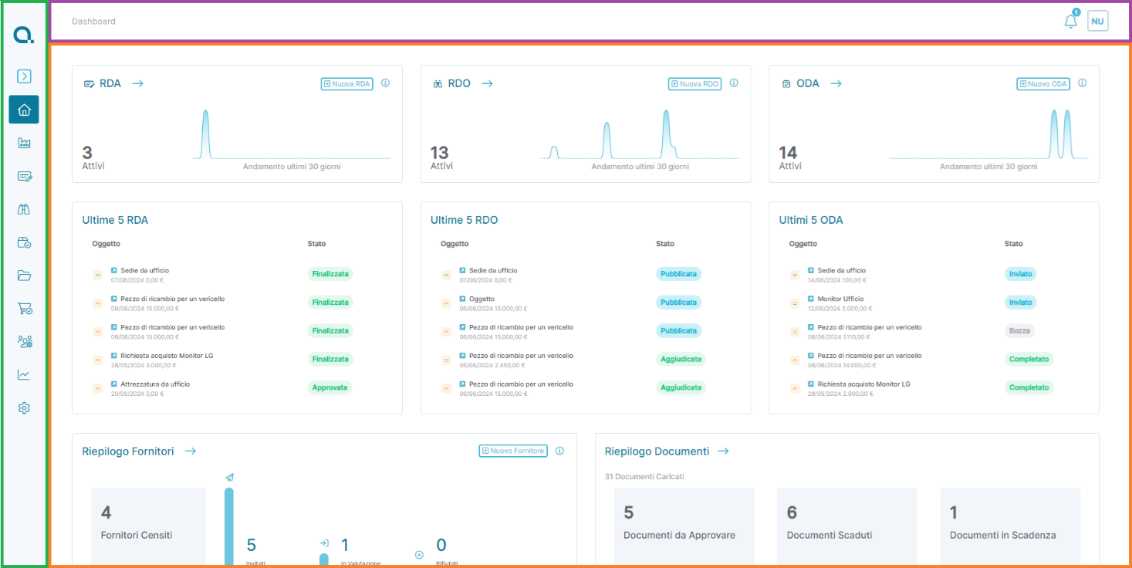
IMPORTANT: The page may differ based on the role assigned to the User.
Platform Navigation
The sidenav is the area located on the left side of the Platform's page and contains icons that, depending on the assigned Role, allow specific actions to be performed within the Portal. An expanded version of the sidenav, containing icons and descriptions, is shown below:
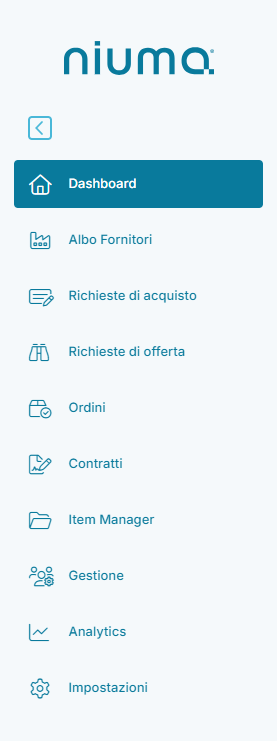
We will describe the features of the Portal following a logical sequence, starting by introducing the various sections within the Settings menu. Then, we will move on to the Supplier Register, Purchase Requests, Request for Quotations, Orders, Contracts, Management, and finally, conclude with the Analytics section
Was this article helpful?
That’s Great!
Thank you for your feedback
Sorry! We couldn't be helpful
Thank you for your feedback
Feedback sent
We appreciate your effort and will try to fix the article