Clicking on the icon  present in the sidenav redirects the User to the RDA section, where they can view a list containing information about the RDA entries already recorded in the Platform. Below is an example screenshot of the page:
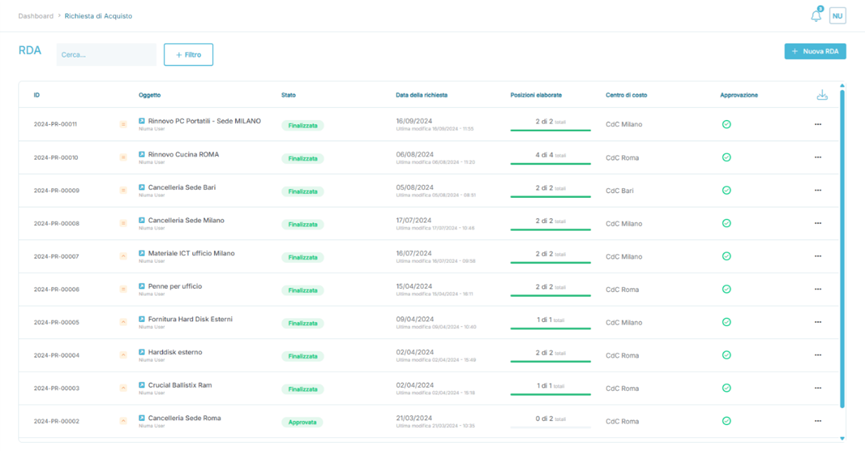
The following fields are present:
- ID: A unique identifier generated by the Portal associated with the Purchase Request.
- Subject: Displays the name assigned to the Purchase Request during its creation.
- Status: Indicates the status of the Purchase Request in the Platform. It can assume the following values:
- Draft: The User has created a new Purchase Request, chosen to exit before completing the entry of all required data, and saved the information entered for future compilation.
- IMPORTANT: If no approval workflow is configured (see Settings – Add-On Section → Add-On – Approval Workflow), upon completion of the mandatory required data, the Purchase Request will transition from Draft to Approved.
- IMPORTANT: If an approval workflow is configured (see Settings – Add-On Section → Add-On – Approval Workflow), upon completion of the mandatory required data, the Purchase Request will transition from Draft to In Approval.
- In Approval: If an active and configured approval workflow has been matched for the Purchase Request, the case is ready to be reviewed by the User with the Approver + Cost Center Manager role, who can approve (Approved), reject (Rejected), or request changes (Rejected with Reservations) from the Buyer.
- In cases with approval workflows involving more than one User with the Approver + Cost Center Manager role, the transition from In Approval to Rejected or Rejected with Reservations can occur at intermediate approval steps, but only if the immediately preceding approver has approved the case on their part.
- Approved: If an active and configured approval workflow has been matched for the Purchase Request, the case has been approved by all Users with the Approver + Cost Center Manager role involved, and no further approvals are necessary.
- Rejected: If an active and configured approval workflow has been matched for the Purchase Request, the case has been rejected by at least one of the Users with the Approver + Cost Center Manager role involved, and no further actions can be taken.
- A case in the Rejected state can no longer be processed.
- Rejected with Reservations: If an active and configured approval workflow has been matched for the Purchase Request, the case has been Rejected with Reservations by at least one of the Users with the Approver + Cost Center Manager role involved and can be modified in every part.
- Finalized: The User has generated all possible RDO and/or ODA practices, consuming all the RDA positions present within the case.
- A case in the Finalized state can no longer be processed.
- Cancelled: The User has created a new Purchase Request, chosen to exit before completing the entry of all required data, and has cancelled the information entered.
- A case in the Cancelled state can no longer be processed.
- Request Date: Displays the date of the request indicated by the User of the Portal.
- If the Request Date is in the past, the Purchase Request automatically transitions to Finalized.
- If the Request Date is current, the status transitions follow the standard flows of the Portal.
- Processed Positions: Displays, graphically, the number of Positions that have been converted into RDO and/or ODA.
- Cost Center: Displays the Cost Center associated with the Purchase Request.
- Approval: Displays, graphically, the status of the approvals.
-
 Indicates a case correctly created in the Portal or the successful approval of the Case by a User with a role that allows for approval.
- IMPORTANT: For each individual Case, it is possible to view multiple icons
 in the presence of approval rules that involve more than one approver.
- IMPORTANT: For each individual Case, it is possible to view multiple icons
-
 Indicates a case awaiting approval by a User with a role that allows for approval.
- IMPORTANT: The icon
 can also be displayed in the case of a case in the Rejected with Reservations state.
- IMPORTANT: The icon
-
 Indicates a Case rejected by a User with a role that allows for rejection.
- ...
- The three dots open a submenu containing the following options:
- View: Allows access to the Purchase Request and viewing its details.
- Export the list of Purchase Requests directly from the button.
Configuration of Purchase Requests
The creation of a Purchase Request is divided into three steps:
- RDA Data
- Positions
- RDA Summary
NOTE: In the case of a Purchase Request generated by a User with the Requester RDA role, the Purchase Request can be taken over and managed by Users with the Buyer role appropriately configured in the RDA Access Permissions flow (see Settings -> Add-on -> RDA Access Permissions for more details).
RDA Data
The RDA Data section requires the completion of header information related to the Purchase Request during entry. Below are the details:
Field | Description | Type |
Subject | Brief description of the Purchase Request | Mandatory |
Description | Extended description of the subject of the case | Optional |
Cost Center | Reference Cost Center for the Purchase Request | Mandatory |
Reference Location | Reference location for the Purchase Request | Mandatory |
Supplier | Dropdown menu of Suppliers suggested by the author of the RDA for managing the purchase of the item or service in the Purchase Request | Optional |
Request Entry Date | Allows the entry of a future date to defer the formal start of the Purchase Request. If left empty, the Purchase Request will be processed immediately at the end of the case creation process | Optional |
Currency | Allows the entry of the reference currency for the Purchase Request | Mandatory |
Priority | Allows indicating the urgency of the Purchase Request completion. It can be Standard, Medium, or High | Mandatory |
From this section, it is possible to attach RDA documents directly via the button  and add a text note or attach files from the Communications section at the bottom of the page.
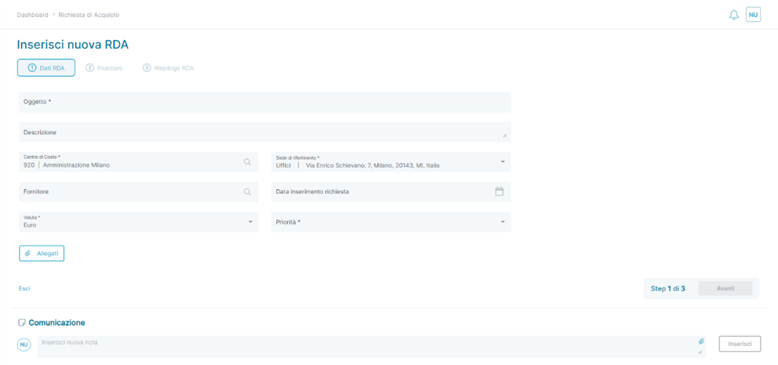
Example section RDA data of a Purchase Order (RDA)
Positions
The Positions section allows for the entry of all Positions related to the Purchase Request, both manually and imported from Item Manager. The fields, already pre-filled for items imported from Item Manager, are listed below:
Field | Description | Type |
Item Name | Brief description of the Position | Mandatory |
Purchase Description | Detailed description of the Item in the Position | Optional |
Goods Category | Goods category associated with the Position | Mandatory |
Quantity | Indicates the quantity associated with the Position | Mandatory |
Unit of Measure | Unit of measure associated with the Position | Mandatory |
Expected Delivery Date | Indicates the delivery date associated with the Position | Optional |
Cost Center | Displays the Cost Center inherited from the RDA Data section. It can be modified to another Cost Center | Mandatory |
Recommended Price | Indicates the recommended price for purchasing the good/service associated with the Position | Optional |
At the top of the Position, you can view an additional set of information, specifically:
- ID
- Item Code
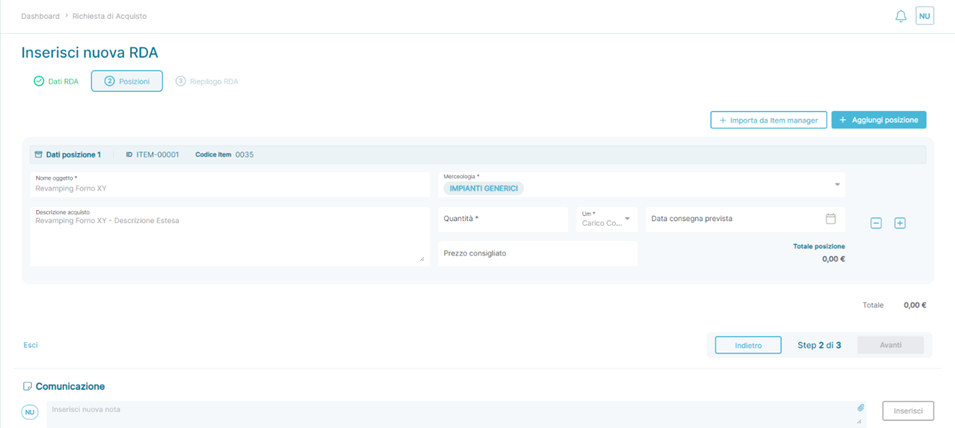
Example of the Positions section in a Purchase Request (RDA)
From this section, it is possible to add a text note or attach files from the Communications section at the bottom of the page.
Summary
The Summary section provides an overview of the information entered in the previous two steps.
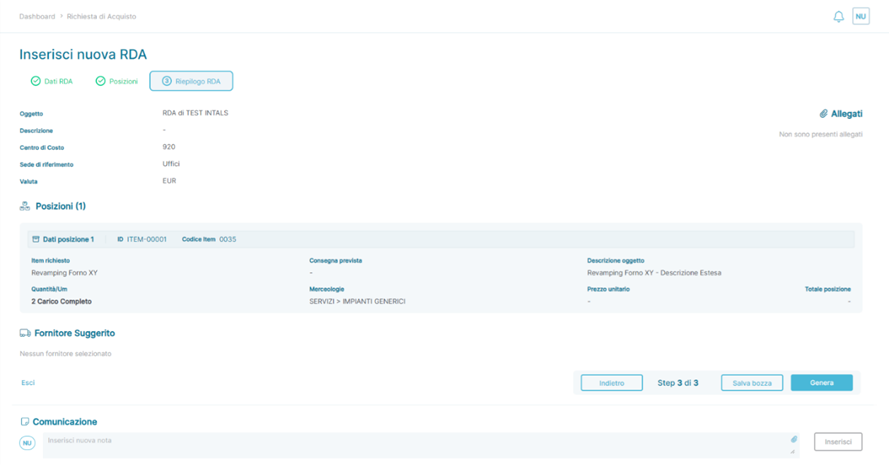 Example of the Summary section of a Purchase Request (RDA)
Upon completing the verification of the entered information, which may lead to modifications of previously entered data using either the button  or by clicking on the label of the section to be modified (
  or
or  ), it is possible to:
- Save as Draft using the button if you wish to resume the activity later, preserving all data.
- Generate the Purchase Request using the button

- Upon pressing the button, the Purchase Request may transition to one of the following application states, depending on the Platform configurations:
-
 If an approval workflow has been configured that applies to the data entered in the Purchase Request (see section Settings -> Add-on – Approval Workflow):
- In this scenario, the possible actions are:
-
 Terminate the Purchase Request definitively.
 -
 Notify the User who created the Purchase Request that actions are needed for the Purchase Request to be approved.
- In this scenario, the Purchase Request becomes editable, and the Author can modify all previously entered information.
-
 Advance the Purchase Request to the next approver (if any).
- If a rule with multiple approvers has been matched, all the buttons described above will be shown to the next configured approver within the rule.
- If no further approvers are present, the approval will trigger the transition of the Purchase Request to the Approved state .
-
- In this scenario, the possible actions are:
- If no approval workflow has been configured or if the configured approval workflows do not apply to the data entered in the Purchase Request.
-
- Upon pressing the button, the Purchase Request may transition to one of the following application states, depending on the Platform configurations:
IMPORTANT: The completion of the Purchase Request can only occur when the RDA transitions to the Approved state, which can be reached automatically by pressing the Generate button if there are no active approval workflows affecting the RDA. In cases where active approval workflows affect the entered information in the specific RDA, it can only be reached after all involved approving Users have completed the approval process (see section Settings -> Add-On -> Approval Workflow for more details).
From this section, it is possible to add a text note or attach files from the Communications section at the bottom of the page.
Was this article helpful?
That’s Great!
Thank you for your feedback
Sorry! We couldn't be helpful
Thank you for your feedback
Feedback sent
We appreciate your effort and will try to fix the article