In the Add-on section of the Settings, you can view, add, and/or modify Items (Item Manager), the documents required from Suppliers during the onboarding phase (Document Management), the approval workflows to be used within the Portal (Approval Workflow), the processing workflows for Purchase Requests, Request for Quotation, and/or Purchase Orders (Visibility Workflow), and the configuration of notification and reminder emails (Reminder Configuration).
Add-on – Item Manager
The Item Manager section, accessible via the sidenav through the icon , contains the details of items to be added as positions in a new Purchase Request, Quotation Request, or Order. You can view its content by clicking the designated icon. Upon clicking, a page will open as shown below:
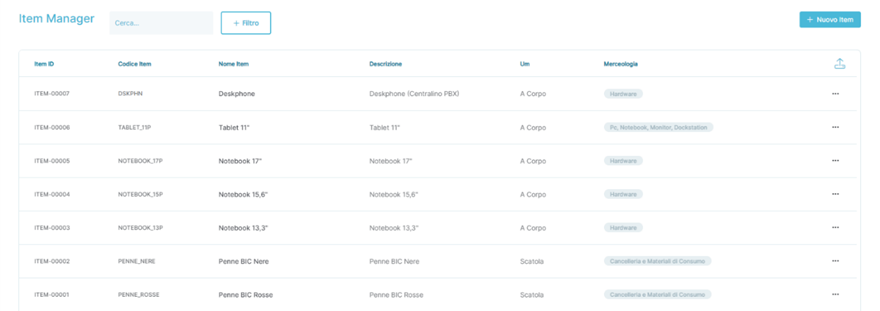
In detail, the fields present are:
- Item Id: Displays the identifier of the Item detached from the Platform.
- Item Code: Displays a custom Code indicated by the user during entry.
- If no custom Item Code is provided, the Platform will show the same value as in the Item Id field.
- Item Name: Displays the name assigned to the Item.
- Description: Displays the description of the Item (if explicitly provided during creation).
- Unit of Measure (Um): Displays the unit of measure associated with the Item.
- Merchandise: Displays the merchandise associated with the Item.
From the Item Manager page, it is possible to:
- Search for an existing Item in the Platform using the dedicated search engine.
- Manually add an Item directly using the button

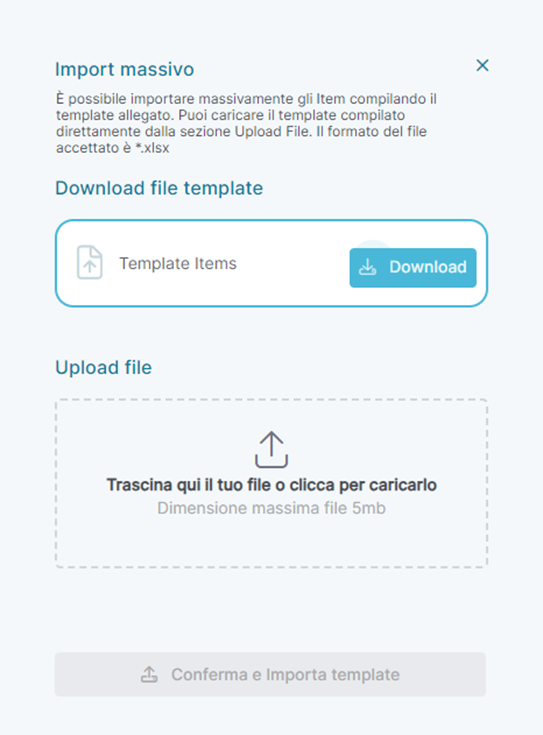
- Import Items directly using the button

- Pressing the button will open a section on the left side of the Portal where you can download the bulk template to be re-uploaded later with the Items you wish to import. Below is a screenshot of the section:
Add-on – Document Management
The Document Management section contains the details of the documents that can be requested from a Supplier.
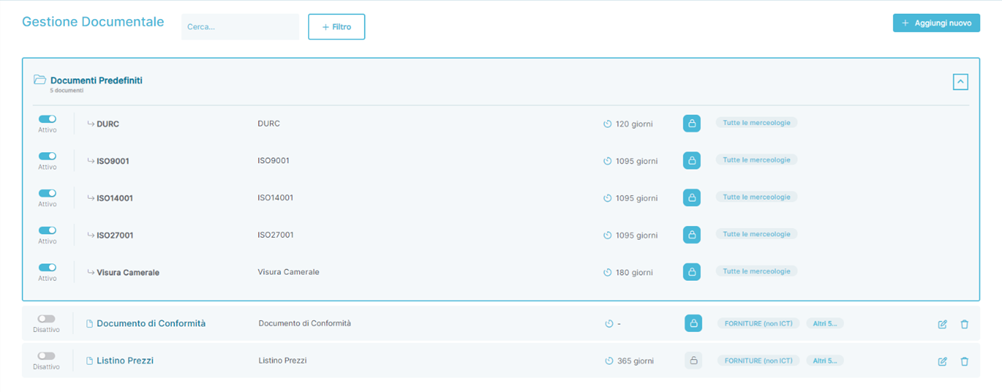
Upon clicking, a page will open as shown below:
Add-on – Document Management
The page is divided into two main sections that identify two different types of documents:
- Default Documents
- This section, accessible by clicking the button
 , contains a list of documents whose Start Validity Date and End Validity Date are extracted from Artificial Intelligence.
- Custom Documents
- This section, positioned immediately below the Default Documents section, is initially empty and can be populated with new documents manually added by the user by clicking the button

In detail, the fields and functionalities available for each document are:
- Document Status
- For any type of document, if active, it is indicated with this icon

- For any type of document, if inactive, it is indicated with this icon

- Name: Displays the name assigned to the document
- If it is a Default Document,
 , the name cannot be modified by the user.
 - If it is a Custom Document,
 , the name can be entered during the document creation phase and modified later.
- Description: Displays the description of the document
- If it is a Default Document, the description cannot be modified by the user.
- If it is a Custom Document, the description can be entered during the document creation phase and modified later.
- Validity: Indicates the validity of the document, expressed in days
- For any type of document, if no expiration date is specified, the is displayed.

- For any type of document, if no expiration date is specified, the is displayed.
- If it is a Default Document, the validity cannot be modified by the user.
- If it is a Custom Document, the validity can be specified during the document creation phase and modified later.
- For any type of document, if an expiration date is specified, the icon is displayed.

- If it is a Default Document, the validity cannot be modified by the user.
- If it is a Custom Document, the validity can be specified during the document creation phase and modified later.
- Mandatory/Optional: Indicates whether a document must be uploaded by the supplier as mandatory or optionally
- Mandatory is indicated with this icon

- Optional is indicated with this icon

- Categories: Indicates the categories associated with the document
- The category entered in this section is compared with the category assigned to the supplier present in the Supplier Registry.
- If it is a Default Document, the categories are not modifiable, and the document is requested for all configured categories, thus for all suppliers.
- If it is a Custom Document, the categories can be specified during the document creation phase and modified later; the document is requested only from suppliers whose category matches that configured for the document.
- Edit/Remove Tools
- For Custom Documents only, it is possible to edit
 or delete
  the document.
- For Custom Documents only, it is possible to edit
From the Document Management page, it is possible to:
- Search for a document already present on the platform using the dedicated search engine
- Manually add a new document directly by clicking the button

Whether adding a new document or modifying an existing one, the details page to be filled out is identical and appears as shown below:
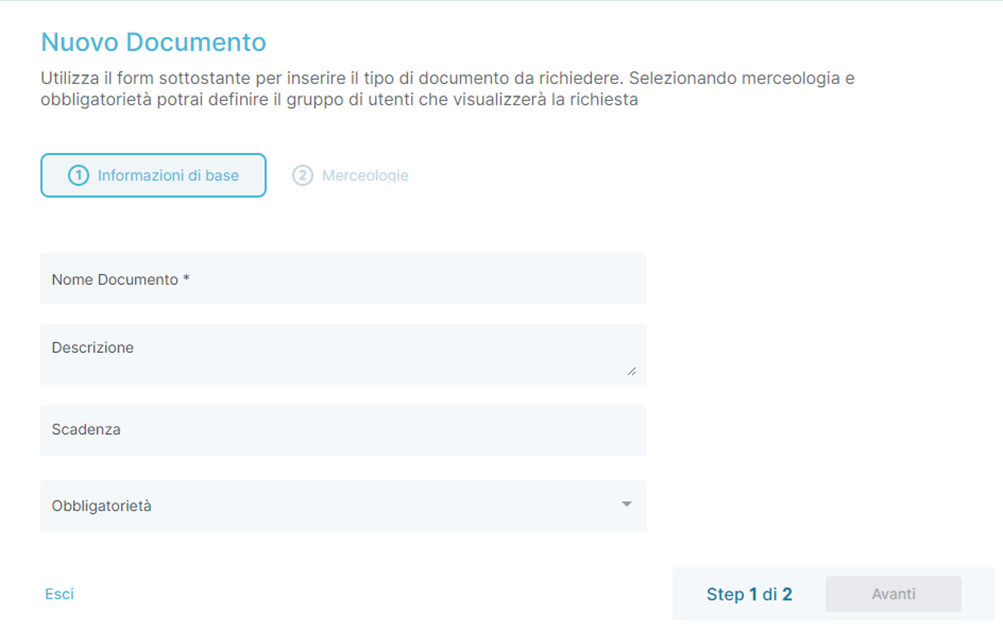
In detail, in the first section of adding or modifying a Document, Basic Information, the fields to be filled out are:
- Document Name
- Description
- Deadline
- Mandatory
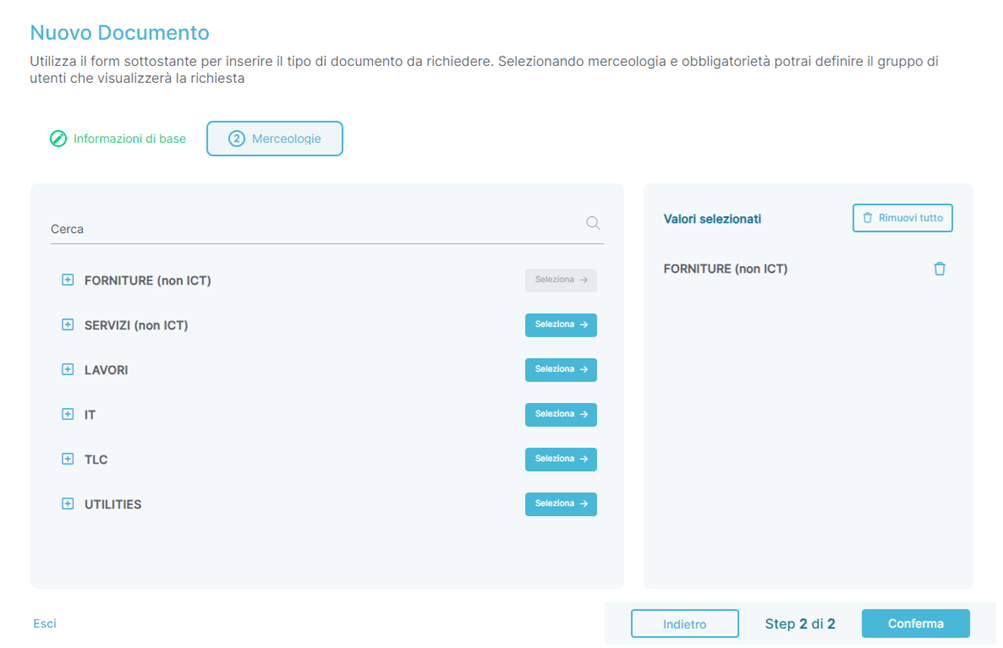
Within the second section, Merchandise, it is possible to assign and/or revoke one or more merchandise categories that will allow the Document to be requested only from Suppliers with the corresponding Merchandise category as selected, as indicated in the image shown below:
Add-on – Approval Workflow
The Approval Workflow section contains references to the approval flows that can be associated with Purchase Requests (RDA), Request for Quotations (RDO), and Purchase Orders (ODA). You can view the configured rules by clicking on the appropriate icon. When the mouse is clicked, a page like the one shown below will open:

From the Approval Workflow Page, it is possible to:
- For each approval flow:
- Check the status of a flow:
- If active, it is indicated with this icon

- If inactive, it is indicated with this icon

- If active, it is indicated with this icon
- Enter the details page of an approval flow by clicking on the name assigned to the flow during its creation.
- View a counter for the Approval Bands configured for the specific rule.
- View a counter for the reference Locations where the specific rule applies.
- View a counter for the Cost Centers where the specific rule applies.
- View the section of the portal where the specific rule applies:
- This can be indicated as ‘RDA’, ‘RDO’, ‘ODA’, or a combination of these.
- Edit
 or delete
  the specific rule:
 - If the rule is in Active status, deletion of the specific rule will not be allowed, and the corresponding icon will be non-clickable
 .
. - Add a new approval flow directly by clicking the button

When accessing the detail page for creating or modifying an approval flow, you can build and modify approval rules by acting on the individual sections of the page:
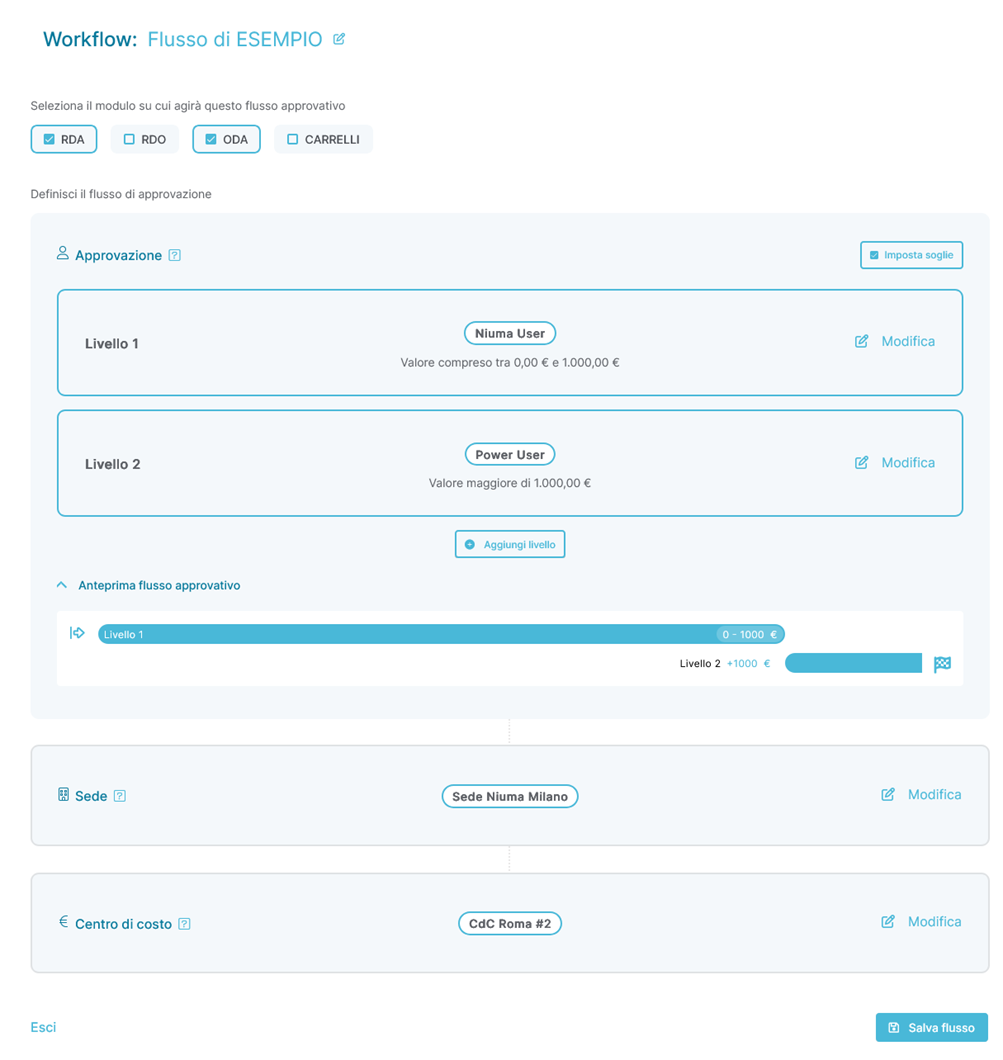
In the order they appear on the page, from top to bottom, the ORBIT User can assign a name to the flow or modify the existing one through the designated icon ( ) and decide on which Modules (RDA, RDO, and/or ODA) the specific flow applies:
•  indicates that a specific Module is included in the flow and
•  indicates that a specific Module is not included in the flow
The visibility rule can be configured to support multiple modules simultaneously; therefore, the operation of a specific visibility Workflow rule can be enabled on all or a subset of the available Modules (RDA, RDO, ODA, ODA from Contract). Just below, the following sections are present:
• Approval
o From this section, you can configure the rule for engaging Approving Users in two different modes:
#1 - Engagement of Approving Users based on level
• The Platform will always consider the transition through all configured levels.
#2 - Engagement of Approving Users based on thresholds
• If this mode is active, the Platform will consider the transition through a specific level only if the threshold conditions imposed are met by the economic value of the Case under approval.
• Site
o In this section, it is possible to configure the Sites on which the approval flow is based.
• Cost Center
o In this section, you can configure the Cost Centers associated with the Cases under approval.
The rule operates based on a LOGICAL AND, meaning that for the rule to match, all sections (Site, Cost Center) must be considered TRUE simultaneously: if even one of the conditions is not met, the rule is not applicable and therefore ignored.
In the case of multiple active rules applying to overlapping sections (Site, Cost Center), the Platform will validate all matching rules.
• Any overlaps do not alter the behavior.
• Any DELTAs will be collected and contribute to extending/integrating the matching rules through overlap.
o In the case of two different approved flows with the same Site and Cost Center but different Approvers, the Platform will allow Approvers of all matching rules to approve the Case.
IMPORTANT: Users with the Global Approver role, who are global approvers of the portal, can approve all Practices regardless of the rule configurations, even if not explicitly mentioned within an approval rule
Add-on – Visibility Workflow
The Visibility Workflow section contains references to the visibility flows that can be applied to RDA, RDO, and/or ODA cases generated by a user with the role of RDA Requester (only RDA), Buyer, and Global Buyer (RDA, RDO, and ODA). You can view the configured rules by clicking the corresponding icon. Upon clicking, a page like the one shown below will open:

From the Visibility Workflow page, you can:
- For each flow:
- Check the status of a flow:
- If active, it is indicated with this icon:

- If inactive, it is indicated with this icon:

- If active, it is indicated with this icon:
- Access the details page of an RDA, RDO, and/or ODA visibility flow by clicking the name assigned to the flow during its creation.
- View the Locations to which the specific flow applies.
- View the Cost Centers to which the specific flow applies.
- View the Categories to which the specific flow applies.
- Modify (
 ) or delete (
 ) the specific flow.
- If the flow is in ‘Active’ status, it will not be possible to delete it, and the corresponding icon will be unclickable (
 ).
).
- If the flow is in ‘Active’ status, it will not be possible to delete it, and the corresponding icon will be unclickable (
- Check the status of a flow:
- Add a new RDA, RDO, and/or ODA access flow directly from the button

By accessing the creation or modification page of an RDA, RDO, and/or ODA access flow, you can build and modify the visibility rules of the RDA, RDO, and/or ODA by interacting with the individual sections of the page:
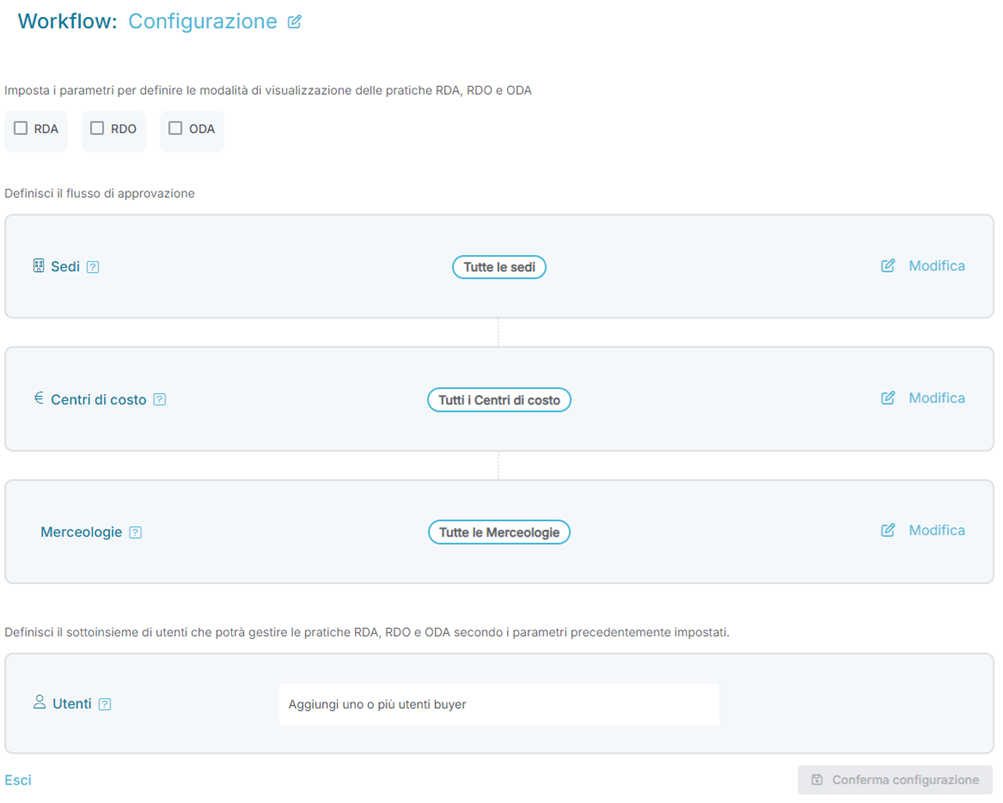
From top to bottom on the page, the ORBIT User can assign a name to the flow or modify the existing one via the corresponding icon ( ) and decide which Modules (RDA, RDO, and/or ODA) the specific flow applies to:
-
 indicates that a specific Module is included in the flow.
  indicates that a specific Module is not included in the flow.
The visibility rule can be configured to support multiple modules simultaneously. Therefore, a specific Visibility Workflow rule can be enabled on all or a subset of the available modules (RDA, RDO, and ODA).
Just below, the following sections are available:
- Locations
- From this section, you can configure the locations to which the RDA, RDO, and/or ODA visibility flow applies.
- Cost Centers
- From this section, you can configure the cost centers to which the RDA, RDO, and/or ODA visibility flow applies.
- Categories
- From this section, you can configure the categories to which the RDA, RDO, and/or ODA visibility flow applies.
- The reference category used for matching the RDA, RDO, and/or ODA visibility flow is the one assigned to the positions within an RDA, RDO, and/or ODA.
- From this section, you can configure the categories to which the RDA, RDO, and/or ODA visibility flow applies.
- Users
- From this section, you can configure the users who will have access to the RDA, RDO, and/or ODA whose characteristics have been defined in the previous points (Locations, Cost Centers, Categories).
The rule operates based on a logical AND condition, meaning that the RDA, RDO, and/or ODA access flow requires all the sections (Locations, Cost Centers, Categories) to be simultaneously true: if even one condition is not met, the RDA, RDO, and/or ODA access flow is not considered applicable and is therefore ignored.
In case there are multiple active RDA, RDO, and/or ODA access flows that apply to overlapping sections (Locations, Cost Centers, Categories), the platform will validate all matched RDA, RDO, and/or ODA access flows:
- Any overlaps will not affect behavior.
- Any DELTAwill be collected and will contribute to extending/integrating the matched RDA, RDO, and/or ODA access flows through overlap.
- If two different RDA, RDO, and/or ODA access flows have the same Locations, Cost Centers, and Categories but different configured users, the platform will allow all users in all matched rules to view and work on the RDA, RDO, and/or ODA.
IMPORTANT: Users with the role of Advanced Buyer, who are global buyers of the portal, can view and work on all RDAs, RDOs, and/or ODAs regardless of rule configurations, even if they are not explicitly indicated in an RDA, RDO, and/or ODA access flow.
Reminder Configuration
The Reminder Configuration section contains the rules that govern the sending of reminder emails for pending activities within the Portal. These rules apply to both internal users and suppliers. Clicking the appropriate icon will open a dedicated page.
Page Structure
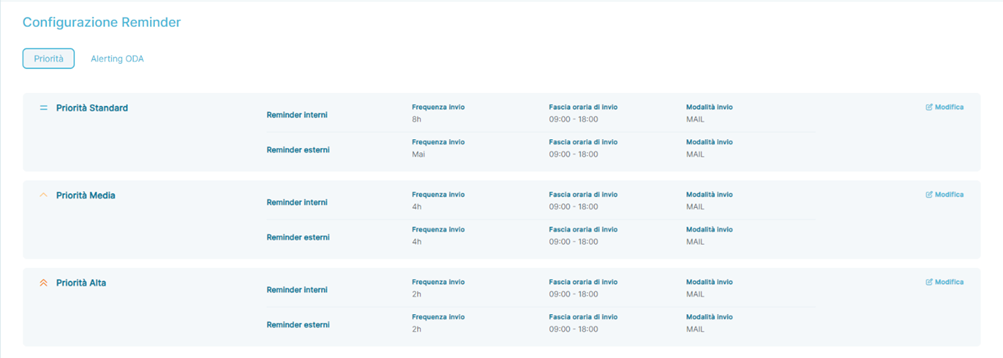
The Reminder Configuration page is divided into two main sections:
- Priority: open by default.
- Alerting ODA: accessible by clicking the corresponding label.
Reminder Configuration – Priority
This section is subdivided into three subsections, each with an identical structure:
- Standard Priority
- Medium Priority
- High Priority
Each subsection is further divided into:
- Internal Reminders
- External Reminders
For both types of reminders, the subsections (Standard Priority, Medium Priority, and High Priority) include the following fields:
- Send Frequency: Indicates the time interval between sending one notification e-mail and the next.
- Sending Time Slot: Indicates the time frame within which, based on the configured Send Frequency, the Portal sends emails.
- Sending Mode: Indicates the method used to notify users of pending activities in the Portal. Currently, e-mail notifications are the only option available.
Modifying Rules
For each subsection, it is possible to modify the default values set during the Portal's setup. By clicking the appropriate button, a modification screen will open, which is similar for all priorities, allowing configuration of:
- Send Frequency: Choose the time interval for notifications from a dropdown menu.
- Sending Time Slot: Choose the time range for sending.
- Sending Mode: Choose the method for sending notifications. Currently, the only available option is EMAIL.
For each of the three subsections (Standard Priority, Medium Priority, and High Priority), there is the possibility to modify the default values made available during the portal setup phase. In detail, by pressing the button , a screen will open (identical for all types of Priority) as shown below:
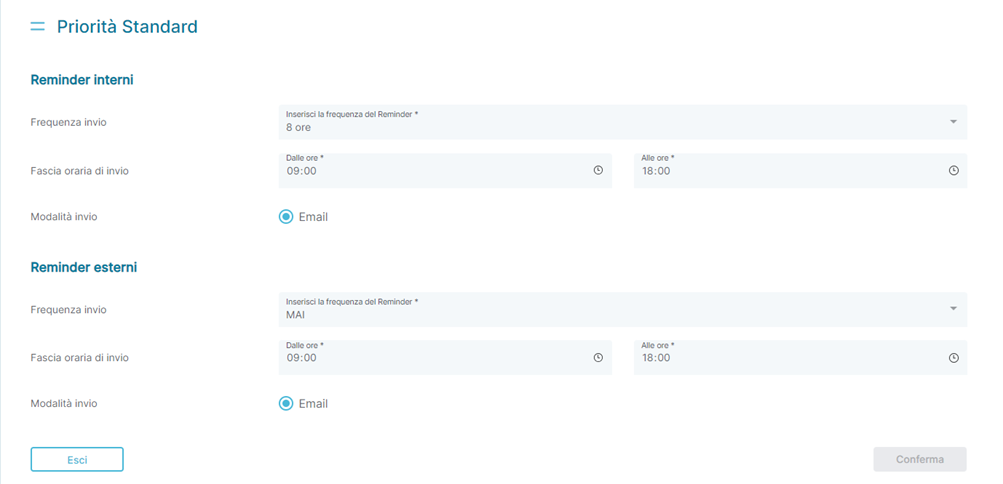
From this new screen, it is possible to modify the activation and functioning rules of reminders for both internal users and suppliers. Specifically, you can configure the following for both types of users (Internal Users and External Users):
- Send Frequency:
This allows you to choose, from a dropdown menu containing predefined values, the time interval between sending one notification e-mail and the next.
Selectable values include:- NEVER
- 2 hours
- 4 hours
- 8 hours
- Sending Time Slot:
This allows you to choose the time frame within which the Portal will send emails based on the configured Send Frequency.
Selectable values are the hh for the start of the validity period and hh for the end of the validity period.
- Sending Mode:
This allows you to choose the method used to send notifications to the user in the presence of pending activities within the Portal.
Currently, the only available method provided by the Portal is EMAIL.
Reminder Configuration – Alerting ODA
The Alerting ODA section allows for configuring reminders for suppliers based on the Delivery Date present in the Positions of an Order. Clicking on the corresponding label will open a dedicated page.
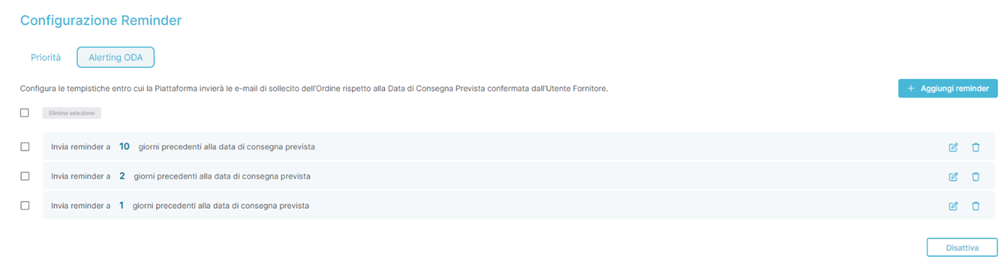
Functionality of the Alerting ODA Page
From the Alerting ODA page, it is possible to:
- Add the first reminder if no reminders have been configured.
- If at least one reminder has been configured, it is possible to view the status of all configured reminders in detail:
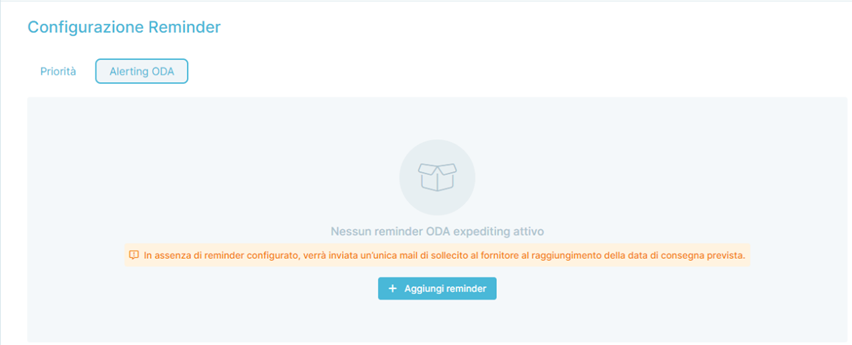
- View the number of days before the Delivery Date of an item in an Order that triggers the sending of a reminder to the Supplier receiving the Order.
- Modify (
 ) or delete (
 ) the reminder.
- Add a new reminder directly using the button

- Disable the sending of all reminders using the button

- IMPORTANT: If Alerts are deactivated, the Portal will only send emails based on the Priority configuration (see the Reminder Configuration – Priority section).
A reminder acts on each Position of an Order. The applicability criterion for the reminder is based on the Position with the earliest Delivery Date that has not been finalized by the internal Portal User ( →
→  ). Once the first Delivery Date is exceeded, the reminder will consider the Position with the next Delivery Date that is chronologically closest and has not been finalized by the internal Portal User (
  →
→  ). The reminder stops sending notifications to the Supplier upon finalization of the last Position of the Order.
The Portal sends notifications to the Supplier based on the ODA reminders configured in this section for all Positions of an Order that have not been finalized by the internal Portal User (  →
→  ).
).
Settings – Customize Section
From the Customize section of the Settings, you can view, add, and/or modify the configurations of mail servers (E-mail Configuration), Incoterms, and Payment Methods.
Customize – E-mail Configuration
The E-mail Configuration section contains references for the mail server configurations used by the Portal to send internal and external emails, and details can be viewed by clicking the appropriate icon. Clicking the icon will open a page as shown below:
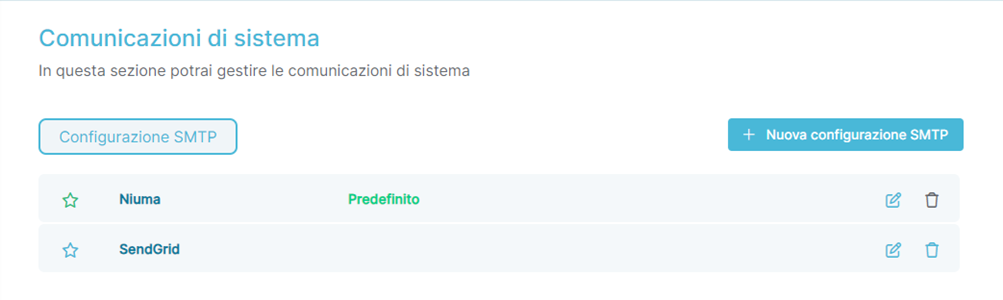
Functionality of the E-mail Configuration Page
From the SMTP Configuration page, it is possible to:
- View which mail server is used by the Portal:
- The icon
 indicates, along with the description
  , the mail server currently in use.
 - The icon
 indicates a configured mail server that is currently not in use.
- The icon
- View the name assigned to the mail server configuration:
- Modify
 or delete
  the specific mail server configuration. If a configuration is in ‘Active’ state, it cannot be deleted , and the corresponding icon will be non-clickable.
- Modify
- Add a new mail server configuration directly from the dedicated button

When accessing the detail page for an approval flow in creation or modification mode, you can build and modify approvala rules by interacting with the individual sections of the page.
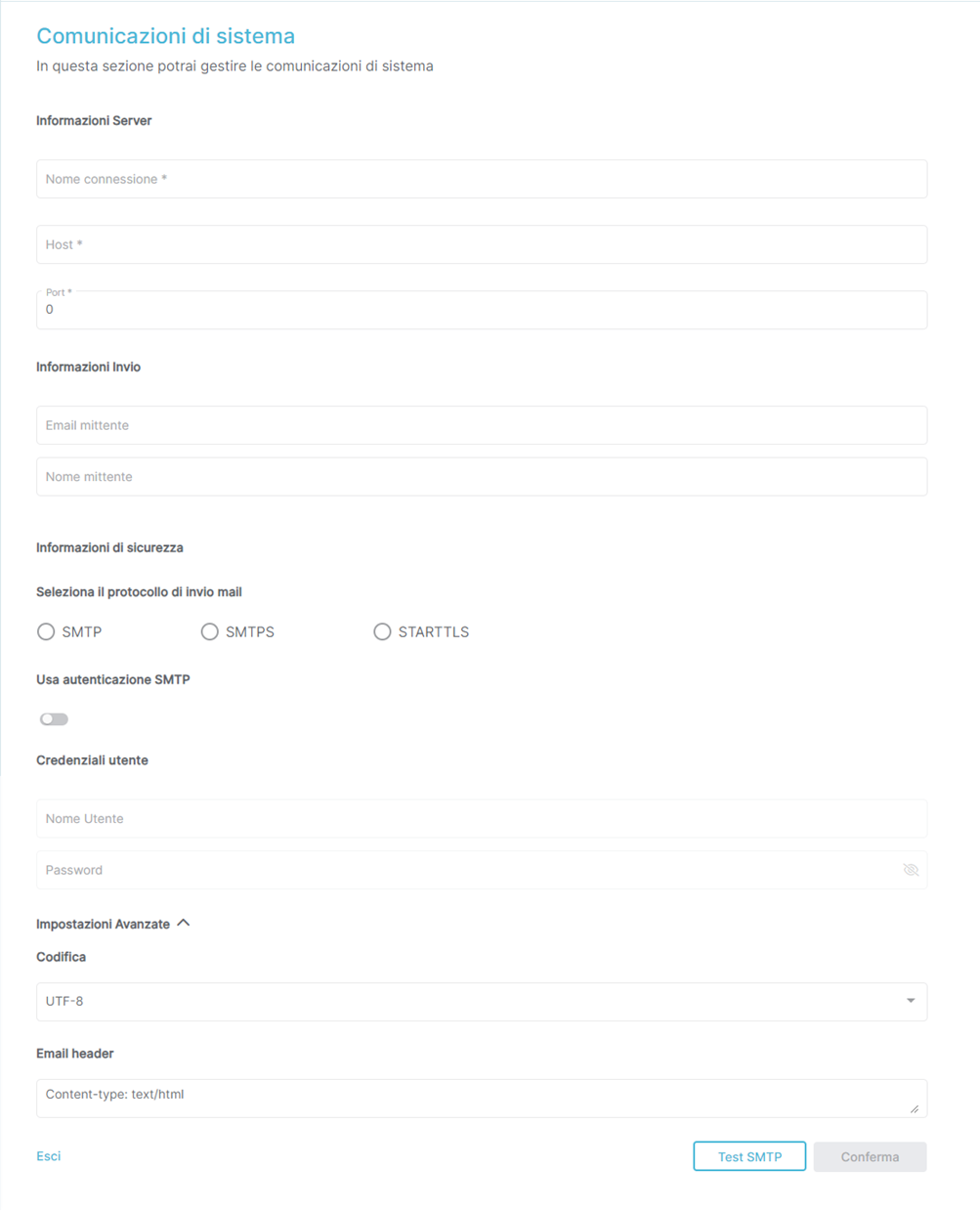
Details:
- Server Information
- Connection Name
- This field allows you to enter the name associated with the mail server configuration.
- Host
- This field allows you to enter the hostname of the mail server.
- Port
- This field allows you to enter the port used by the mail server.
- Sending Information
- Sender E-mail
- This field allows you to enter the e-mail address used for sending emails from the mail server.
- Sender Name
- This field allows you to enter the name displayed by mail clients when receiving emails sent from the mail server.
- Security Information
- Select Mail Sending Protocol
- This allows you to select the security protocol used by the mail server.
- It can take one of the following values:
- SMTP
- SMTPS
- STARTTLS
- It can take one of the following values:
- This allows you to select the security protocol used by the mail server.
- Use SMTP Authentication
- This allows you to enable (
 ) or disable (
  ) the use of SMTP authentication for the mail server.
- This allows you to enable (
- User Credentials
- Username
- This field allows you to enter the username used to connect to the mail server.
- Password
- This field allows you to enter the password associated with the username used to connect to the mail server.
- Username
- Advanced Settings
- Encoding
- This allows you to select, from a dropdown menu, the UNICODE character encoding used by the mail server.
- It can take one of the following values:
- UTF-8
- UTF-16
- UTF-32
- It can take one of the following values:
- This allows you to select, from a dropdown menu, the UNICODE character encoding used by the mail server.
- E-mail Header
- This allows you to enter a custom header for the emails sent from the mail server.
- The default on the platform is
Content-type: text/html.
- The default on the platform is
- This allows you to enter a custom header for the emails sent from the mail server.
It is possible to test the functionality of the entered parameters by pressing the button  .
.
Customize – Incoterms
The Incoterms section contains references to the Incoterms that can be optionally associated with Requests for Quotation or Orders. You can view the contents by clicking the appropriate icon. Upon clicking, a page will open as shown below:
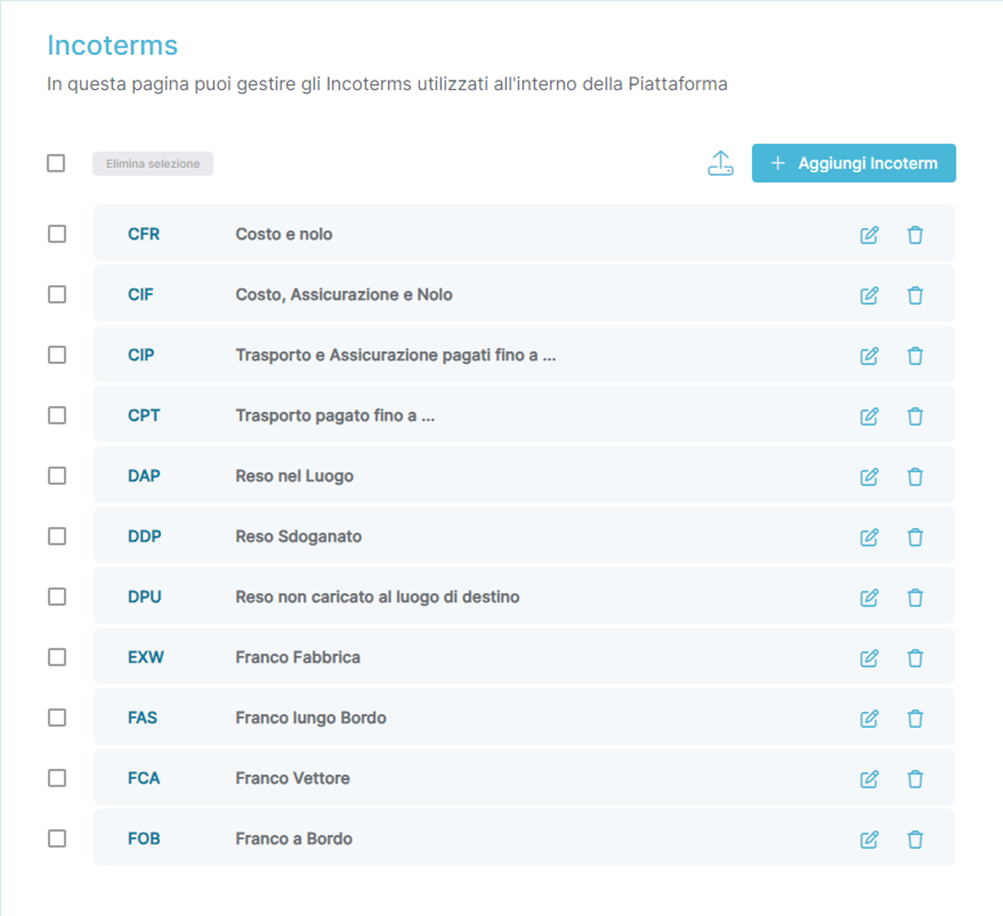
From the Incoterms page, you can:
- View the ID associated with the Incoterm.
- View the name associated with the Incoterm.
- Modify (
 ) or delete (
 ) the Incoterm.
 - Manually add an Incoterm directly using the button
 .
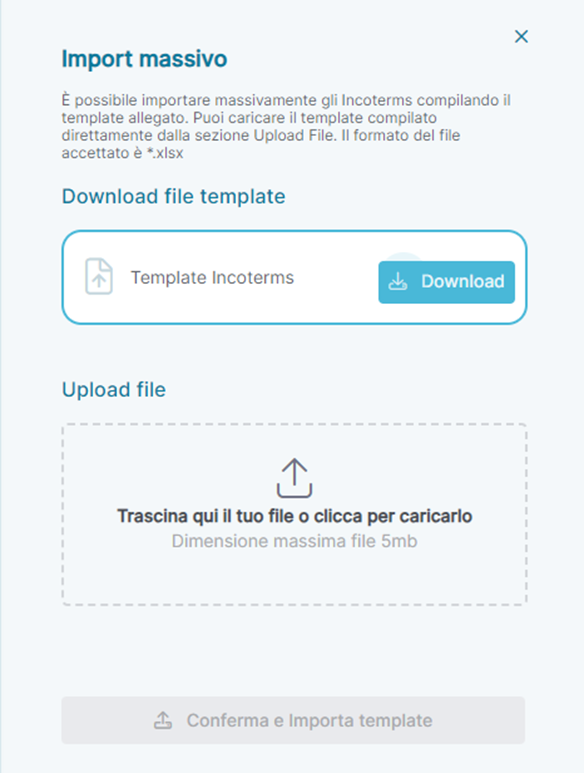
. - Import Incoterms directly using the button
 .
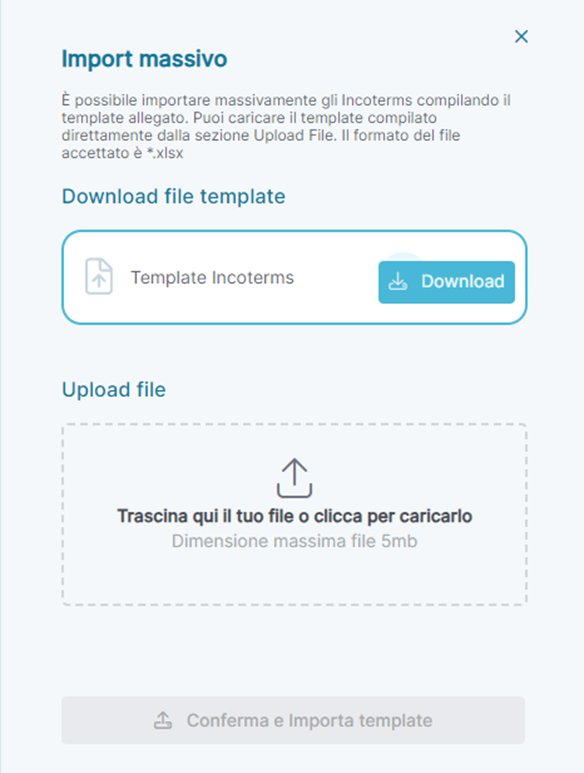
.- Pressing this button will open a section on the left side of the portal where you can download the bulk template to be reloaded directly into the platform with the Incoterms to be imported. Below is a screenshot of the section:
When accessing the creation ( ) or modification (
  ) of an Incoterm, the portal displays the fields to be filled in (CODE and Description). Below is a screenshot of the section:
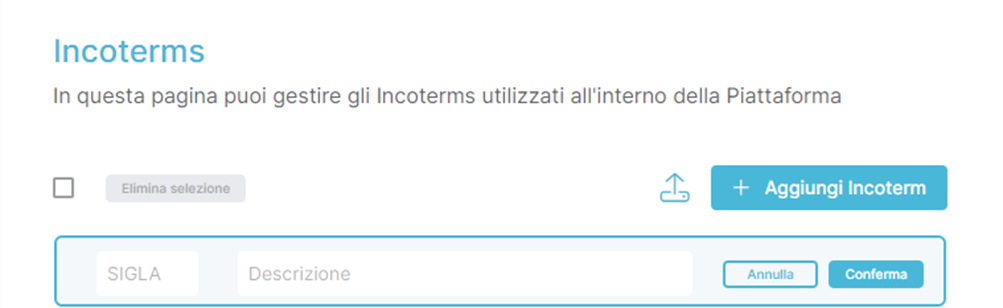
Upon completing the form, you can confirm ( ) or cancel (
  ) the entered data.
Customize – Payment Methods
The Payment Methods section contains references to the Payment Methods that can optionally be associated with Requests for Quotation or Orders. You can view the contents by clicking on the appropriate icon. Clicking the mouse will open a page similar to the one shown below:
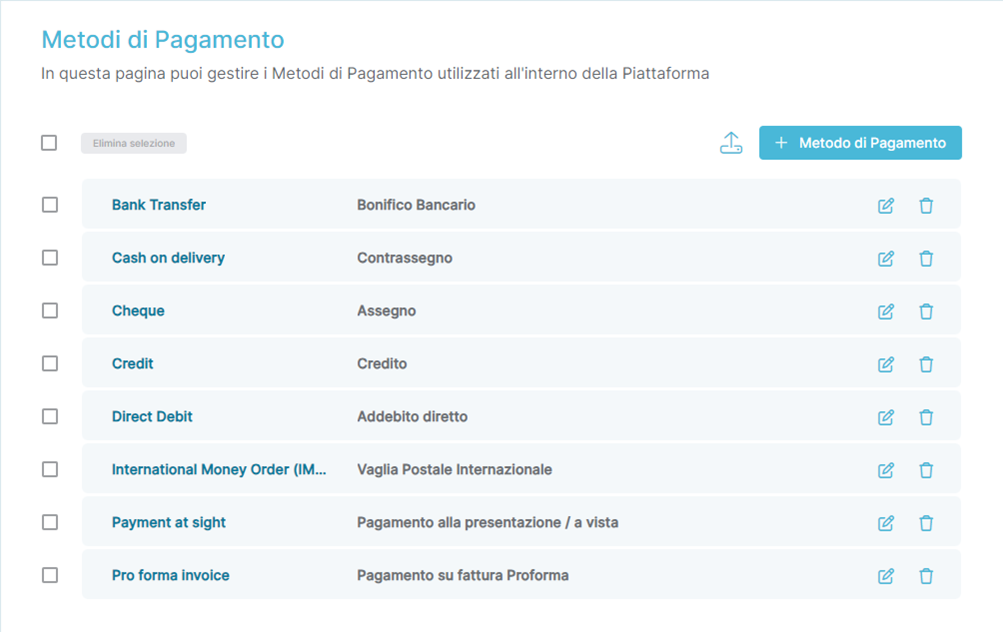
Dalla pagina dei Metodi di Pagamento è possibile:
- Visualizzare l’ID associato al Metodo di Pagamento
- Visualizzare il nome associato al Metodo di Pagamento
- Modificare (
 ) oppure eliminare (
  ) il Metodo di Pagamento
 - Aggiungere manualmente un Metodo di Pagamento direttamente dal bottone

- Importare i Metodi di Pagamento direttamente dal bottone

- La pressione del bottone aprirà una sezione alla sinistra del Portale dove è possibile scaricare il template massivo da ricaricare direttamente in Piattaforma con i Metodi di Pagamento da importare. Segue schermata della sezione:
 ) or editing (
  ) an Incoterm, the portal displays fields to be filled in, specifically: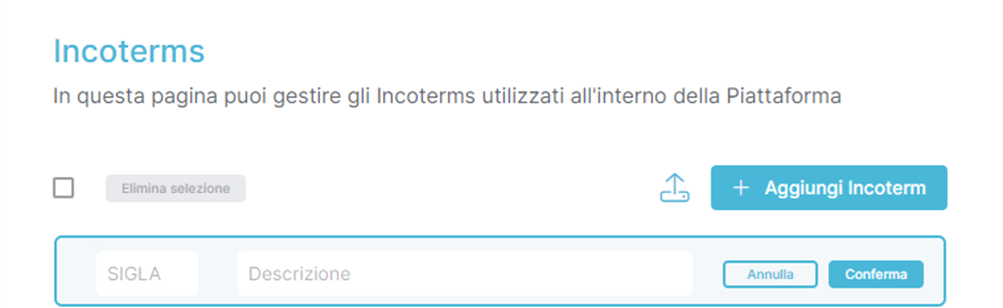
 ), or
), or ).
).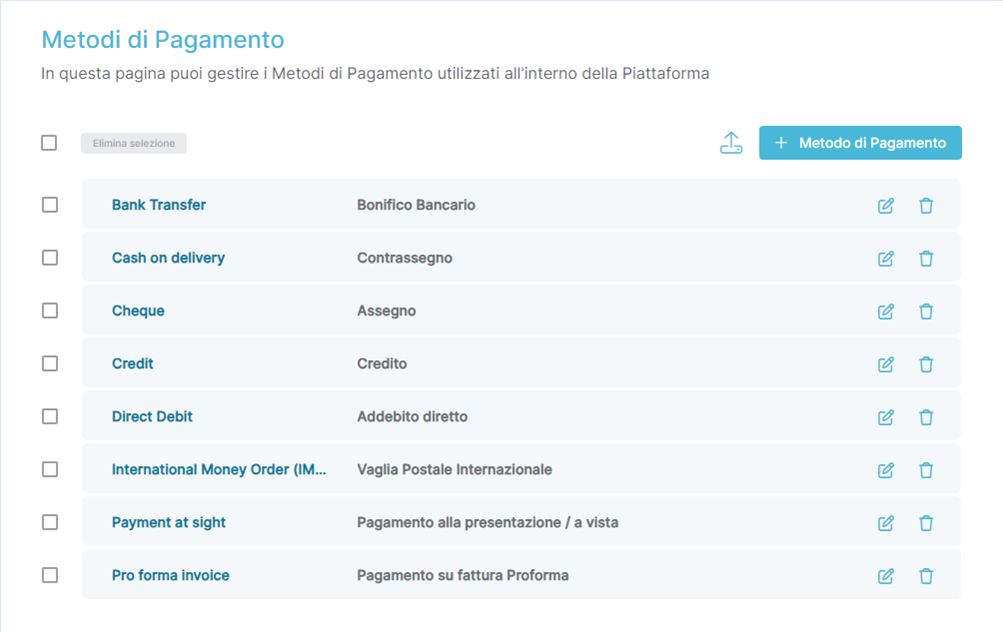
From the Payment Methods page, you can:
- View the ID associated with the Payment Method.
- View the name associated with the Payment Method.
- Modify (
 ) or delete (
 ) the Payment Method.
 - Manually add a Payment Method directly using the button
 .
. - Import Payment Methods directly using the button
 .
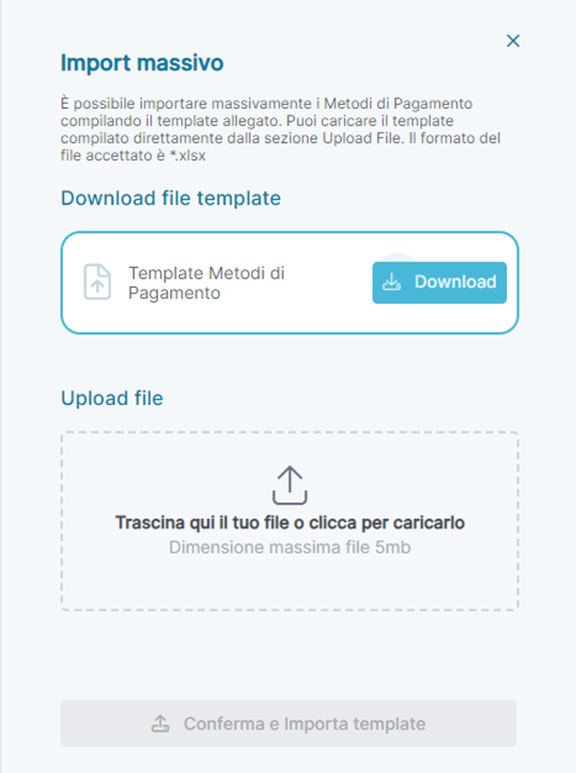
.- Pressing the button will open a section on the left side of the Portal where you can download the bulk template to be re-uploaded to the Platform with the Payment Methods to be imported. Below is a screenshot of this section:
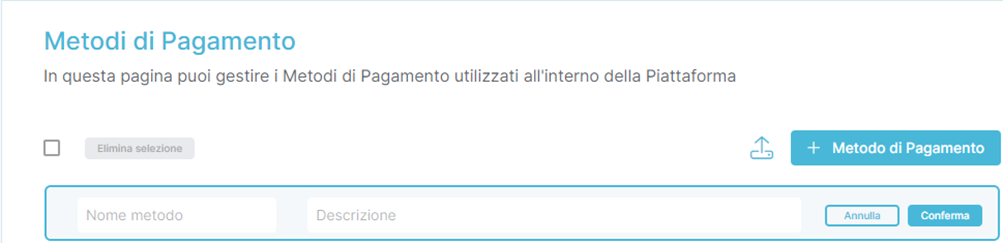
When accessing the creation ( ) or modification (
 ) of a Payment Method, the Portal displays the fields to be filled out (Payment Method Name and Description). Below is a screenshot of this section:
Upon completing the form, you can confirm ( ) or cancel (
  ) the entered data.
Was this article helpful?
That’s Great!
Thank you for your feedback
Sorry! We couldn't be helpful
Thank you for your feedback
Feedback sent
We appreciate your effort and will try to fix the article