The Required Documents section allows you to add documents requested from Suppliers.

Example of the Required Documents section of a Request for Quotation (RDO)
Requesting documents from the Supplier is optional. If the author of the RDO decides to include one (or more), the information to be entered is as follows:
Field | Description | Type |
Name | Brief description of the requested document | Mandatory |
Description | Extended description of the requested document | Optional |
Mandatory/Optional | Indicates whether the Supplier is required to upload the document in order to submit an offer, or if the upload is optional. - Mandatory indicated with  - Optional indicated with  | Mandatory |
Remove/Add  | Allows you to remove  a previously added a previously added  document or add a new requested document. document or add a new requested document. | Optional |
From this section, it is possible to add a text note or attach files from the Communications section at the bottom of the page.
Summary
The Summary section provides an overview of the information entered in the four previous steps.
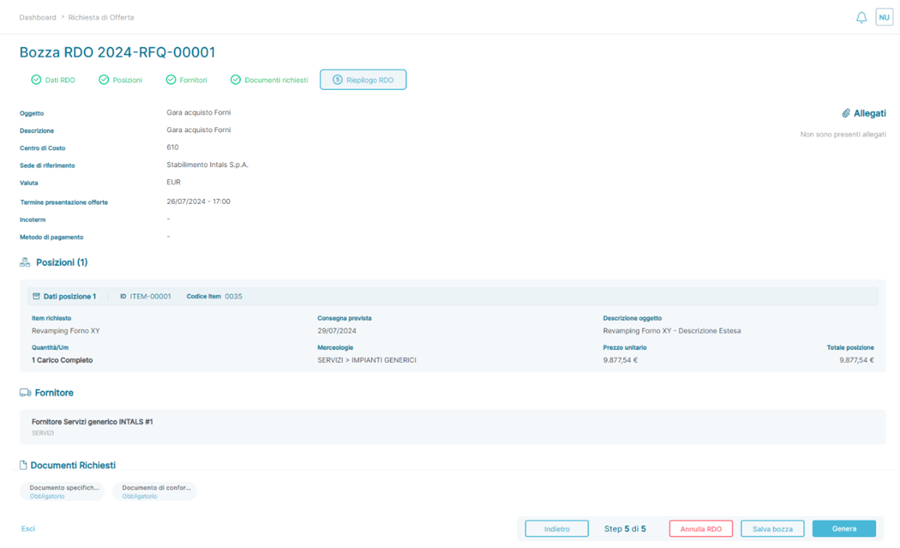
Example of the Summary section of a Request for Quotation (RDO)
After verifying the entered information, which may lead to modifications of previously entered data using the button or by clicking on the label of the section to be modified ( ,
,

 ), it is possible to:
- Permanently cancel the RDO using the button
 Save as a Draft using the button
  if you want to resume the activity later, retaining all data
- Generate the Request for Quotation using the button

- When the button is pressed, the Request for Quotation may pass, depending on the Platform configurations, to one of the following application states:
-
 if an approval workflow has been configured that affects the data entered in the Request for Quotation (see section Settings -> Add-ons – Approval Workflow)
-
- When the button is pressed, the Request for Quotation may pass, depending on the Platform configurations, to one of the following application states:
- In this scenario, the possible actions are:
-
 -> Definitively ends the Request for Quotation
 -
 -> Notifies the User who created the Request for Quotation that actions are necessary for the Request for Quotation to be approved
- In this scenario, the Request for Quotation becomes editable, and the Author can modify all previously entered information
 -> Advances the Request for Quotation to the next approver (if present)
- If a rule with multiple approvers has been matched, all the buttons described above will be shown to the next configured approver within the rule.
- If there are no further approvers, the approval will trigger the passage of the Request for Quotation to the state

-
-
 if no approval workflow has been configured, or if the configured approval workflows do not affect the data entered in the Request for Quotation.
IMPORTANT: The formal submission of the Request for Quotation to the Suppliers invited to the Bid is manual and can only occur when the Bid is in the Approved state. This can be automatically reached by pressing the ‘Generate’ button if no approval workflows affect the Bid. However, if active approval workflows affecting the information entered in the specific Bid are present, it can only be reached after all involved approvers have completed the approval process (see section Settings -> Add-On -> Approval Workflow for more details).
From this section, it is possible to add a text note or attach files from the Communications section at the bottom of the page.
Processing Requests for Quotations
Once the status  is reached, the Request for Quotation can be processed. Specifically, you can send the notification e-mail with instructions for submitting offers to all Suppliers indicated during the Request for Quotation configuration (see Request for Quotation -> Request for Quotation Configuration -> Suppliers) from the button
Once the Bid is initiated, it will remain in status  until the deadline for submitting offers is reached, which can always be modified using the button
  next to the Deadline for Submission of Offers field, indicating the currently configured expiration date.
For an ongoing Bid, two scenarios can occur:
- No Suppliers invited to the Bid submit an offer:
- In this scenario, upon reaching the established deadline, the Request for Quotation moves to status

- From this status, the deadline for submitting offers can be modified using the button
 next to the Deadline for Submission of Offers field.
- From this status, the deadline for submitting offers can be modified using the button
- In this scenario, upon reaching the established deadline, the Request for Quotation moves to status
- At least one Supplier invited to the Bid submits an offer for at least one Position:
- In this scenario, upon reaching the established deadline, the Request for Quotation moves to status

- From this status, it is possible to:
- Modify the deadline for submitting offers using the button next to the Deadline for Submission of Offers field, allowing Suppliers who have not yet submitted an offer to do so.
- View the Comparison Matrix of Offers by accessing the section

- Award the Bid to one or more Suppliers and generate a Draft Order from the button
 ->
->  present next to each Position (more details in the Bid Award section of the Document).
 - Initiate a Negotiation from the button

- From this status, it is possible to:
- In this scenario, upon reaching the established deadline, the Request for Quotation moves to status
IMPORTANT: The User can monitor the status of received offers at any time from the section  for all Bids that have passed into
  (and subsequent statuses).
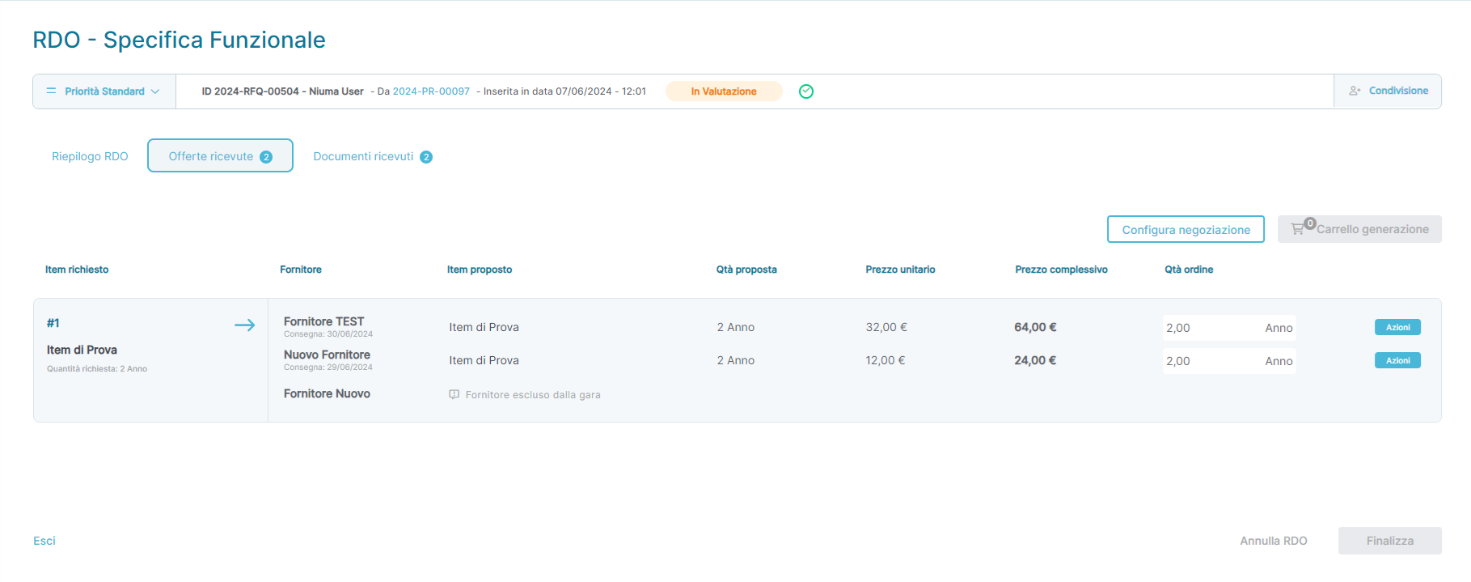
Example section Bids received of a Request for Bid (RDO) passed in In Evaluation status
Negotiation Cycle for RDO
When the deadline for the submission of offers configured for the Bid is reached, if the User does not wish to modify the date indicated in the Deadline for Submission of Offers field, it is possible to start a Negotiation Cycle for the RDO by pressing the button  . Upon pressing the button, the fields for the Negotiation Cycle can be populated:
Field | Description | Type |
Select Suppliers | Allows selecting the Suppliers invited to participate in the negotiation cycle. IMPORTANT: Suppliers who did not submit an offer in the initial phase of the Bid or in any previous negotiation rounds cannot be selected. | Mandatory |
Discount Method | Allows indicating the preferred discount method for the negotiation cycle. It can take one of the following values: - Percentage - Maximum expenditure | Mandatory |
Value | Allows indicating the value associated with the selected discount method. | Mandatory |
Deadline for Negotiation Round | Allows selecting, using the icon, the last date by which the Supplier can submit the offer for the specific Negotiation Cycle. | Mandatory |

Example of the negotiation round configuration of a Request for Quotation (RDO) passed to evaluation status:
Upon reaching the Deadline for Negotiation Round, the User can:
- Extend the duration of the Negotiation Round by modifying the Deadline for Negotiation Round.
- IMPORTANT: The ability to submit offers is limited to Suppliers who have not yet submitted an offer during the Negotiation Cycle.
- Start a new Negotiation Round by pressing the button

Initiating a subsequent Negotiation Round requires completing the same set of data as the first configured Negotiation Round.
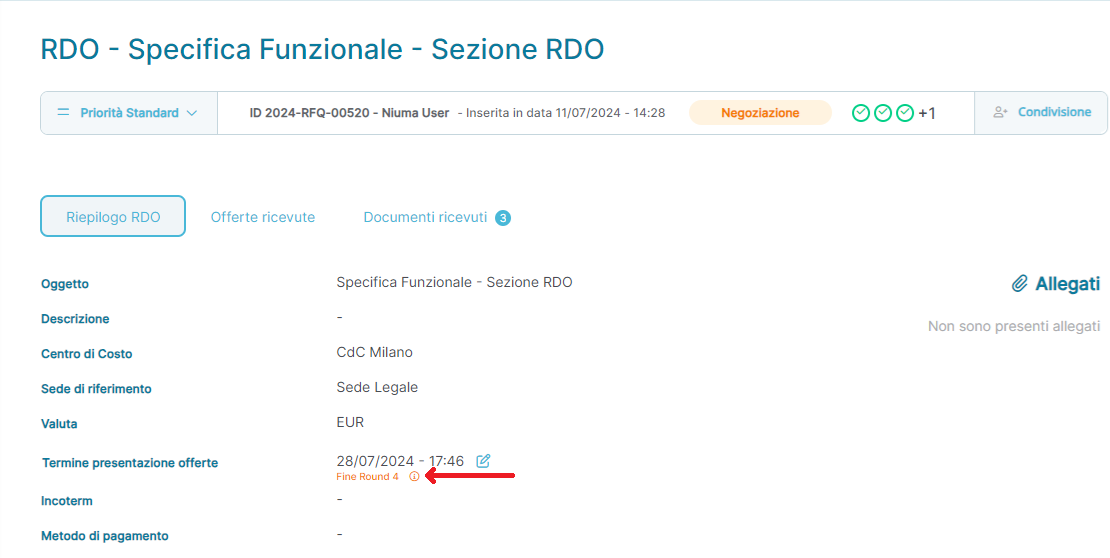
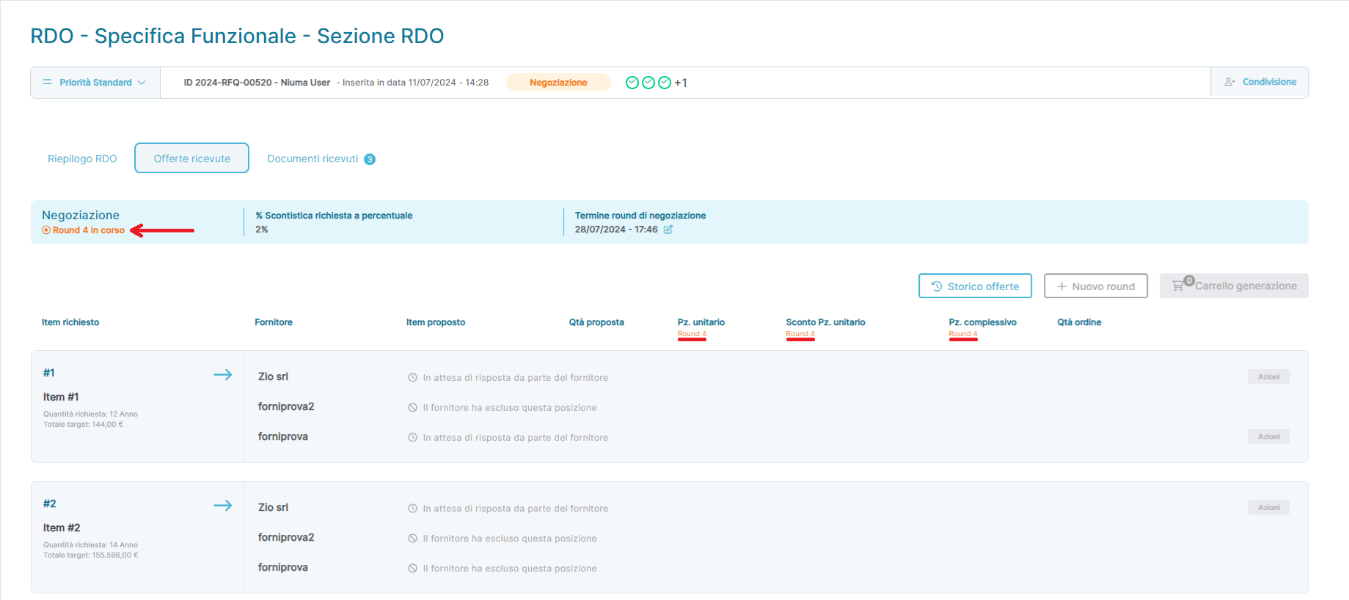
The User can always track the ongoing Negotiation Round from both the section  and the item Deadline for Submission of Offers, as well as from the section
  , in detail:
- Summary Section
- Received Offers Section
The Comparison Matrix of Offers always shows details of the current Bid phase, but it is always possible to check the progress of all previous Rounds by clicking the button  , which will open a summary page of the offers and the Rounds in which they were submitted:
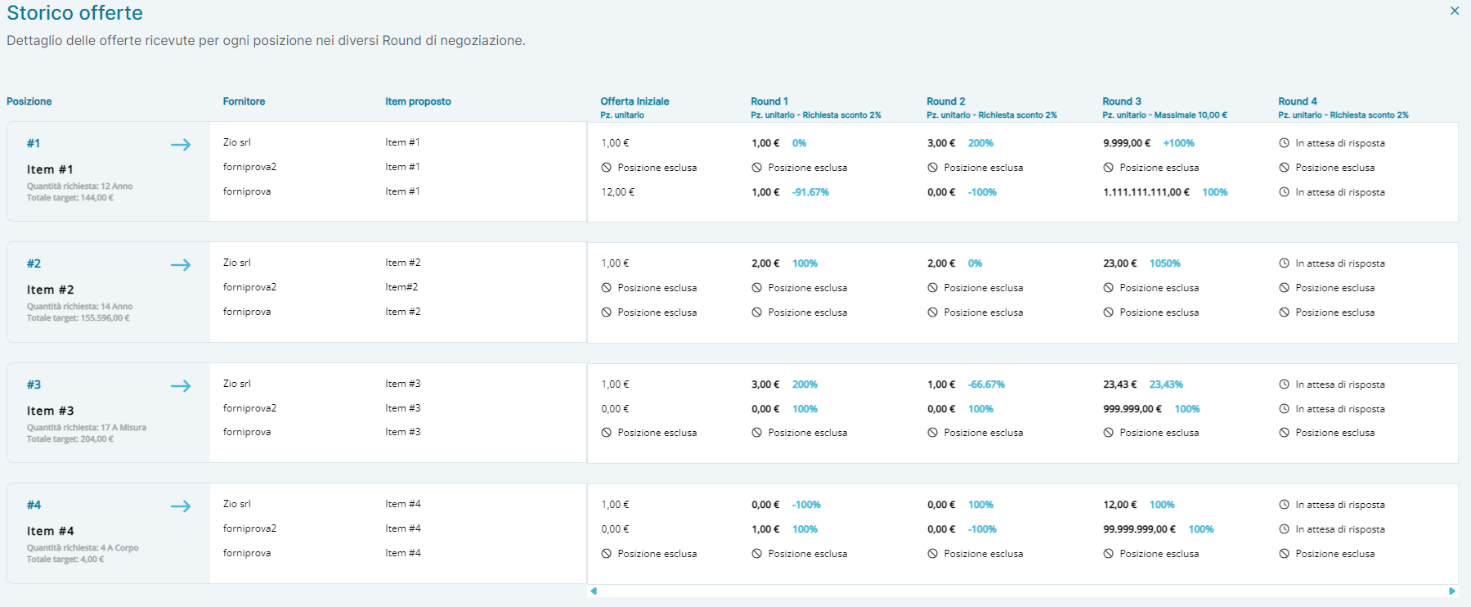
Example of the Offer History of a Request for Quotation (RDO) in the fourth Negotiation Round.
Was this article helpful?
That’s Great!
Thank you for your feedback
Sorry! We couldn't be helpful
Thank you for your feedback
Feedback sent
We appreciate your effort and will try to fix the article