From the Settings page, various types of configurations can be made, ranging from preliminary setups for the Platform’s operation to customization and workflow configuration. Specifically, from this page, depending on the assigned Role, the following icons grouped by sections can be viewed:
- Start
- Supplier Register
- User Management
- Product Categories
- Company Locations
- Cost Centers
- Company Data - Add-on
- Document management
- Approval of the workflow
- Visibility of the workflow
- Configuration of reminders
3. Customize
- E-mail Configuration
- Reports
- Incoterm
- Payment Methods
Below is a screenshot of the Settings page:
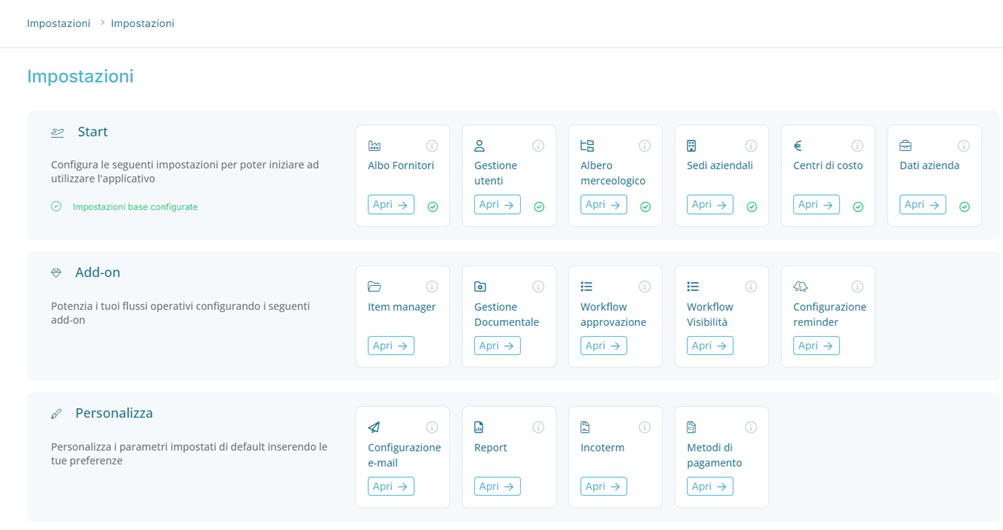
Setting – Start Section
In the "Start" section of the Settings, there is no dedicated configuration for the Supplier Registry. The icon functions as a direct link to the Supplier Registry list. More detailed information about how the Supplier Registry operates can be found in the relevant chapter.
Start – Albo Fornitori (Supplier Registry)
In the Start section, no specific settings are configured for the Albo Fornitori (Supplier Registry). The icon here acts purely as a direct link to the Supplier Registry list. For detailed information on how the Supplier Registry works, please refer to the dedicated chapter on the topic.
Start – Gestione Utenti (User Management)
The User Management section allows users to view the list of all registered users on the platform, including their status, reference e-mail, and assigned roles. When clicking on a user, a new page opens, displaying detailed information, as shown below:
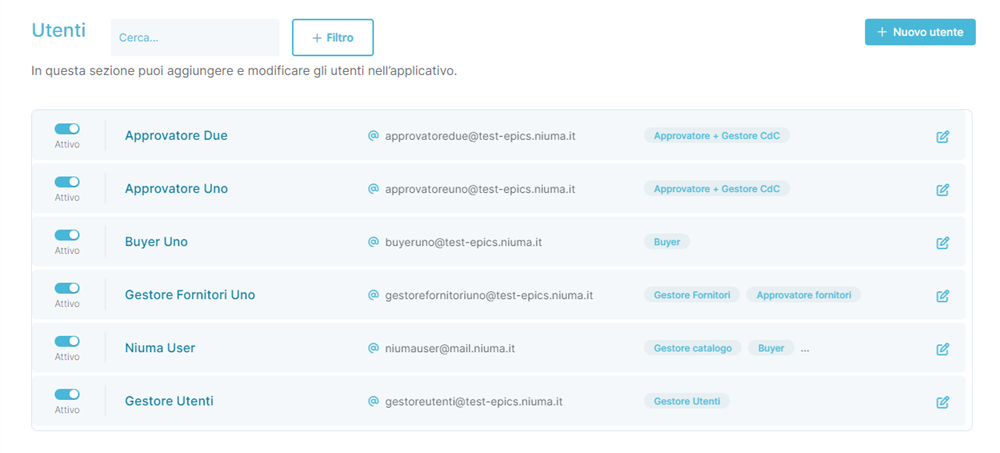
From the User list, it is possible to:
• Check the status of the user:
- If active, it is indicated with this icon

- If inactive, it is indicated with this icon

- View the user's First and Last Name
- View the user's e-mail
- View the roles assigned to the user
- Edit the user's data

It is possible to add a new user directly by clicking the button  or edit an existing user by pressing the icon
  . In both scenarios, the details page to be filled out is identical and appears as shown below:
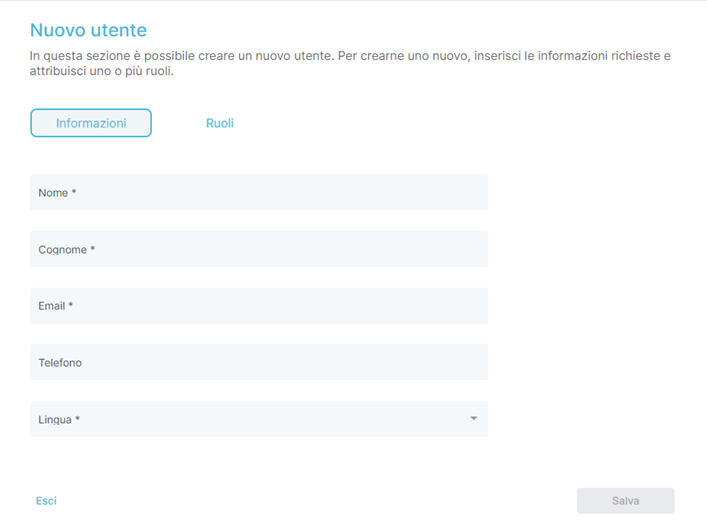
In detail, in the first section of adding or editing a user, the fields to be filled out are:
- First Name
- Last Name
- Phone (optional field)
- Language
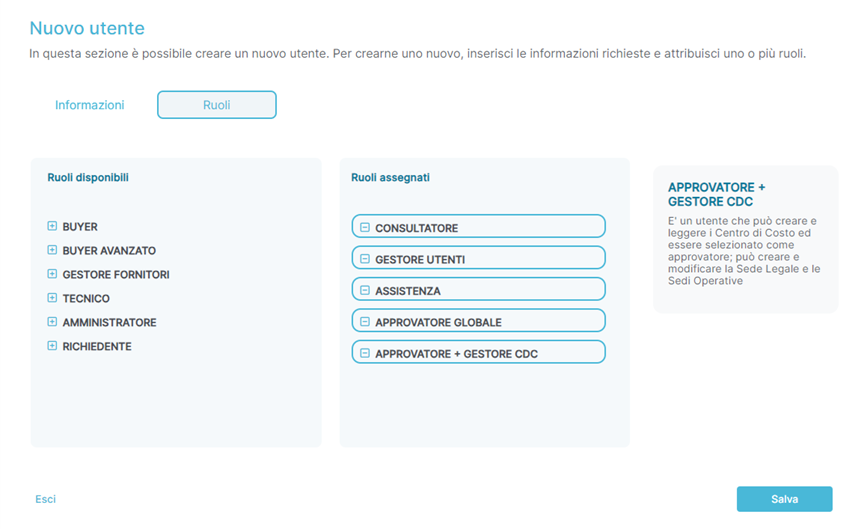
In the second section, it is possible to assign and/or revoke one or more roles, as shown in the image below:
Start – Product Tree
The product tree used by the Portal has three levels, and its contents can be viewed by clicking on the appropriate icon. When the mouse is clicked, a page like the one shown below will open:
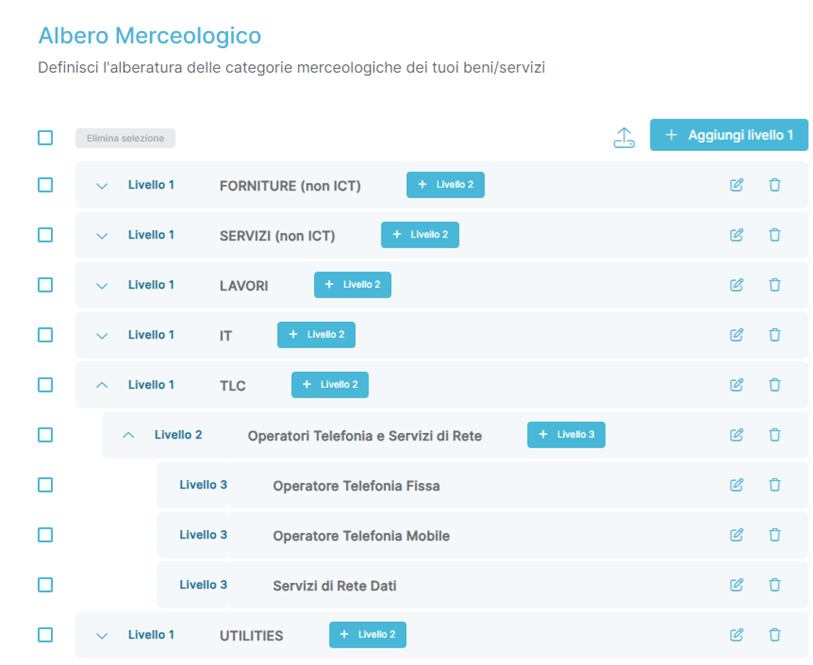
It is possible to add an element to the product tree according to the following criteria:
- Level 1 (Family): always, using the button

- Level 2 (Class): only if there is a Level 1 to which it would be directly linked (child element of ‘Family’), using the button

- Level 3 (Category): only if there is a Level 2 to which it would be directly linked (child element of ‘Class’), using the button

Start – Company Locations
The "Company Locations" section contains references to the location to be associated with Purchase Requests, Request for Quotations, and Purchase Orders, and its contents can be viewed by clicking on the appropriate icon. When the mouse is clicked, a page like the one shown below will open:
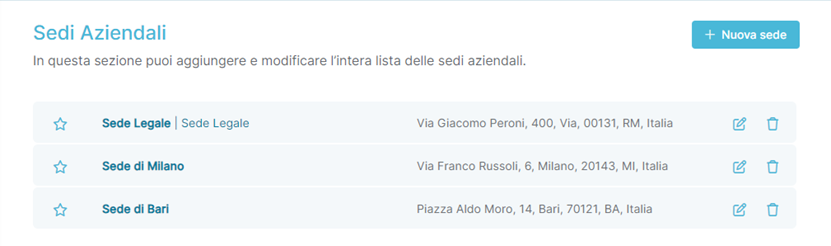
It is possible to add a new location directly by clicking the button or edit an existing location by pressing the icon
  . In both scenarios, the details page to be filled out is identical and appears as shown below:
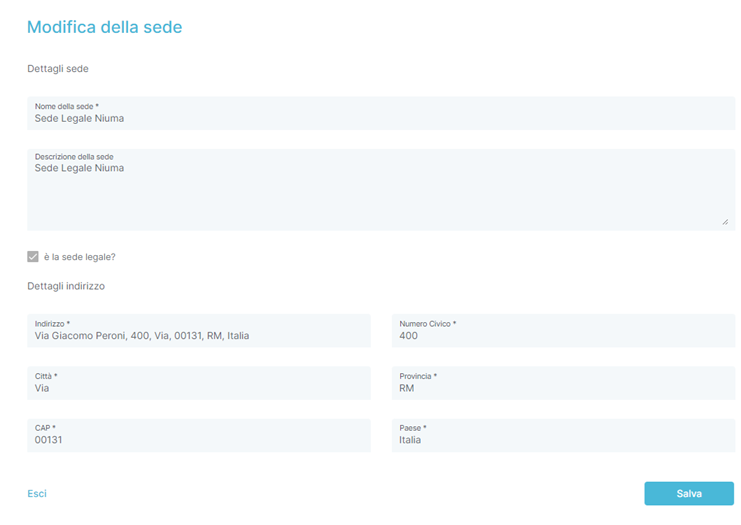
IMPORTANT: It is not possible to delete a Location if it is the only one configured
Start - Cost Centres
The Cost Centers section contains the references of the Cost Centers to associate with Purchase Requests, Request for Quotation and Purchase Orders and you can view their content by clicking on the appropriate icon. Click on the mouse to open a page like the one below:
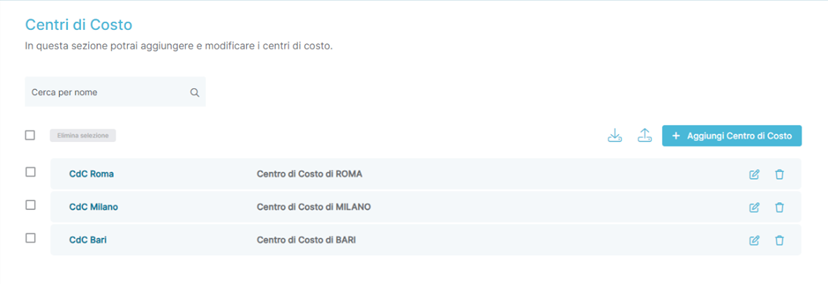
From the Cost Centers page, it is possible to:
• Search for an existing Cost Center on the platform using the dedicated search engine
• Manually add a Cost Center directly by clicking the button  • Export the Cost Centers present on the platform directly by clicking the button
• Import Cost Centers directly by clicking the button 
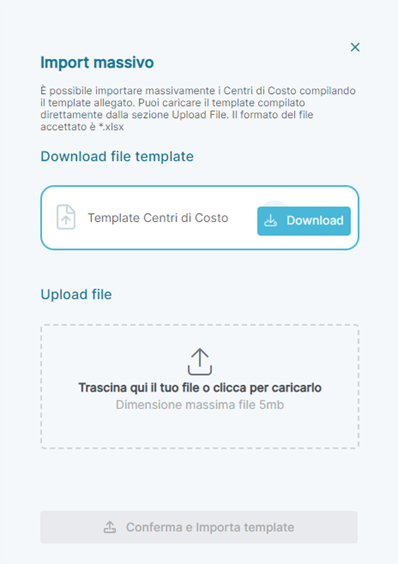
- Pressing the button will open a section on the left side of the portal where you can download the bulk template to be re-uploaded later with the Cost Centers you want to import. Below is a screenshot of the section:
Start – Company Data
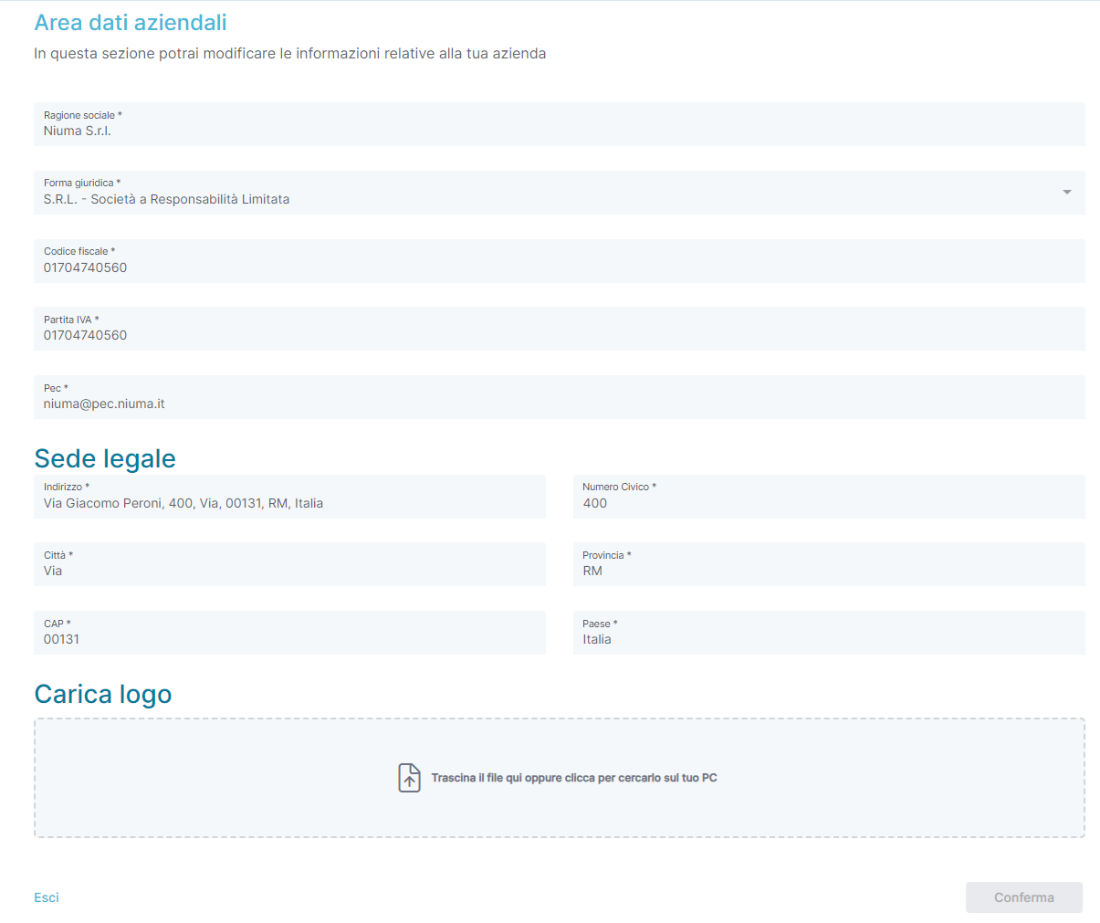
The Company Data section contains the company's details, and you can view its content by clicking the designated icon. Upon clicking, a page will open as shown below:
Was this article helpful?
That’s Great!
Thank you for your feedback
Sorry! We couldn't be helpful
Thank you for your feedback
Feedback sent
We appreciate your effort and will try to fix the article