By clicking on the icon  in the sidenav, the User is redirected to the ODA section, where they can view a list of Purchase Orders (ODA) already registered on the platform. Below is an example screenshot of the page:
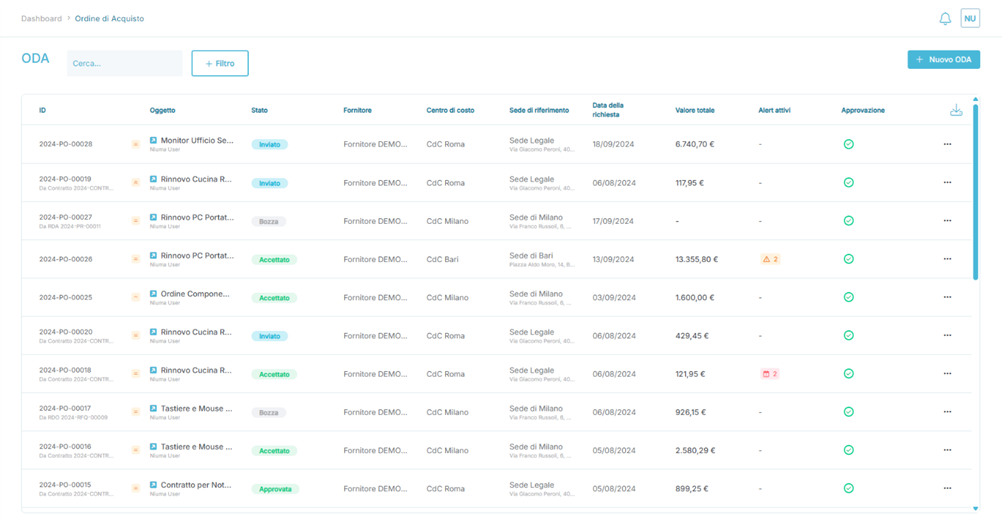
In detail, the fields present are:
- ID: A unique identifier from the portal associated with the Purchase Order.
- Object: Displays the name assigned to the Purchase Request during its creation.
- Status: Indicates the status of the Purchase Order on the platform. It can have the following values:
- Draft: The User has created a new Purchase Order, saved it before completing all the required data, and chosen to save the information for future completion.
- IMPORTANT: If there is no approval workflow configured (see Settings → Add-On Section → Add-On – Approval Workflow), upon completing all mandatory data, the Purchase Order will move from "Draft" to "Approved."
- IMPORTANT: If an approval workflow is configured (see Settings → Add-On Section → Add-On – Approval Workflow), upon completing all mandatory data, the Purchase Order will move from "Draft" to "In Approval."
- In Approval: If an approval workflow is active and has been matched with the Purchase Order, the process is ready to be reviewed by the Portal User with the Approver + Cost Center Manager role, who can either approve (Approved), reject (Rejected), or request changes (Rejected with Reserve).
- If multiple Approvers + Cost Center Managers are involved, the order will move between approval steps only after each previous approver has completed their review.
- Approved: The Purchase Order has been approved by all involved approvers, and no further approvals are necessary.
- Rejected: The order has been rejected by at least one of the involved approvers, and no further actions can be taken.
- A rejected order is no longer editable.
- A rejection can occur in the following cases:
- A User rejects a price increase after a negotiation cycle between the Buyer and Supplier.
- Rejected with Reserve: The order has been conditionally rejected and can be modified by the User in all its parts.
- Canceled: The User started a new Purchase Order but decided to cancel it before completing all the required fields.
- A canceled order is no longer editable.
- Sent: Once an order has been approved, it can be manually sent to the Supplier, who can either accept (status: Accepted), reject (status: Rejected), or request changes through the ODA negotiation feature.
- Accepted: The order is marked as accepted when the Supplier agrees to the terms specified.
- An order can reach the "Accepted" state in the following cases:
- Direct acceptance by the Supplier after the first submission.
- Acceptance following an ODA negotiation process between the Supplier and ORBIT user.
- An order can reach the "Accepted" state in the following cases:
- Rejected: If the Supplier refuses to accept the order details, it moves to the "Rejected" status.
- IMPORTANT: A rejected order is no longer editable.
- Rejection can occur either upon first submission or after negotiation.
- Negotiation: The order enters this status when the Supplier requests modifications during the ODA negotiation cycle.
- Negotiation in Approval: If modifications result in a price increase, the order enters this state and requires formal approval from designated approvers.
- Completed: The order is manually marked as "Completed" once the ORBIT user decides to close it.
- IMPORTANT: Once an order is completed, no further actions can be taken on it.
- Supplier: Displays the Supplier's name.
- Cost Center: Indicates the cost center associated with the Purchase Order.
- Reference Location: Displays the location linked to the Purchase Order.
- Request Date: Shows the request date set by the ORBIT User.
- If the request date is in the past, the Purchase Order is automatically marked as "Completed."
- If the date is current, the status changes follow the standard platform workflow.
- Total Value: Shows the total value of the order, calculated by summing the value of each position and expressed in the currency selected for the order (e.g., '€' or '$').
- Active Alerts: Graphically represents any alerts about delivery dates based on configured parameters in the ODA Alerting section.
 indicates that the critical window has not been reached.
-
 indicates that the critical window has been reached, calculated as "x" days before the closest delivery date.
- IMPORTANT: The number next to the symbol
 shows how many positions are within the critical window.
- IMPORTANT: The number next to the symbol
-
 indicates that the delivery date has been exceeded.
- IMPORTANT: The number next to the symbol
 shows how many positions have passed their delivery date.
- IMPORTANT: The number next to the symbol
- Approval: Graphically represents the approval status:
 indicates a correctly created order or an order approved by a user with the appropriate role.
- IMPORTANT: Multiple icons
 can appear if multiple approvers are required.
- IMPORTANT: Multiple icons
 indicates that the order is pending approval.
- IMPORTANT: This icon
 can also appear if the order is "Rejected with Reserve."
- IMPORTANT: This icon
 indicates the order was rejected by a user with the authority to do so.
- …
- More Options (Three Dots): This menu opens additional actions, such as:
- View: Allows the user to view the details of the Purchase Order.
- Export the list of Purchase Orders directly from the button
 .
.
Was this article helpful?
That’s Great!
Thank you for your feedback
Sorry! We couldn't be helpful
Thank you for your feedback
Feedback sent
We appreciate your effort and will try to fix the article