Upon reaching the Approved state  , the Purchase Request can be processed. Specifically, for each of the Positions within the Purchase Request, it is possible to:
- Select all Positions and combine them into a Draft Request for Quotation by pressing the button
 .
. - Select all Positions and combine them into a Draft Order by pressing the button
 .
. - Select a subset of Positions and combine them into a Draft Request for Quotation by pressing the button
 .
.- In this scenario, after generating the Draft Request for Quotation, it is possible to return to the Purchase Request and combine the remaining Positions into either a Draft Request for Quotation or a Draft Order.
- Select a subset of Positions and combine them into a Draft Order by pressing the button
 .
.- In this scenario, after generating the Draft Order, it is possible to return to the Purchase Request and combine the remaining Positions into either a Draft Request for Quotation or a Draft Order.
The Positions that have been included in a Draft Request for Quotation or a Draft Order are indicated with the icon .
- If all Positions of a Purchase Request have generated a Draft Request for Quotation and/or Order, and are therefore indicated with the icon
 , or if no remaining Positions have been selected, the Purchase Request will prevent further actions, showing the RDO and ODA generation buttons in gray.

- Remaining Positions that can be combined into a Draft Request for Quotation or a Draft Order can be selected from the icon
 , and once selected, are indicated with the icon
  .
. - If at least one Position has been selected, it is possible to generate a Draft Request for Quotation or a Draft Order using the buttons.

IMPORTANT: Positions that have already been included in a Request for Quotation or an Order cannot be used again to generate new Draft Requests for Quotation or Orders. Any generation of a Draft Request for Quotation or Order from the Purchase Request is irreversible , and the selected Positions can no longer generate further Drafts. However, in the case of an error, the generated Draft can be deleted at any time.
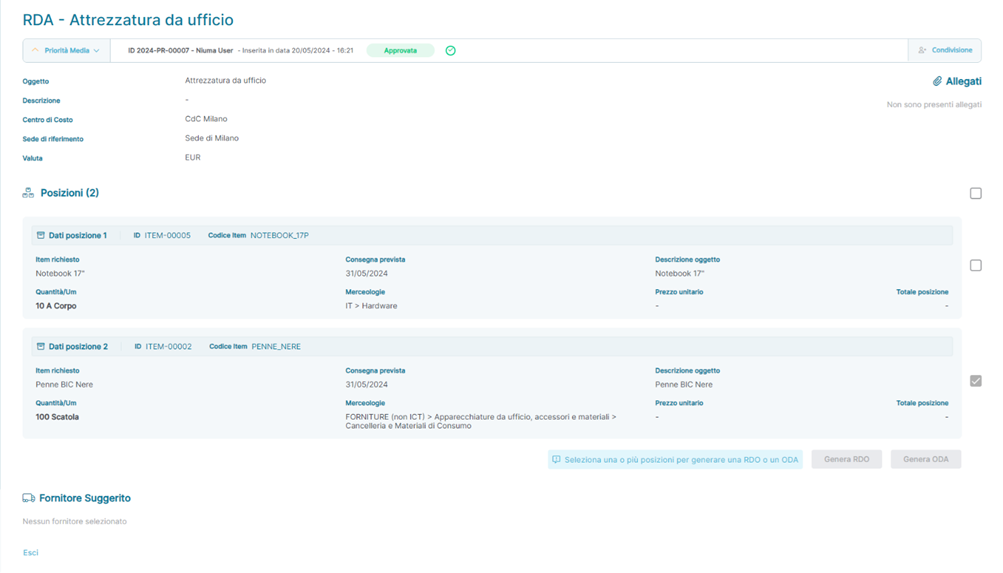
Example of the Summary section of a Purchase Request (RDA) with Processed and Unprocessed Positions
Requests for Quotation
By clicking on  the icon present in the sidenav, the User is redirected to the RDO section, from which it is possible to view a list containing information about the RDOs already recorded in the Platform. Below is an illustrative screenshot of the page:
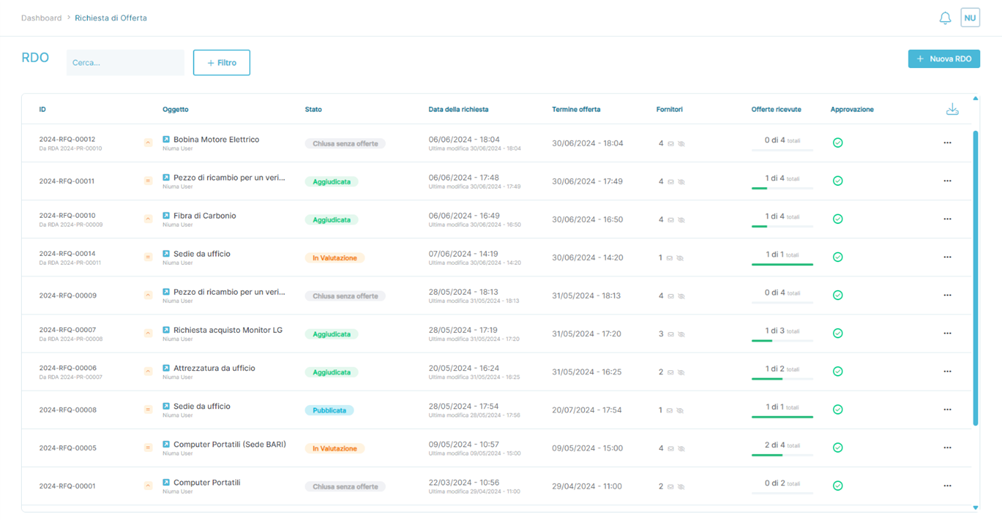
In detail, the fields present are:
- ID: A unique identifier generated by the Portal associated with the Request for Quotation.
- Subject: Displays the name assigned to the Request for Quotation during its creation.
- Status: Indicates the status of the Request for Quotation in the Platform.
- It can take on the following values:
- Draft:The Portal User has created a new Request for Quotation, chosen to exit before completing the entry of all required data, and saved the entered information for future completion.
- IMPORTANT: If there is no configured approval flow (see Settings – Add-On Section → Add-On – Approval Workflow), upon completion of the required mandatory data entry, the Request for Quotation will move from Draft status to Approved status.
- IMPORTANT: If there is a configured approval flow (see Settings – Add-On Section → Add-On – Approval Workflow), upon completion of the required mandatory data entry, the Request for Quotation will move from Draft status to Pending Approval status.
- Pending Approval:In the presence of an active configured approval flow matched for the Request for Quotation, the request is ready to be reviewed by the Portal User with the Approver + Cost Center Manager role, who can approve (Approved), reject (Rejected), or request changes (Rejected with Reservation) from the Buyer.
- In cases where approval flows involve more than one Portal User with the Approver + Cost Center Manager role, the transition from Pending Approval to Rejected or Rejected with Reservation can occur even in intermediate approval steps, but only if the immediately previous approver has approved the request.
- Approved: In the presence of an active configured approval flow matched for the Request for Quotation, the request has been approved by all involved Portal Users with the Approver + Cost Center Manager role, and no further approvals are necessary.
- Rejected:In the presence of an active configured approval flow matched for the Request for Quotation, the request has been rejected by at least one of the involved Portal Users with the Approver + Cost Center Manager role, and it is no longer possible to proceed.
- A request that enters the Rejected status is no longer actionable.
- Rejected with Reservation: In the presence of an active configured approval flow matched for the Request for Quotation, the request has been Rejected with Reservation by at least one of the involved Portal Users with the Approver + Cost Center Manager role and can be modified in every part.
- Finalized:The Portal User manually transitions to this state upon completing all activities.
- A request that enters the Finalized status is no longer actionable.
- Cancelled:The Portal User created a new Request for Quotation and saved the entered data (Draft status), then chose to cancel the request before moving to the subsequent states (Approved or Pending Approval based on the presence of an approval flow).
- A request that enters the Cancelled status is no longer actionable.
- Published: A Request for Quotation that has reached the Approved status can be manually sent to the Suppliers who can then submit their Offers within the deadlines established by the End Date of the RDO.
- Negotiation: A Request for Quotation for which a Negotiation Round has been initiated enters and remains in this status until the End Date of the RDO configured for the specific Negotiation Round is reached.
- Under Evaluation: The Portal User can analyze and award all Offers submitted by the Suppliers invited to the Tender. The Portal automatically enters this state upon reaching the End Date of the RDO for a Request for Quotation, whether in the initial state of the Tender or in the case of a Tender in a Negotiation Round.
- Closed Without Offers: A Request for Quotation in Published status for which no offers were submitted for any of the Items in Tender by any Suppliers by the deadlines set by the End Date of the RDO automatically moves to this state where, if the End Date of the RDO is not modified and six months have passed since then, it automatically transitions to Closed status and can no longer be acted upon.
- Closed: A status automatically reached by the Portal after six months if the End Date of a Request for Quotations in Closed Without Offers status has not been modified.
- Draft:The Portal User has created a new Request for Quotation, chosen to exit before completing the entry of all required data, and saved the entered information for future completion.
- Request Date: Displays the date of the request indicated by the Portal User.
- Offer Deadline: Displays the date indicated by the Portal User by which the Supplier can submit an Offer (End Date of the RDO).
- Suppliers: Displays the number of invited Suppliers.
- Offers Received: Graphically displays how many Suppliers have already submitted an Offer.
- Approval:Graphically displays the approval status.
-
 Indicates a request correctly created in the Portal or the approval of the Request by a Portal User with a role that allows approval.
- IMPORTANT: For each single Request, it is possible to view multiple icons
 in the presence of approval rules that foresee more than one approver.
- IMPORTANT: For each single Request, it is possible to view multiple icons
-
 Indicates a request pending approval by a Portal User with a role that allows approval.
- IMPORTANT: The icon
 can also be displayed in the case of a request in Rejected with Reservation status.
- IMPORTANT: The icon
- Indicates a Request rejected by a Portal User with a role that allows rejection.
-
- ...
- The three dots open a submenu containing the following items:
- View: Allows access to the Request for Quotation and view its details.
- Export the list of Requests for Quotations directly from the button .
- The three dots open a submenu containing the following items:
Configuration of Requests for Quotation
The creation of a Request for Quotation is divided into five steps:
- RDO Data
- Positions
- Suppliers
- Required Documents
- RDO Summary
NOTE: In the case of a Request for Quotation generated from a Purchase Request, the fields indicated in the following paragraphs will already be populated with the data inherited from the Purchase Request and can be modified in every aspect by the User. Conversely, in the case of a new Request for Quotation, the data must be filled out individually section by section.
RDO Data
The RDO Data section requires the completion of the header information related to the Request for Quotation being entered. The details are as follows:
Field | Description | Type |
Subject | Brief description of the Request for Quotation | Mandatory |
Description | Extended description of the subject of the request | Optional |
Cost Center | Reference Cost Center for the Request for Quotation | Mandatory |
Reference Location | Reference location for the Request for Quotation | Mandatory |
Priority | Indicates the urgency of processing the Purchase Request. Options: Standard, Medium, or High | Mandatory |
Incoterm | Allows the specification of an Incoterm associated with the Request for Quotation | Optional |
Payment Method | Allows the specification of a Payment Method associated with the Request for Quotation | Optional |
Currency | Allows entering the currency of reference for the Request for Quotation | Mandatory |
RDO Submission Date | Allows entering a future date to defer the formal start of the Request for Quotation. If left blank, the Request for Quotation is processed immediately at the end of the creation process. | Optional |
Offer Submission Deadline | Allows entering a future date by which offers from invited Suppliers must be received for the Request for Quotation | Mandatory |
From this section, it is possible to insert RDO attachments directly using the button  and add a text note or attach files from the Communications section at the bottom of the page.
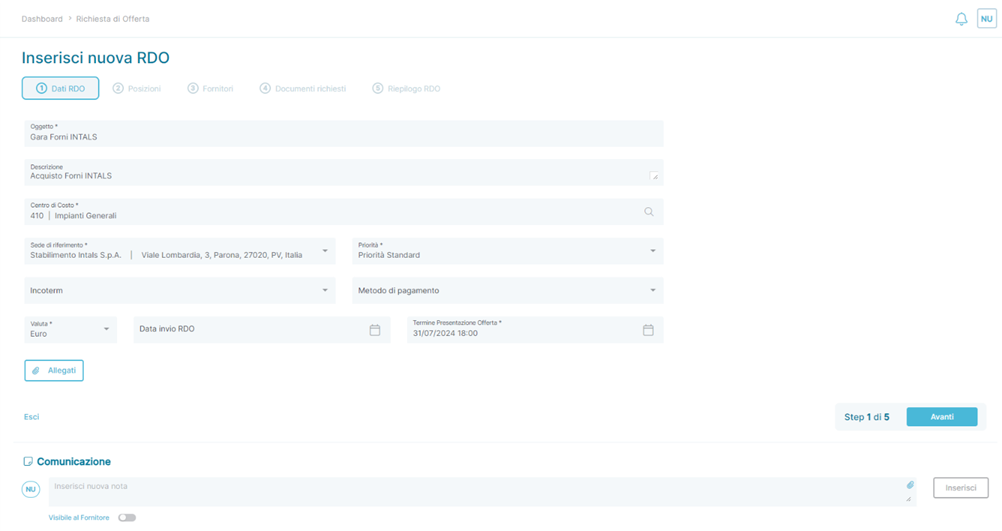
Example of the RDO Data section of a Request for Quotation (RDO)
Positions
The Positions section allows for the entry of all Positions related to the Request for Quotation, either manually or imported from the Item Manager. The fields, which are pre-filled for items imported from the Item Manager, are as follows:
Field | Description | Type |
Item Name | Brief description of the Position | Mandatory |
Purchase Description | Extended description of the Position's object | Optional |
Merchandise Category | Merchandise category associated with the Position | Mandatory |
Quantity | Indicates the quantity associated with the Position | Mandatory |
Unit of Measure | Unit of measure associated with the Position | Mandatory |
Expected Delivery Date | Indicates the expected delivery date associated with the Position | Optional |
Cost Center | Displays the Cost Center inherited from the RDO Data section. Can be modified to another Cost Center | Mandatory |
Recommended Price | Indicates the recommended price for purchasing the good/service associated with the Position | Optional |
At the top of the Position, an additional set of information can be viewed, specifically:
- ID
- Item Code
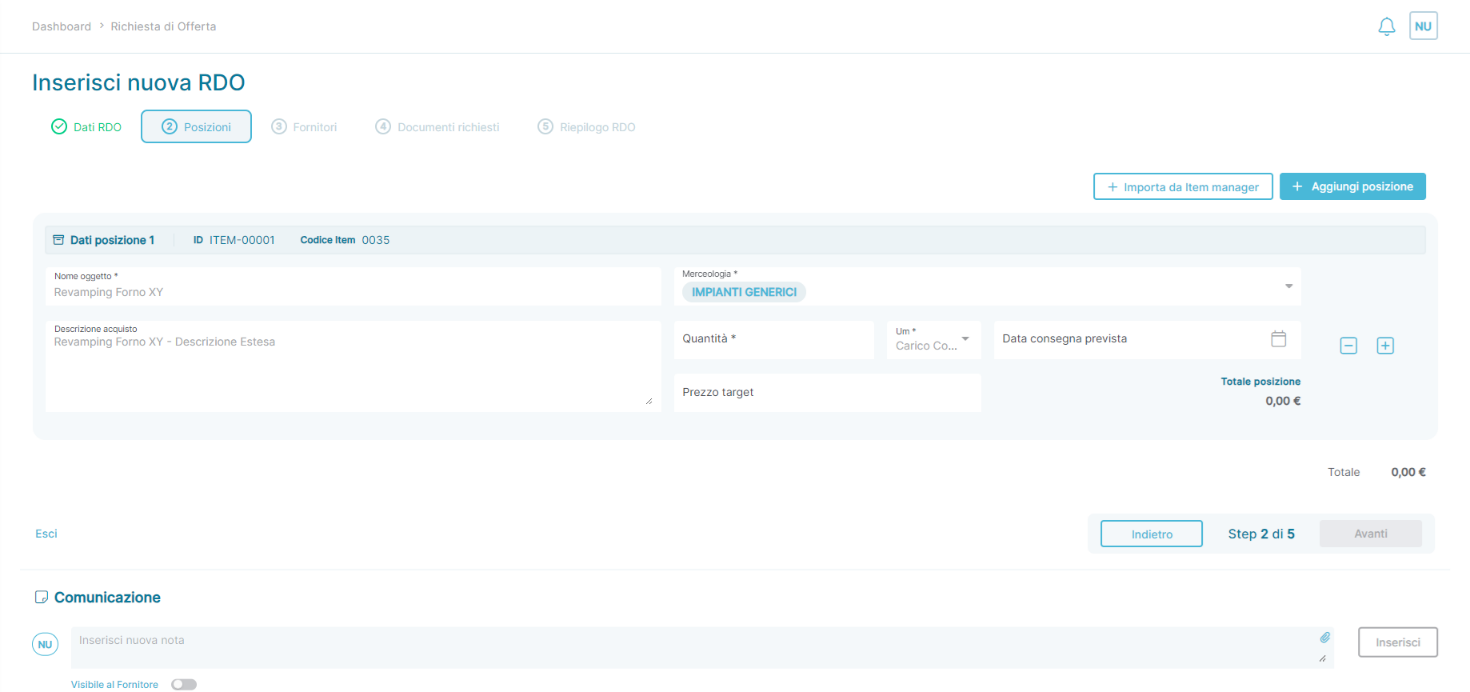
Example of the Positions section of a Request for Quotation (RDO)
From this section, it is possible to add a text note or attach files from the Communications section at the bottom of the page.
Suppliers
The Suppliers section allows for the addition of Suppliers imported from Ad Hoc Enterprise whom you want to invite to participate in the Request for Quotation.
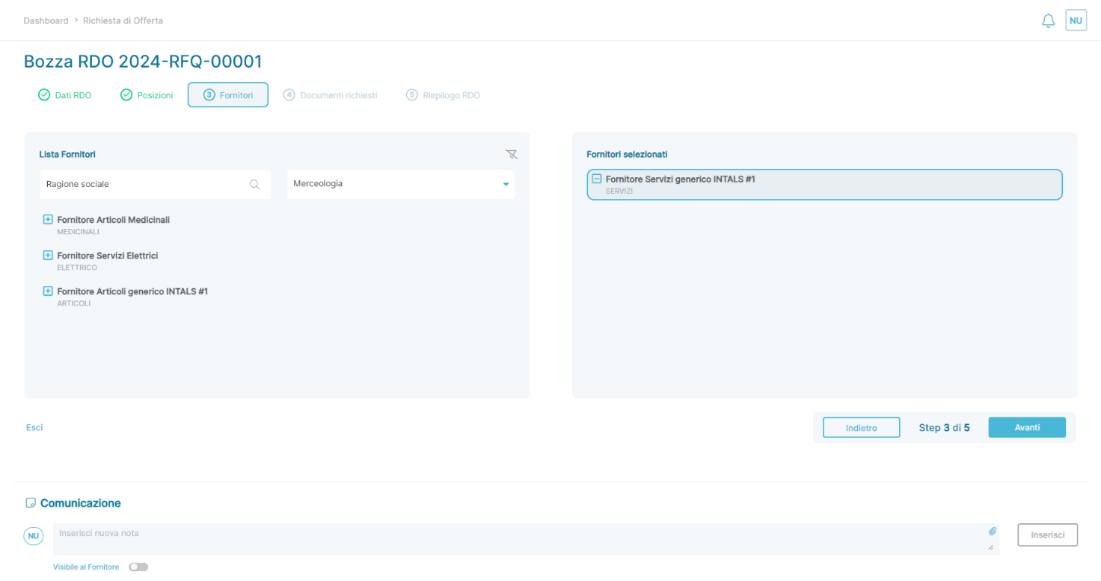
Example of the Suppliers section of a Request for Quotation (RDO)
Suppliers can be added by clicking the icon  next to the name of the Supplier in the Supplier List box. Once added, the Suppliers are inserted into the Selected Suppliers box and can be removed (returned to the Supplier List box) using the icon
  .
.
From this section, it is possible to add a text note or attach files from the Communications section at the bottom of the page.
Was this article helpful?
That’s Great!
Thank you for your feedback
Sorry! We couldn't be helpful
Thank you for your feedback
Feedback sent
We appreciate your effort and will try to fix the article