The creation of a Contract is divided into four steps plus one that serves as a summary of the data entered in the previous sections:
- Contract Data
- Positions
- Suppliers
- Documents
- Summary
NOTE: In the case of a Contract generated from a Request for Proposal (RFP), some of the fields mentioned in the following paragraphs will already be pre-populated with data inherited from the RFP, and can be modified by the User as needed. Otherwise, for a new Contract, the data must be entered individually, section by section.
Contract Data
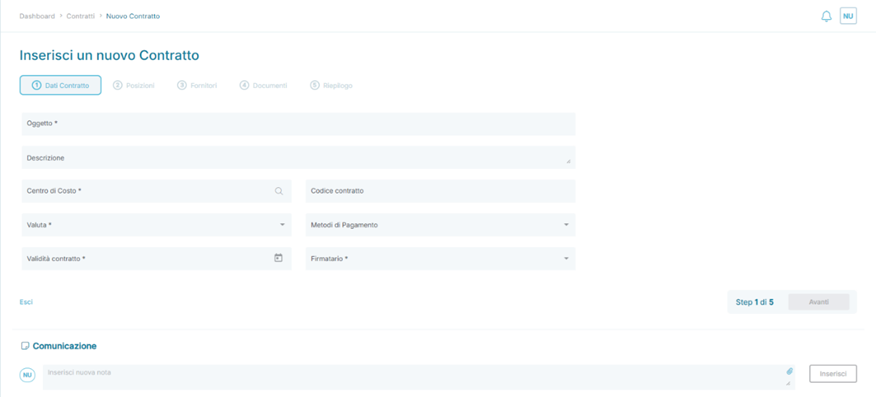
The Contract Data section requires the completion of the main information related to the Contract during its creation, in detail:
| Field | Description | Type |
| Subject | Brief description of the Contract | Mandatory |
| Description | Extended description of the Contract's subject | Optional |
| Cost Center | Reference Cost Center for the Contract | Mandatory |
| Contract Code | Alphanumeric code associated with the Contract | Optional |
| Currency | Allows the entry of the Contract's reference currency | Mandatory |
| Payment Method | Allows the specification of a Payment Method associated with the Contract | Optional |
| Contract Validity | Allows indicating the validity window of the Contract. It can contain only the Start Date or a date range (Start Date – End Date) | Mandatory |
| Signatory | ORBIT User who signed the Contract | Mandatory |
In this section, it's possible to add a textual note or attach files from the Communications section at the bottom of the page.
Positions
The Positions section allows for the entry of all Contract-related Positions, either manually or imported from Item Manager. The fields, already pre-filled for items imported from Item Manager, are listed below:
| Field | Description | Type |
| Object Name | Brief description of the Position | Mandatory |
| Purchase Description | Extended description of the Position's Object | Optional |
| Commodity | Commodity associated with the Position | Mandatory |
| Quantity | Indicates the quantity associated with the Position | Mandatory |
| Unit of Measure (Um) | Unit of measure associated with the Position | Mandatory |
| Expected Delivery Date | Indicates the expected delivery date associated with the Position | Optional |
| Cost Center | Displays the Cost Center inherited from the Contract Data section. It can be changed to another Cost Center | Mandatory |
| Suggested Price | Indicates the price for purchasing the good/service associated with the Position | Mandatory |
By clicking the button  on the left side of a Position imported from Item Manager, an additional set of information can be displayed, in detail:
- ID
- Item Code
- Object Description
- Commodities
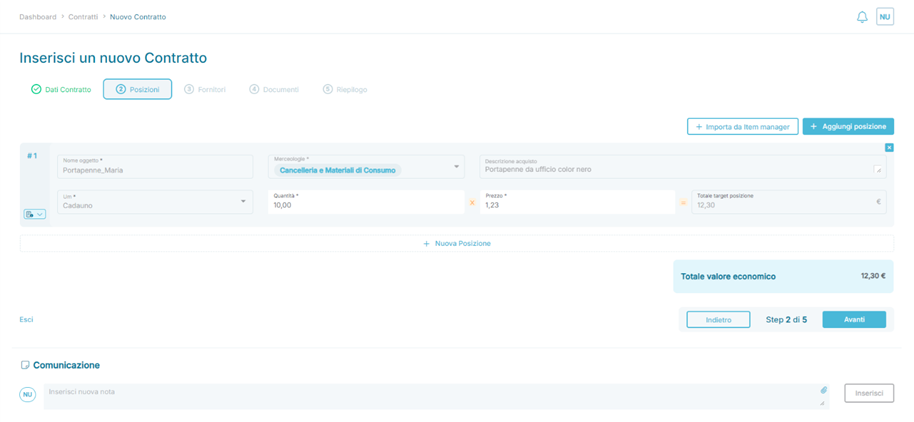
Example of the Positions section of a Contract
Suppliers
The Suppliers section allows the addition of the Supplier with whom the Contract was signed, selected from those in the Approved or Blacklist statuses in the Supplier Registry.
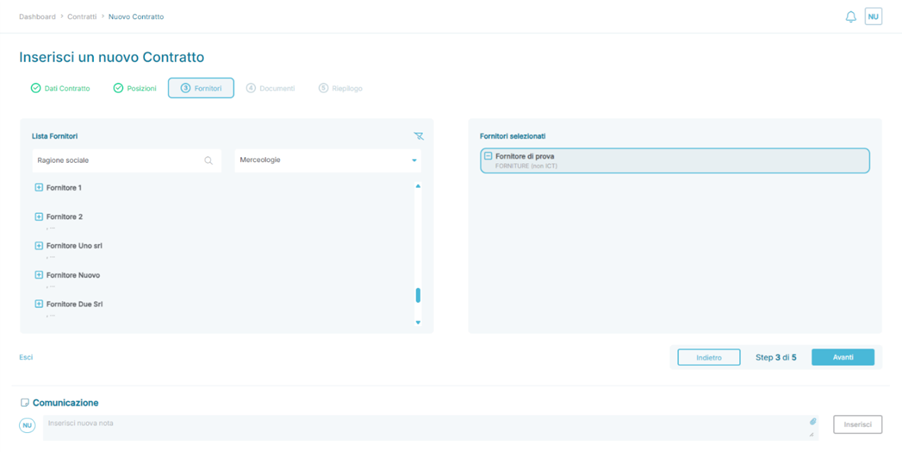
Example: Suppliers section of a Contract
The Supplier can be added via the icon  next to the Supplier's name in the Supplier List box. Once added, the Supplier is moved to the Selected Suppliers box and can be removed (returned to the Supplier List box) using the icon
  .
.
IMPORTANT: It is not possible to add more than one Supplier in the Selected Suppliers section. If you attempt to add an additional Supplier, the action is blocked, and an informational message is displayed at the bottom of the page .
In this section, you can add a textual note or attach files from the Communications section located at the bottom of the page  .
.
Documents
The Documents section allows you to add one or more documents related to the Contract.
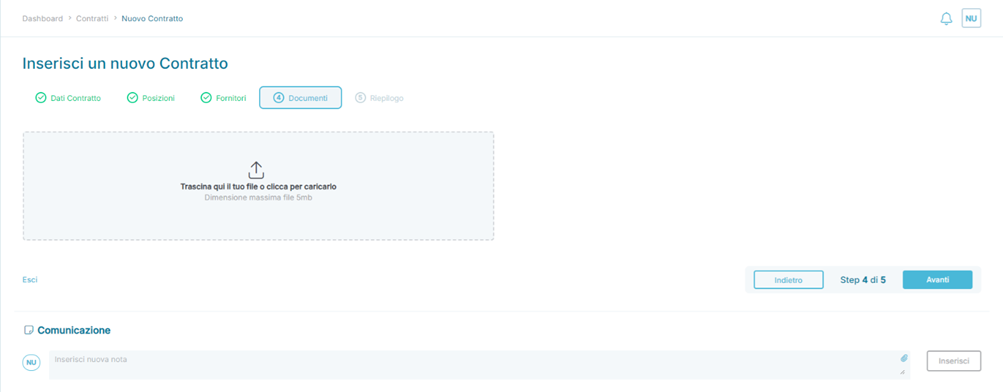
When a document is uploaded, if it is digitally signed, the Portal informs the User of the presence of the Digital Signature through a dedicated text label inside the document box. There is also a section  where you can optionally enter the expiration date of the uploaded document.

Example: View of a digitally signed document uploaded in the Documents section of a Contract
The ORBIT User can download the uploaded file using the button  or delete it from the Portal with the button
  .
.
Summary
The Summary section provides an overview of the information entered in the previous four steps.
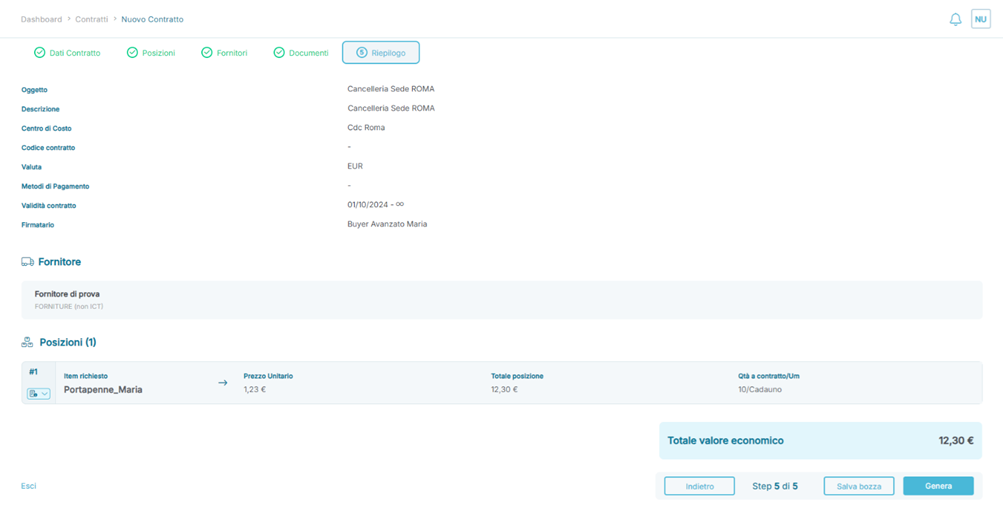
Example: Summary section of a Contract
After verifying the entered information, which may lead to changes to previously entered data (using the button  or by clicking on the section label being modified: Contract Data, Positions, Suppliers, or Documents)( modifica (
  ,
,  ,
,  ,
,  ), it is possible to:
- Save as Draft using the button
 if you wish to resume later and find all the data saved.
- If a Contract is saved as Draft, it can be deleted from the button
 in the Platform once the process is reopened and the Summary section is reached.
- If a Contract is saved as Draft, it can be deleted from the button
Or
- Generate the Contract using the button

- Once the button is pressed, depending on the Platform's configurations, the Contract can enter one of the following application states:
-
 Active if a Start Date has been indicated for the Contract without any End Date or if both a Start Date and End Date have been indicated, with the latter being in the future.
 -
 Expired if both a Start Date and an End Date have been indicated, with the latter being in the past.
-
- Once the button is pressed, depending on the Platform's configurations, the Contract can enter one of the following application states:
In this section, you can add a textual note or attach files from the Communications section located at the bottom of the page.
Contract Processing
A contract can only be processed if it is in Active status 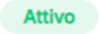 . When accessing the details of a contract, the ORBIT User is presented with a page divided into the following three sections:
- Summary
- Positions
- Documents
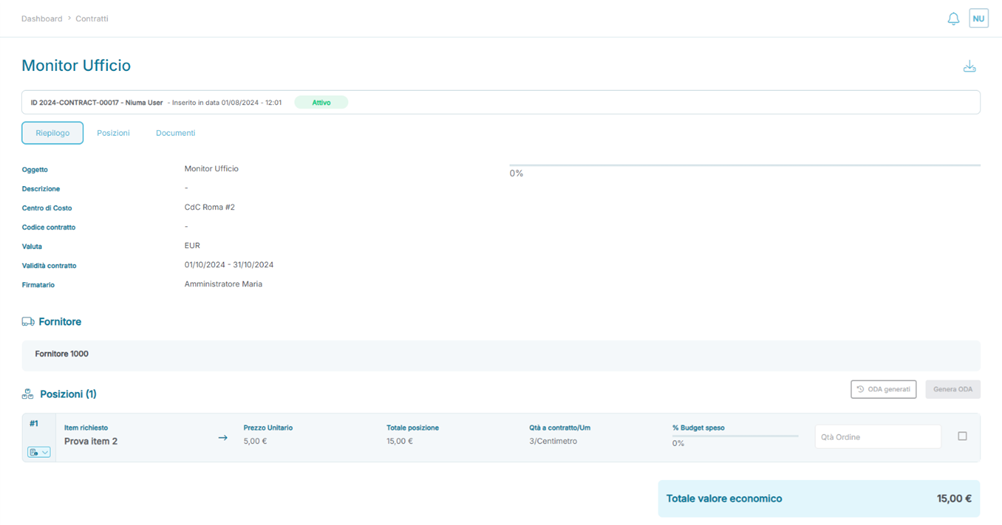
Contract Processing – Summary Section
The Summary section provides an overview of the information entered during the contract creation phase. Within the Positions section of the page, it is possible to generate Draft Orders based on the contract.
For each position listed in the contract's summary, users can interact with the section  that allows them to enter a numerical value equal to or less than the quantity assigned to that specific position. This enables the ORBIT User to create a Draft Order from the contract for all or a subset of the planned quantities. If a quantity greater than that associated with the position is entered, the platform will indicate the impossibility of processing the position by highlighting the section with a red box (
  ).
).
To include the position in a Draft Order, the user must select the checkbox next to the position (  ), which will enable the button
  to generate the Draft Order for the selected position.
Multiple positions can be included in the same order by selecting the checkboxes  of multiple positions simultaneously.
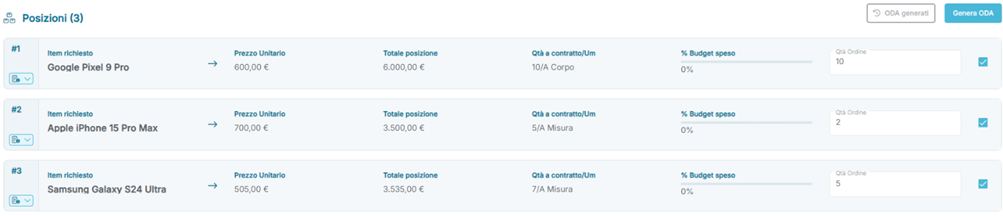
Details of the Positions Section in the Contract Summary Page
Upon pressing the button  , a window will appear asking the ORBIT User to explicitly confirm the creation of the Draft Order, which can be confirmed by pressing the dedicated button
  .
.
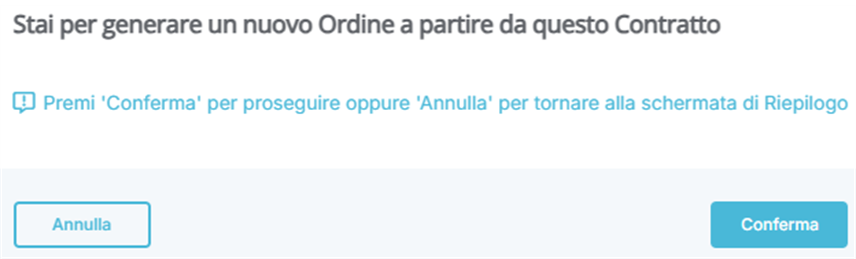
Upon clicking the button, the ORBIT User will be automatically redirected to the list of ODA (Purchase Orders), where they can proceed with further processing of the Contract Order.
For an order that has generated a subset of contract orders with some positions yet to be processed, it is possible to view the status of those positions already linked to generated and/or accepted contract orders.
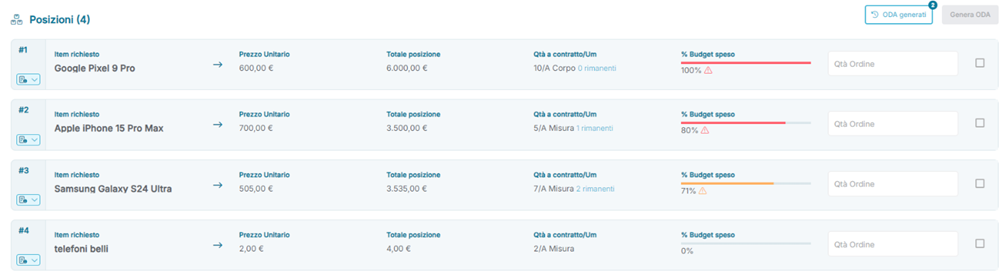
Contract Summary Section – Order Generated from Contract
An order generated from a contract follows different rules than an order generated from an RDO (Request for Quotation) or a newly created order. The key differences are:
- The order cannot undergo changes to the positions inherited from the contract.
- The order cannot undergo changes to the supplier specified in the contract.
- The order is not subject to the ODA Negotiation Cycle or ODA Negotiation Process.
- The supplier can only accept or reject the order.
- In case of rejection, all the positions and related quantities originally included in the rejected order are made available again in the Contract Summary for new order generation.
- The supplier can only accept or reject the order.
Contract Processing – Positions Section
The Positions section provides an overview of the positions entered during contract creation or those inherited from a Request for Quotation:
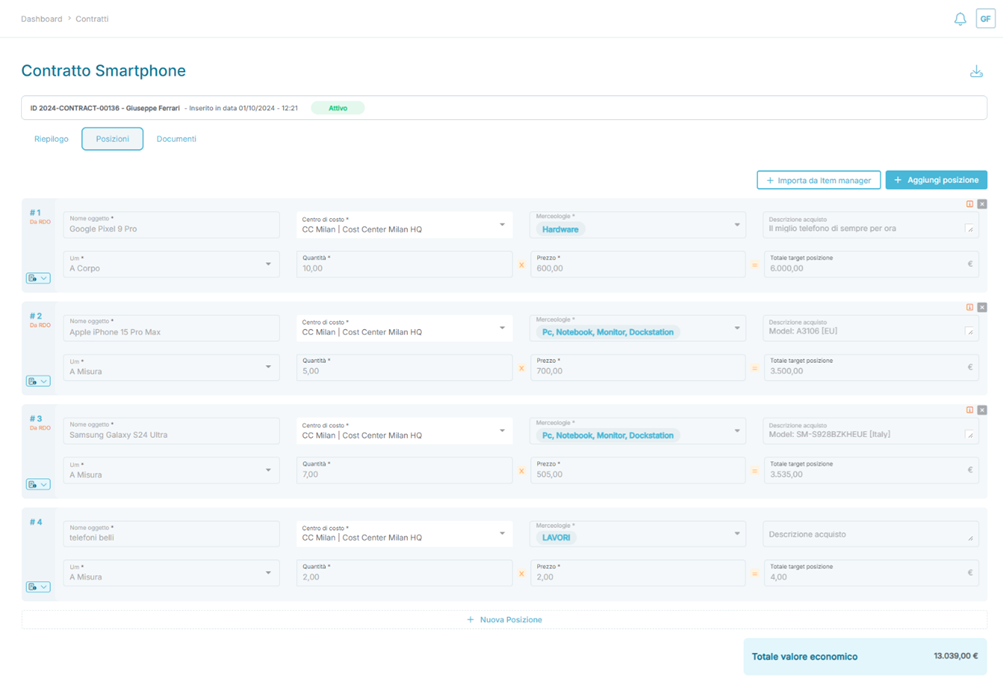
The positions are read-only, and new positions can be imported from the Item Manager using the button , or added manually using the button
  or the button
  at the end of the last listed position.
Any new positions added after the contract's initial creation will be reflected in the contract's Summary section and can be processed as described in the previous section.
IMPORTANT: If it is necessary to extend the quantities for one or more positions already included in a contract from an RDO or imported via the Item Manager, the same item must be re-imported from the Item Manager with the additional quantities.
Contract Processing – Documents Section
The Documents section provides an overview of the documents uploaded during the contract creation phase.
In this section, users can check whether documents were uploaded during contract creation and whether they are digitally signed. If a document is digitally signed, the platform displays a dedicated text label inside the document's box  , which also contains an optional field for entering the document's expiration date.

Example: View of a digitally signed document uploaded in the Documents section of a contract
The ORBIT User can download the file using the button  or delete it from the platform using the button
  .
.
IMPORTANT: For an Expired Contract, new documents cannot be added. It is necessary to modify the contract's validity dates before proceeding with the addition or removal of documents.
Was this article helpful?
That’s Great!
Thank you for your feedback
Sorry! We couldn't be helpful
Thank you for your feedback
Feedback sent
We appreciate your effort and will try to fix the article