The “Suppliers” section (A) contains functionality related to supplier management and allows you to view data and information of various kinds.
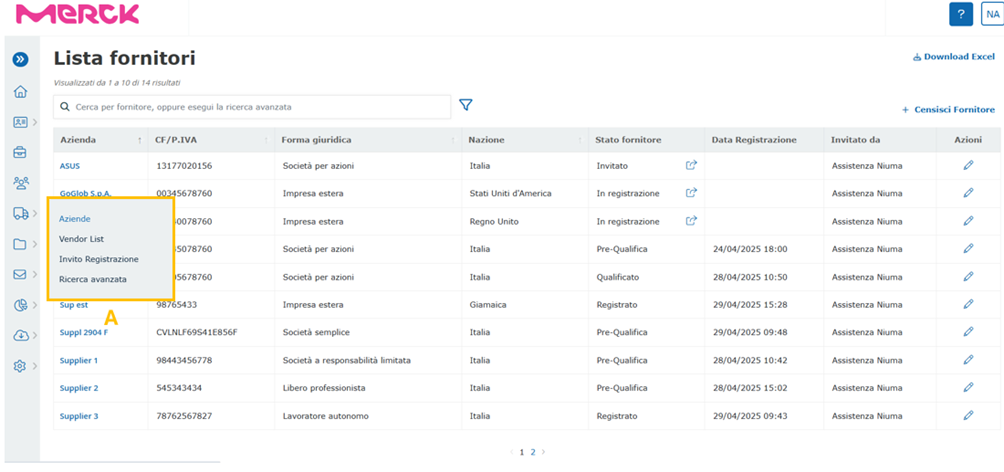
In detail:
- Companies: this section allows you to view the complete list of suppliers, surveyed in the platform. In addition, in the Actions column, there is an icon through which to access the modification of the company data of the supplier in question.
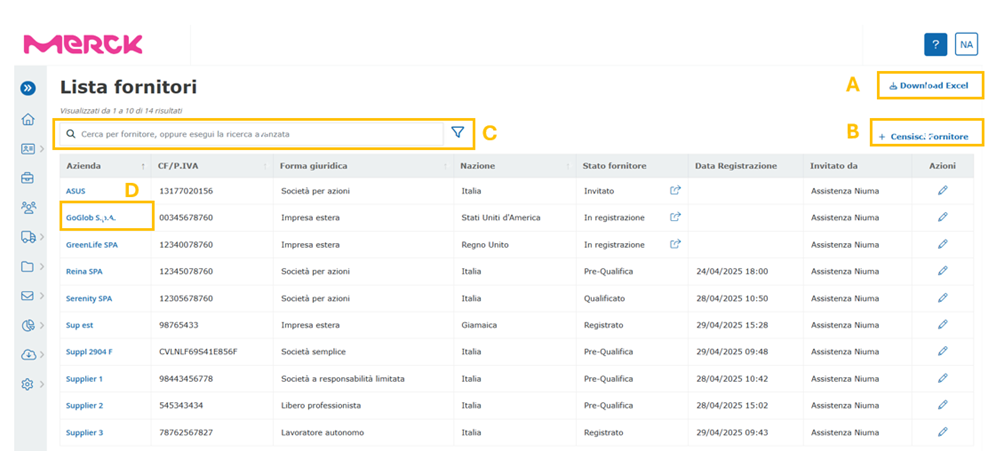
In addition, the internal user has the ability to perform a supplier extraction by clicking on the “Download Excel” button (A), located at the top right of the page; with the option of being able to make a selection of suppliers using the search filter tool (C).
Clicking on the specific company name (D) allows you to view the complete supplier master data. While if one wants to census a supplier in the platform, without necessarily sending a registration invitation, the user can click on the “Census supplier” button (B).
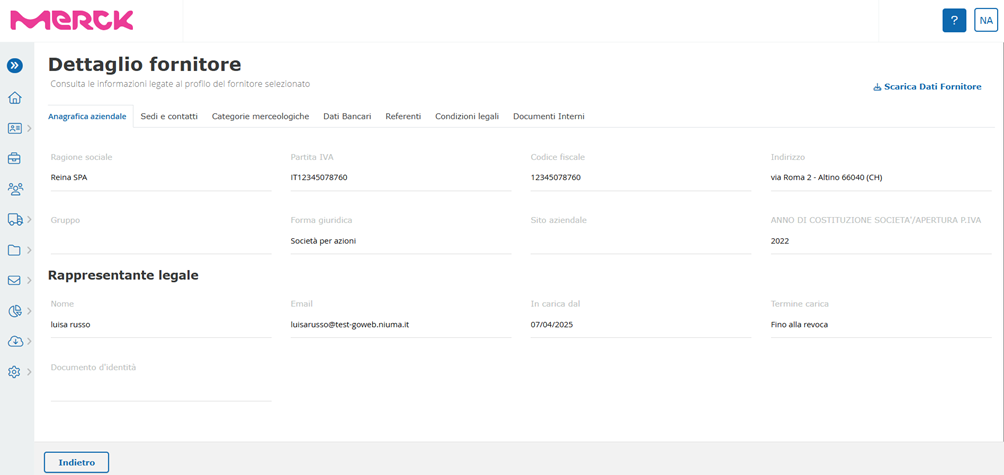
Within the “Supplier Detail”, the internal user has the option of viewing the information entered by the supplier during registration: master data, locations and contacts, commodity categories, bank details and contact information. In addition, within the same area it is possible not only to consult the legal conditions accepted by the supplier, but also to enter any documents for internal use.
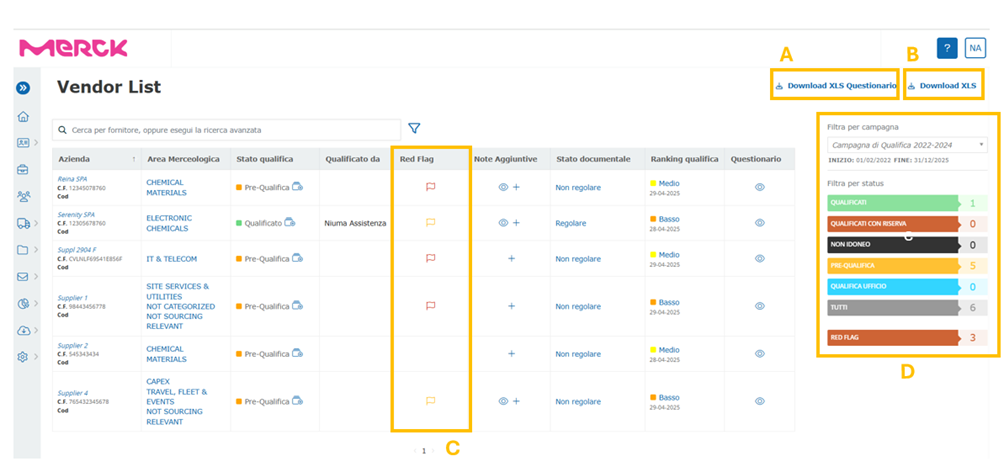
- Vendor List: this section shows all vendors who have completed the qualification questionnaire and entered the required documentation. From the “Qualification Ranking” column, by clicking on the relevant ranking, it is possible to access the score card and view the scores obtained by the vendor. On the other hand, by clicking on the wink icon in the “Questionnaire” column, it is possible to view the completed questionnaires; in addition, through the “Download XLS Questionnaire” button (A), the user can directly download the questionnaire in excel format.
The data contained in the Vendor List section can be downloaded through the “Download XLS” button (B). In case one wants to know the details of the supplier's reference commodity category, one can click on the items in the “Commodity Area” column.
In addition, the user can add/display any notes entered during the qualification phase in the “Additional Notes” column.
In addition, it is possible to display the column of “redflags” (C), which alert the internal user of certain suspicious responses in the questionnaire filled out by the provider. If one or more “redflags” are triggered, a monitoring procedure is initiated by a designated user. A negative outcome of the verification will identify the supplier as NOT SUITABLE; a positive outcome, on the other hand, will allow the qualification process to be completed.
On the right side of the page, you can filter by campaign or status (D) the list of suppliers in the table.
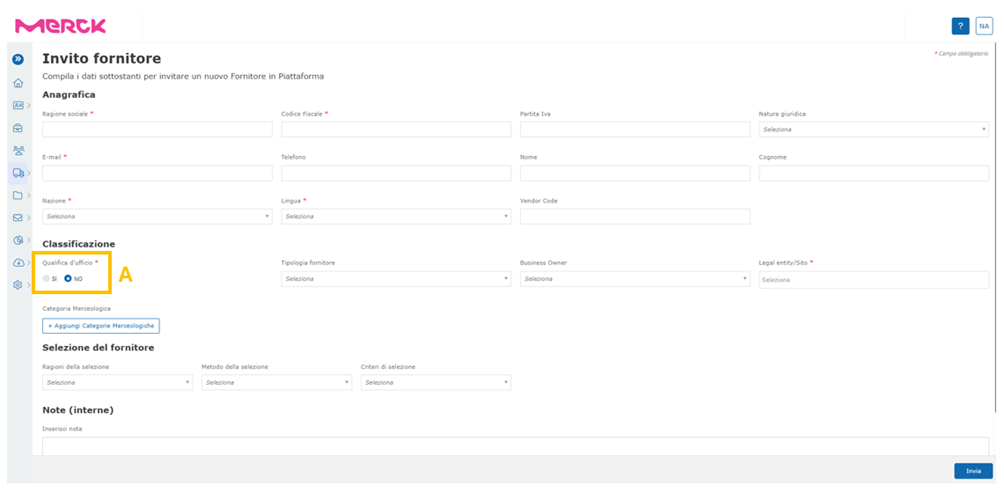
- Invitation to Registration: this section allows you to invite a given supplier to register on the portal using the “Send” button (B) at the bottom right of the page (ref. Figure 13). Specifically, once the required data has been entered, especially the mandatory data marked with (*), the system will send an email to the supplier with the relevant notice. The email will contain the “token” code, an alphanumeric code of restricted time validity, which will allow the supplier to be able to access the e-procurement portal registration procedure.
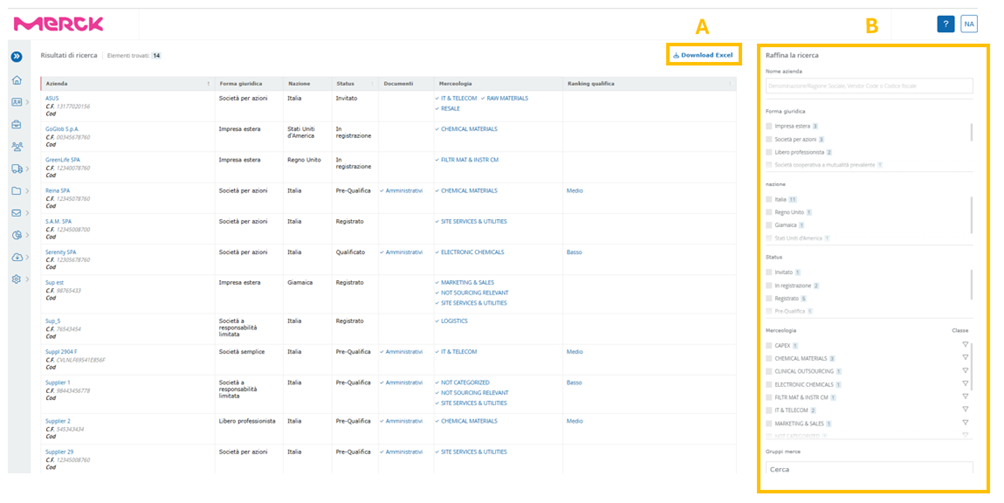
- Advanced Search: in this section it is possible to perform specific searches on the supplier list by acting on appropriate search filters (B) (ref. Figure 14):
o Company Name
o Reminder Status
o Legal Form
o Country
o Status
o Commodity
o Class
o Commodity Group
o Documents
o Qualification Ranking
While, with the “Download Excel” button (A), the user can export the search results to excel format.
Was this article helpful?
That’s Great!
Thank you for your feedback
Sorry! We couldn't be helpful
Thank you for your feedback
Feedback sent
We appreciate your effort and will try to fix the article