By clicking on the icon  present in the sidenav, the User is redirected to the Supplier Registry section, where it is possible to view a list containing information about Suppliers already registered on the Platform. Below is a sample screenshot of the page:
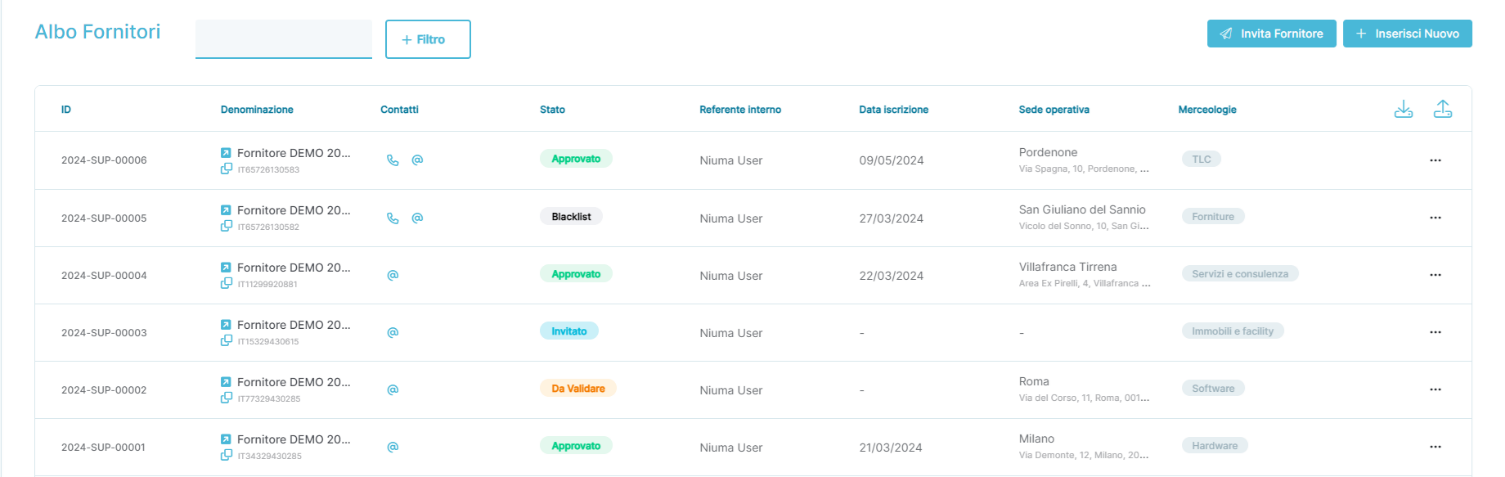
In detail, the fields present are:
- ID: This is a unique identifier generated by the Portal associated with the Supplier.
- Name: Displays the legal name of the Supplier.
- Below the legal name, the Supplier's VAT number can be viewed.
- By clicking on the icon
 , the VAT number associated with the Supplier can be copied.
- By clicking on the icon
- Below the legal name, the Supplier's VAT number can be viewed.
- Contacts: Displays the contact information of the Supplier.
- By hovering over the icon
 , the phone number associated with the Supplier can be viewed.
 - By hovering over the icon
 , the e-mail address associated with the Supplier can be viewed.
- By hovering over the icon
- Status: Indicates the status of the Supplier on the Platform.
- It can have four values:
- Invited: The Supplier has been invited via the functionality and must complete the required data completion process.
- To Validate: The Supplier has been invited via the functionality , has completed the required data entry process, and is waiting to be approved by a Portal User.
- Approved: The Supplier invited via the functionality , added in bulk, or for whom the profile has been manually completed by a Portal User has been approved.
- IMPORTANT: Approval by a Portal User only occurs if the functionality
 is used; for bulk uploads or manual profile completion, approval is automatic.
- IMPORTANT: Approval by a Portal User only occurs if the functionality
- Blacklist: The Supplier can only enter this state manually if a Portal User changes the status from Approved to Blacklist; it is used to indicate to Users using the Portal's forms that the Supplier is not considered reliable.
- IMPORTANT: Transition to the Blacklist status is reversible.
- A Supplier can only move from Blacklist to Approved.
- IMPORTANT #2: Transition to the Blacklist status does not prevent the Supplier from being involved in Requests for Quotes or Orders.
- IMPORTANT: Transition to the Blacklist status is reversible.
- It can have four values:
- Internal Contact: Displays the name and surname of the internal contact associated with the Supplier.
- Registration Date: Displays the date on which the Supplier first achieved Approved status.
- Operating Location: Displays the address of the location associated with the Supplier.
- Merchandise Category: Displays the merchandise category associated with the Supplier.
- …
- The three dots open a submenu containing the following options:
- Edit: Allows entry into the supplier editing mode, where changes can be made to the currently associated Supplier information.
- Delete: Allows deletion of the Supplier from the Portal.
- Blacklist: Allows moving the Supplier to Blacklist status.
- The three dots open a submenu containing the following options:
- Export: Export the list of Suppliers directly from the button
 .
. - Import: Import Suppliers directly from the button

Supplier Registration Modes
The Portal provides three different ways to add a new Supplier:
- Supplier Onboarding (Invite Supplier)
- Manual Supplier Entry (Insert New)
- Bulk Upload Suppliers
Supplier Registration Mode – Supplier Onboarding (Invite Supplier)
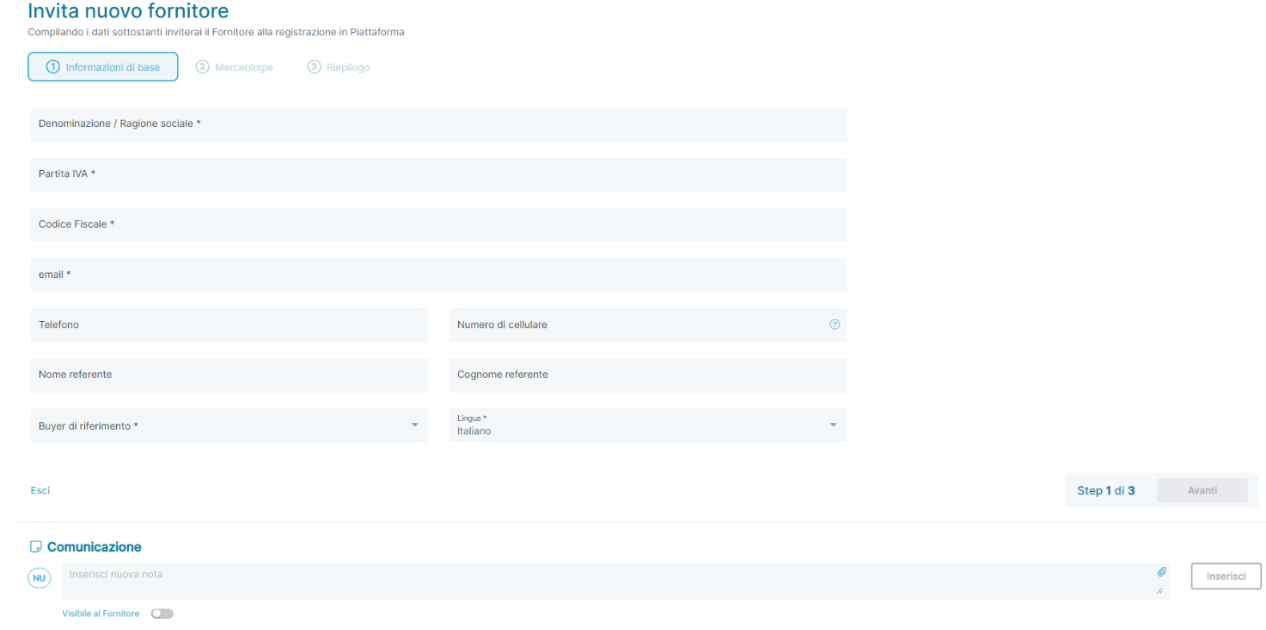
The Portal allows inviting a Supplier after entering some preliminary information to engage the Supplier's contact person, who will be responsible for completing and/or modifying the information entered by the internal User.
By pressing the button  , the internal User accesses the Supplier invitation page, as shown below:
Was this article helpful?
That’s Great!
Thank you for your feedback
Sorry! We couldn't be helpful
Thank you for your feedback
Feedback sent
We appreciate your effort and will try to fix the article