Manual Entry – Basic Information
The first page of the stepper is dedicated to Basic Information, containing the following fields:
- Name / Company Name: Allows the entry of the Supplier's Company Name.
- VAT Number: Allows the entry of the Supplier's VAT Number.
- Tax Code: Allows the entry of the Supplier's Tax Code.
- Email: Allows the entry of the contact email for the Supplier's representative.
- IMPORTANT: The email address entered in this field will be used by the Portal as the Supplier's main contact email.
- Phone: Allows the entry of a landline number for the Supplier's representative.
- Mobile Number: Allows the entry of a mobile number for the Supplier's representative.
- Representative's First Name: Allows the entry of the first name of the Supplier's representative.
- Representative's Last Name: Allows the entry of the last name of the Supplier's representative.
- Reference Buyer: Allows the entry of the internal User who is the reference for the Supplier.
- Language: Allows the indication of the language used by the Supplier.
It is possible to proceed to the next step of the form by pressing the button  .
.
Manual Entry – Supplier Profile
The second page of the stepper is dedicated to the Supplier Profile.
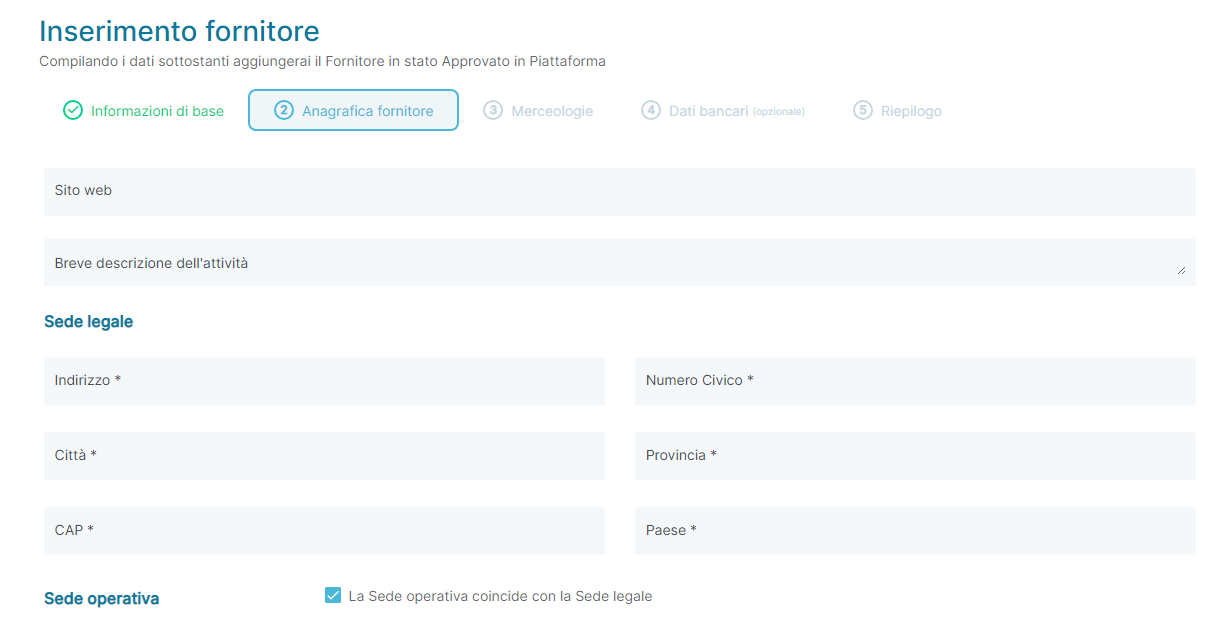
The section contains the following fields:
- Website: Allows entry of the Supplier's website.
- Brief Description of Activities: Allows entry of a brief description of the activities carried out by the Supplier.
- Legal Address: Allows entry of the legal address of the Supplier, detailing:
- Address: Allows entry of a complete address.
- This field utilizes Google APIs to extract the full address, which, if extracted completely, can populate the remaining fields of the Legal Address.
- Civic Number: Allows entry of the civic number of the Supplier's legal address.
- City: Allows entry of the city where the Supplier's legal address is located.
- Province: Allows entry of the province where the Supplier's legal address is located.
- Postal Code: Allows entry of the postal code for the municipality where the Supplier's legal address is located.
- Country: Allows indication of the country where the Supplier's legal address is located.
- Address: Allows entry of a complete address.
- Operational Address: Allows indication of whether the operational address coincides with the Supplier's legal address.
- If the checkbox is active (
 ), no fields are shown, and the User can proceed with the next steps of Manual Entry.
 - If the checkbox is inactive (
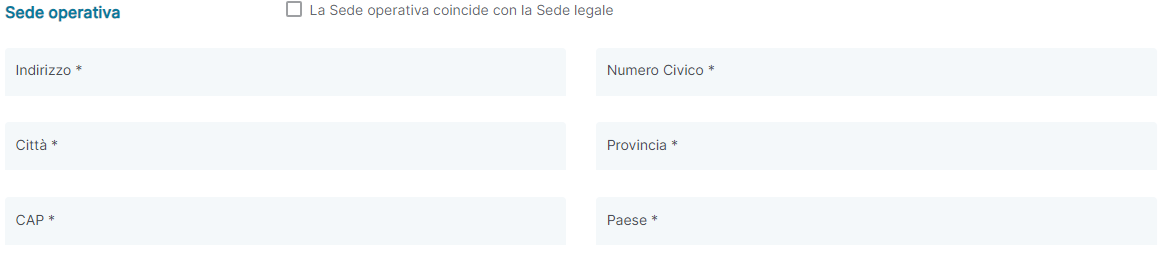
 ), new fields are displayed to indicate the details of the Supplier's operational address, detailing:
- Address: Allows entry of a complete address.
- This field utilizes Google APIs to extract the full address, which, if extracted completely, can populate the remaining fields of the Operational Address.
- Civic Number: Allows entry of the civic number of the Supplier's operational address.
- City: Allows entry of the city where the Supplier's operational address is located.
- Province: Allows entry of the province where the Supplier's operational address is located.
- Postal Code: Allows entry of the postal code for the municipality where the Supplier's operational address is located.
- Country: Allows indication of the country where the Supplier's operational address is located.
- Address: Allows entry of a complete address.
- If the checkbox is active (
You can proceed to the next step of the form by pressing the button .
Manual Entry – Product Categories
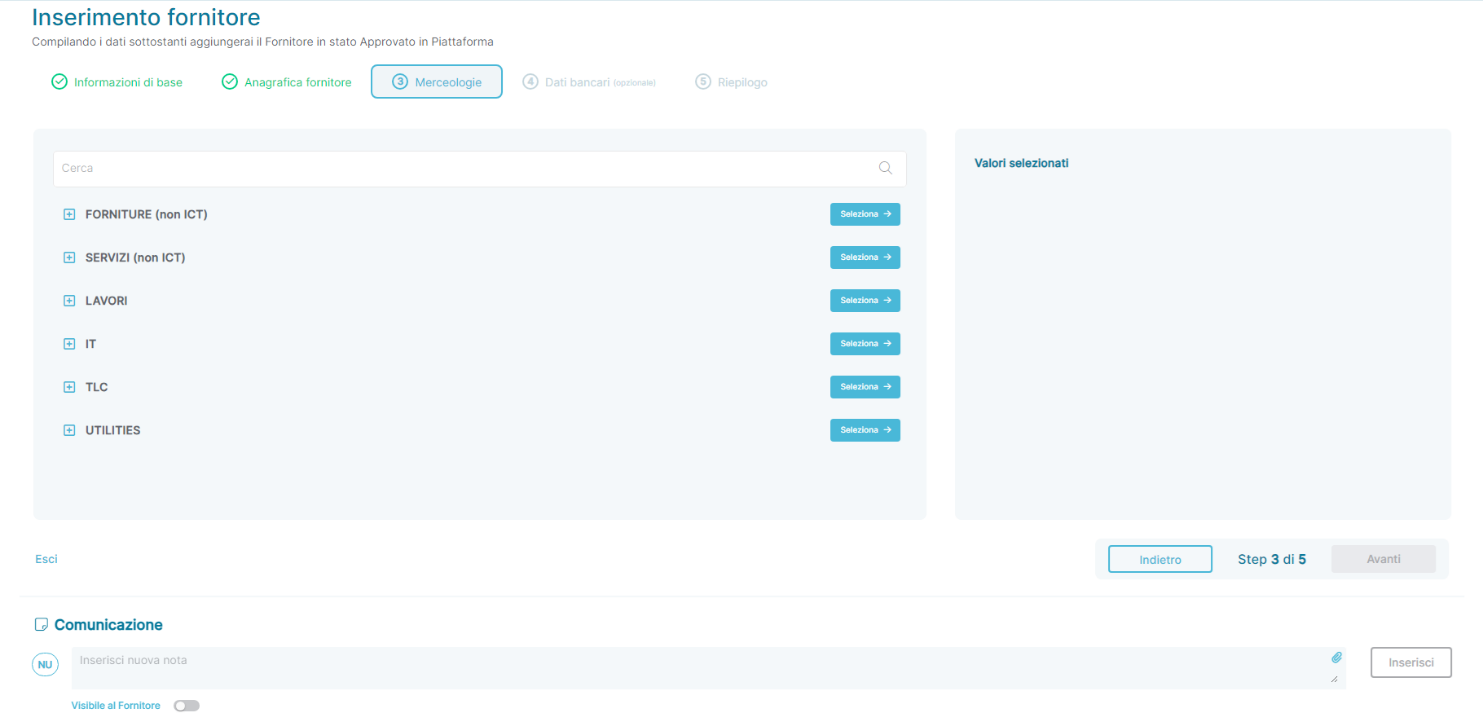
The third page of the stepper is dedicated to the registration of the Supplier Profile, where users can associate Product Categories with the Supplier.
You can proceed to the next step of the form by pressing the button 
Manual Entry – Merchandise
The third page of the stepper is dedicated to the registration of the supplier's profile, where you can associate merchandise categories with the supplier.
Manual Entry – Bank Details
The fourth page of the stepper is dedicated to entering the supplier's bank details.
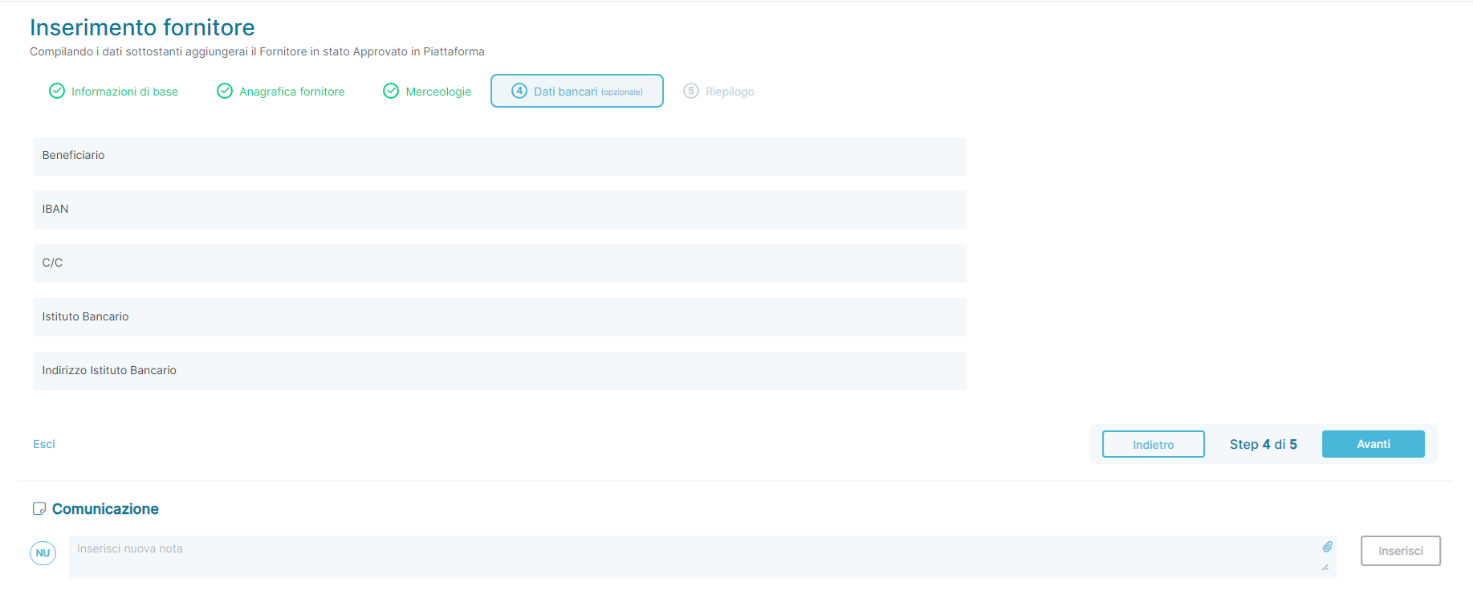
The section contains the following fields:
- Beneficiary: Allows you to enter the beneficiary of a payment.
- IBAN: Allows you to enter the supplier's IBAN.
- Bank Account: Allows you to enter the supplier's bank account details.
- Bank Institution: Allows you to enter the details of the supplier's bank institution.
- Bank Institution Address: Allows you to enter the address of the bank institution.
You can proceed to the next step of the form by pressing the button  .
.
Manual Entry – Summary
The fifth and final page of the stepper allows you to view a summary of the data entered in the previous sections:
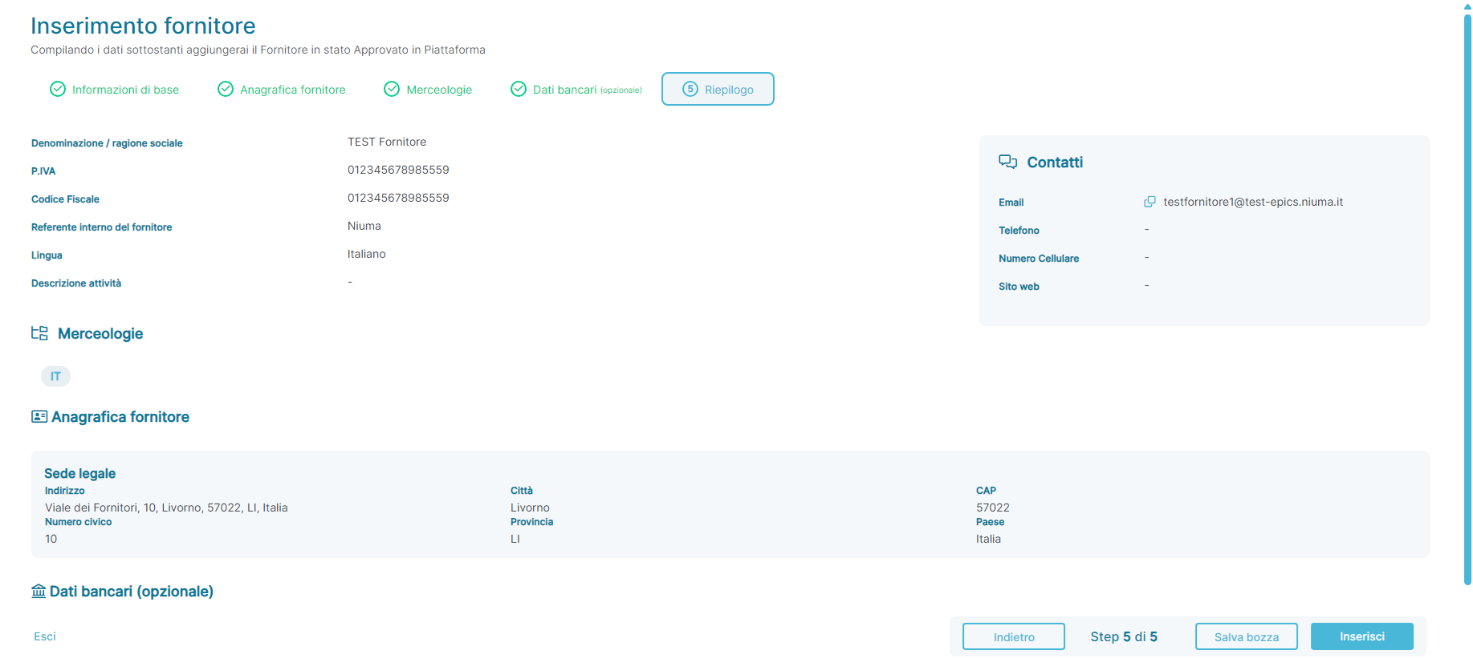
You can always modify the information entered in the previous sections by pressing the button  or clicking on the name of the section located at the top of the page. Specifically:
- Clicking on
 allows you to modify the Basic Information previously entered.
 - Clicking on
 allows you to modify the supplier's profile data previously entered.
 - Clicking on
 allows you to modify the Merchandise categories previously entered.
 - Clicking on
 allows you to modify the Bank Details previously entered.
From this page, you can save all the entered data for future reference before the final entry of the supplier into the platform by pressing the button.
The final entry of the supplier occurs  when you press the button, which allows you to complete the data entry and save the supplier in Approved status.
Supplier Registration Mode – Bulk Upload of Suppliers
The portal allows for the bulk import of suppliers directly from the Supplier List by pressing the button  . Pressing the button will open a section on the left side of the portal where you can download the bulk template to re-upload directly into the platform with the suppliers to be imported. Below is a screenshot of the section:
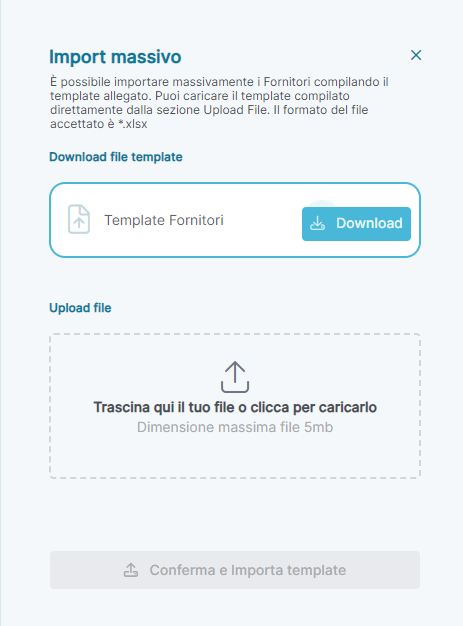
Once the completed template is uploaded, by pressing the button  and in the absence of errors reported by the platform during data entry, the suppliers listed in the bulk file are all inserted with Approved status.
Viewing Supplier Details
For all suppliers listed in the Supplier Registry, it is possible to access the details page to view the detailed information associated with each supplier based on the supplier's current status. By clicking on the ID of a supplier in the supplier list, you can view:
By clicking on the ID of a supplier in the supplier list, you can view:
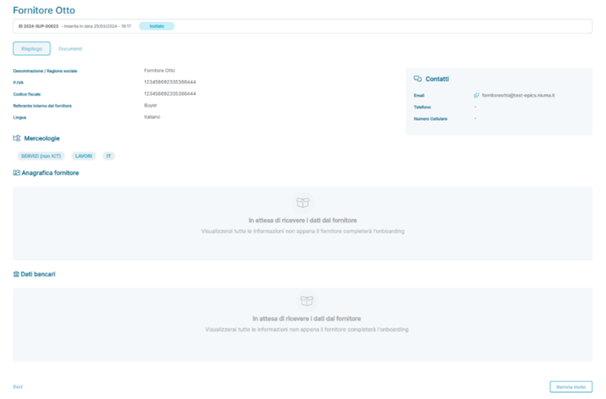
For suppliers in the Invited status:
- Summary Page
- Documents Page
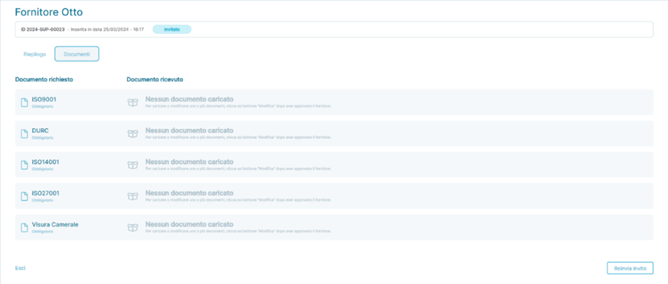
- In this application state, the supplier has not completed the onboarding process, and not all detailed information about the supplier may be present. At this stage, it is only possible to resend the invitation to the supplier containing the link to start the onboarding process by clicking the button

- For suppliers in the Compiling status:
- Summary Page
- For suppliers in the Compiling status:
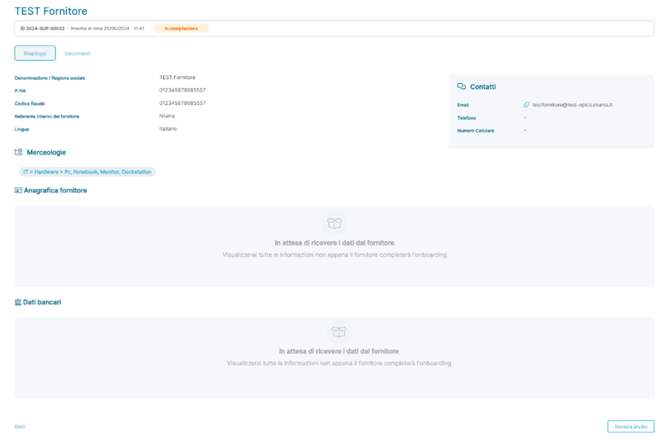
- Documents Page
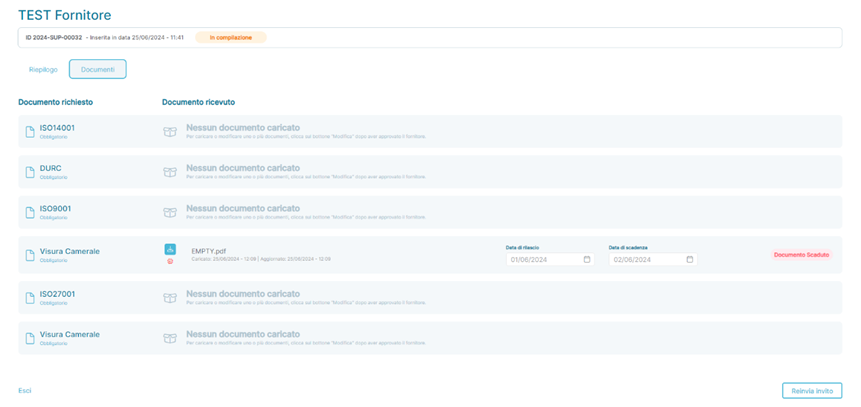
In this application state, the supplier has not completed the onboarding process, and not all detailed information about the supplier is present. However, the supplier has saved the partial data entered to continue the compilation at a later time. At this stage, it is only possible to resend the invitation to the supplier containing the link to start the onboarding process by clicking the button 
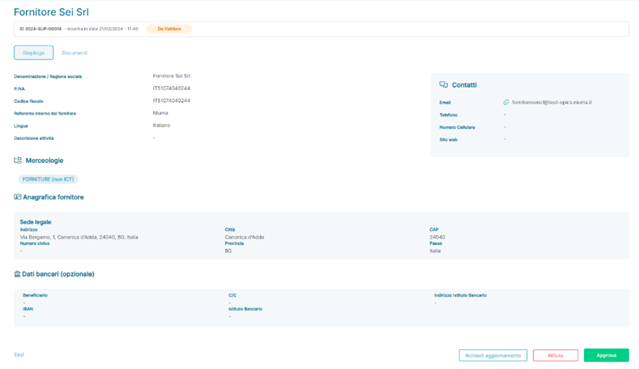
- For Suppliers in the "To Be Validated" State
- Summary Page
- Documents Page
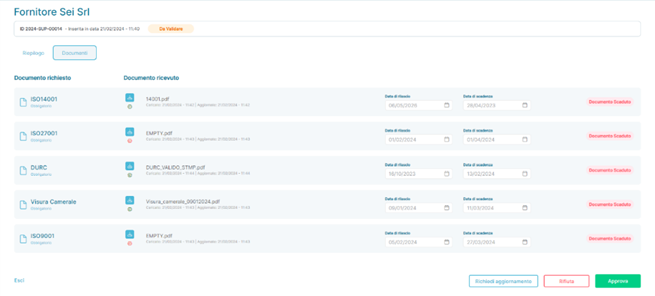
In this application state, the supplier has completed the onboarding process, so all detailed information about the supplier is present. At this stage, it is possible to:
- Approve the supplier by clicking the button

- Reject the supplier by clicking the button

- Request an update of the data and/or documents shared by the supplier by clicking the button

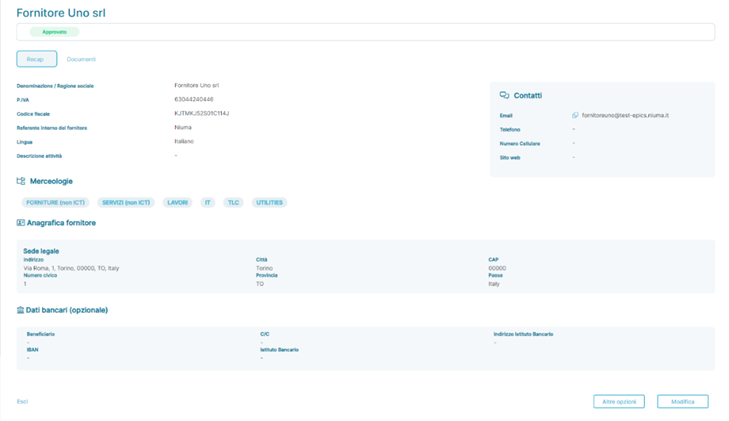
- For Suppliers in the "Approved" State
- Summary Page
- Documents Page
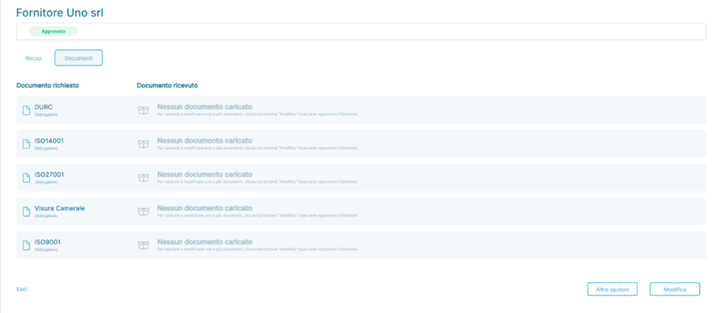
In this application state, the supplier has completed the onboarding process, has been correctly imported from the bulk import file of suppliers, or has been added manually; therefore, all detailed information about the supplier is present. In this state, it is possible to:
- Modify the supplier's data by clicking the button

- Move the supplier from the "Approved" state to the "Blacklist" state by clicking the button

Was this article helpful?
That’s Great!
Thank you for your feedback
Sorry! We couldn't be helpful
Thank you for your feedback
Feedback sent
We appreciate your effort and will try to fix the article