The completion of preliminary data before starting the Onboarding process is divided into three steps:
- Basic Information
- Merchandise
- Summary
All three steps share the option to leave the page using the button and to enter Communications. In detail, from the Communications section, it is possible to:
- Enter a text note
- Attach a file using the icon
Onboarding – Basic Information
The first page of the stepper is dedicated to Basic Information, containing the following fields:
- Name / Company Name: Allows the entry of the Supplier's Company Name.
- VAT Number: Allows the entry of the Supplier's VAT Number.
- Tax Code: Allows the entry of the Supplier's Tax Code.
- E-mail: Allows the entry of the contact e-mail for the Supplier's representative.
- IMPORTANT: The e-mail address entered in this field will be used by the Portal as the Supplier's main contact e-mail.
- Phone: Allows the entry of a landline number for the Supplier's representative.
- Mobile Number: Allows the entry of a mobile number for the Supplier's representative.
- Representative's First Name: Allows the entry of the first name of the Supplier's representative.
- Representative's Last Name: Allows the entry of the last name of the Supplier's representative.
- Reference Buyer: Allows the entry of the internal User who is the reference for the Supplier.
- Language: Allows the indication of the language used by the Supplier.
It is possible to proceed to the next step of the form by pressing the button .
Onboarding – Merchandise
Upon completing the entry of Basic Information, it is possible to proceed with the association of Merchandise.
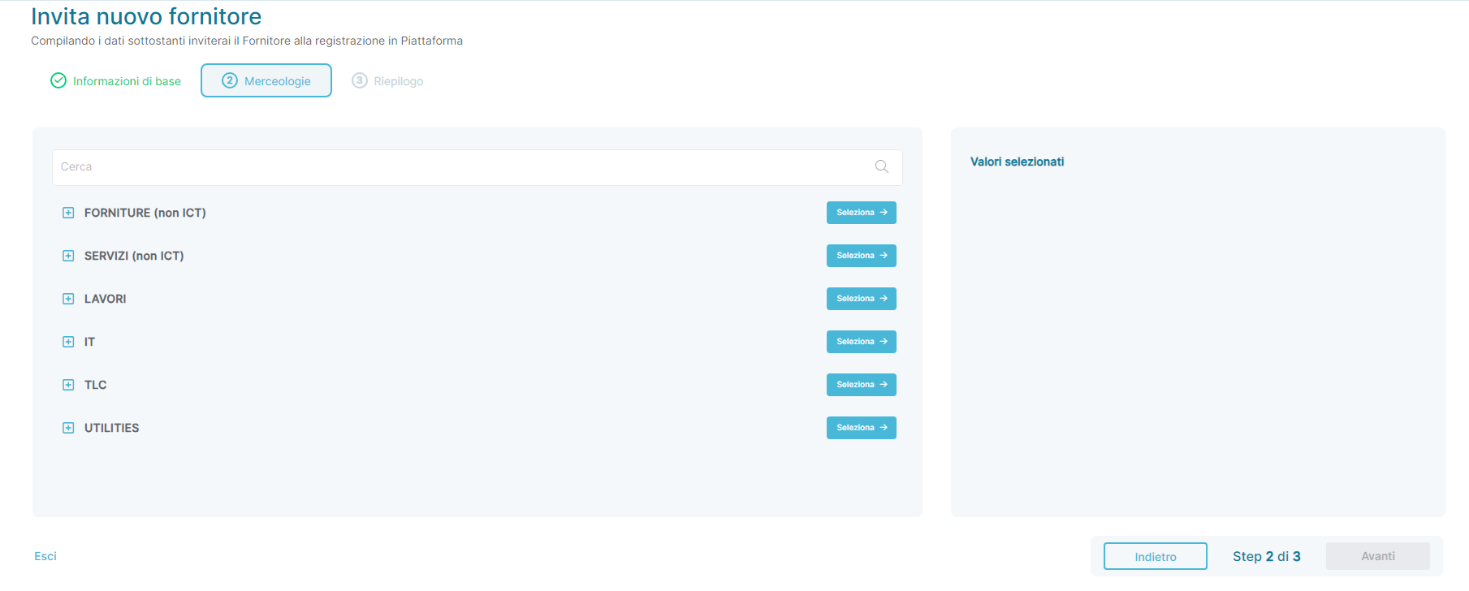
The second page of the stepper contains the list of merchandise categories available in the Portal (for more details on how the Product Tree works, see the Settings section – Start -> Start – Product Tree in the manual).
The Supplier can be associated with entire merchandise Families, merchandise Classes, or individual Merchandise Categories, selectable using the button  . You can proceed to the next step of the form by pressing the button
  .
.
Onboarding – Summary
After completing the entry of Merchandise, you can view a summary of the data entered in the previous sections of the stepper:
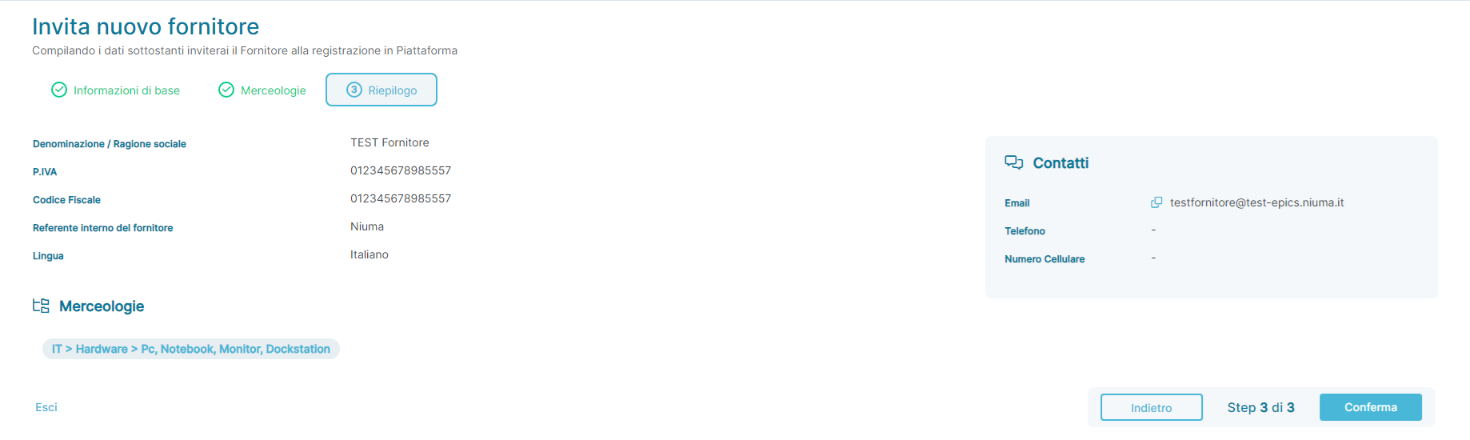
It is always possible to modify the information entered in the previous sections by pressing the button
 or clicking on the name of the section located at the top of the page. In detail:
- Clicking on
 allows you to modify the previously entered Basic Information.
 - Clicking on
 allows you to modify the previously entered Merchandise.
Pressing the button  allows you to complete the data entry and simultaneously initiate the Supplier onboarding process.
IMPORTANT: The onboarding from the Supplier's perspective is not covered in this manual.
Supplier Registration Mode – Manual Supplier Entry (Add New)
The Portal allows the internal User to fill in all Supplier data on their behalf from the Supplier Register list.
By pressing the button  , the internal User accesses the Supplier invitation page, shown below:
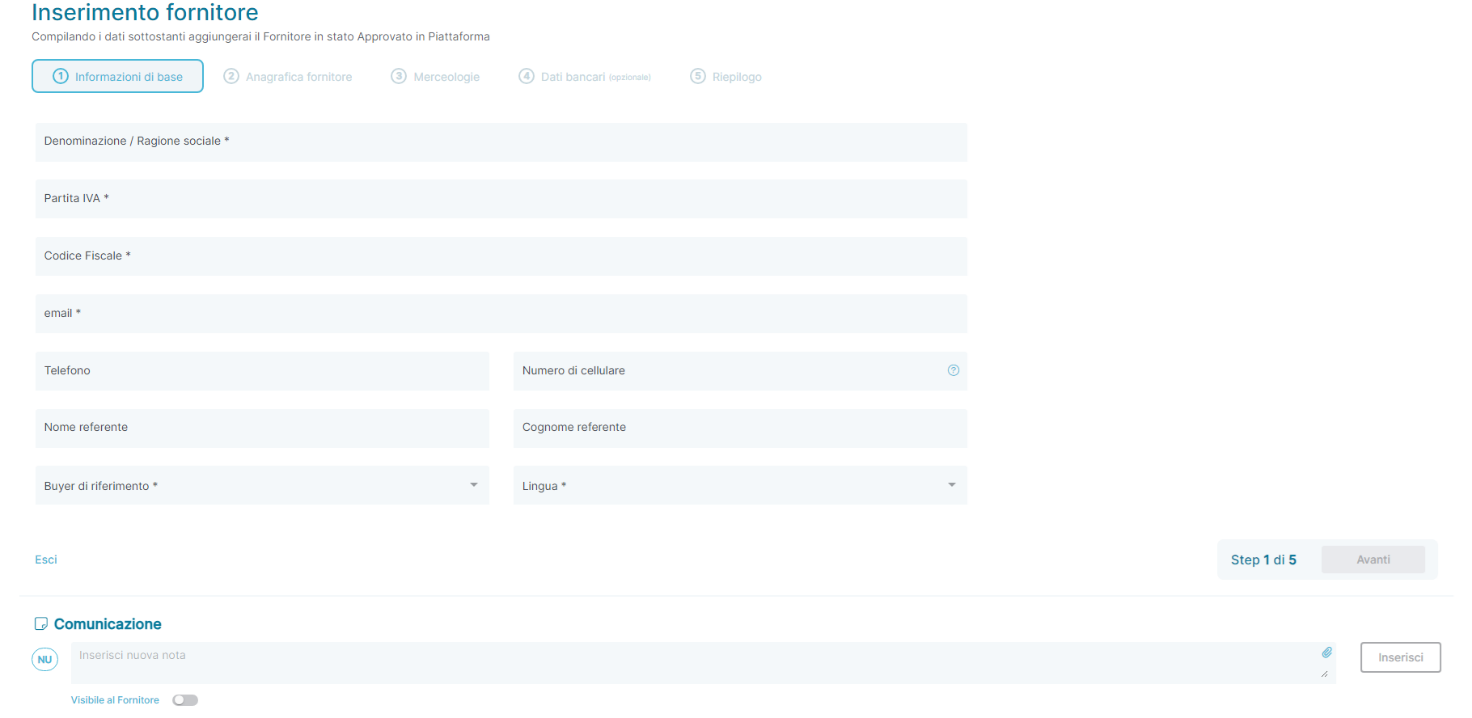
The completion of preliminary data before starting the Manual Entry process is divided into five steps:
- Basic Information
- Supplier Profile
- Merchandise
- Bank Details (optional)
- Summary
All five steps share the option to leave the page using the button  and to enter Communications. In detail, from the Communications section, it is possible to:
- Enter a text note
- Attach a file using the icon

Was this article helpful?
That’s Great!
Thank you for your feedback
Sorry! We couldn't be helpful
Thank you for your feedback
Feedback sent
We appreciate your effort and will try to fix the article