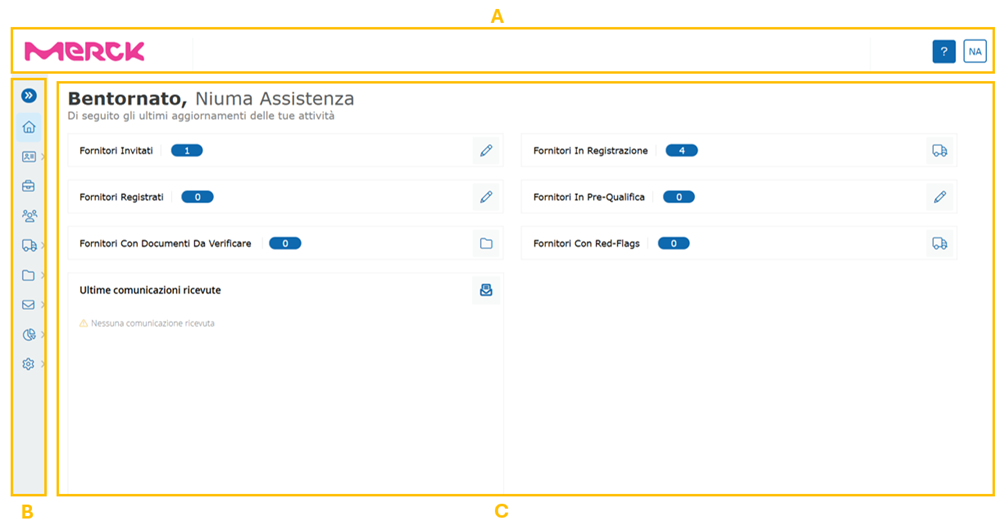
After logging into the portal, the user will see the Home Page, consisting of the following elements:
A. Header (A)
B. Side Menu (B)
C. Central part of content (C)
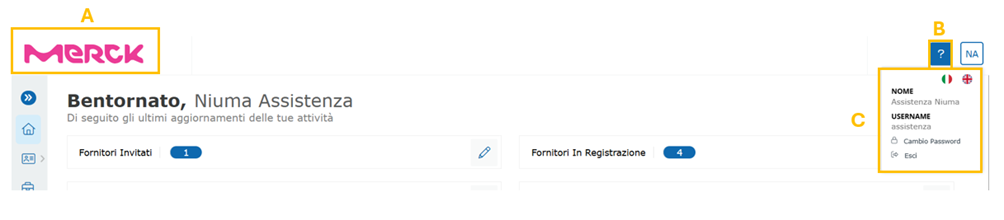
Within the header, both the company logo (A) and the 'user area (C) can be viewed, in which there is the name and username of the user, the possibility of selecting the language for viewing the portal between Italian/English and finally, it is possible to make the password change and Log-out.
In addition, the user will be able to consult guides and FAQ support for the use of the portal through the special button with the icon depicting the question mark (?) (B).
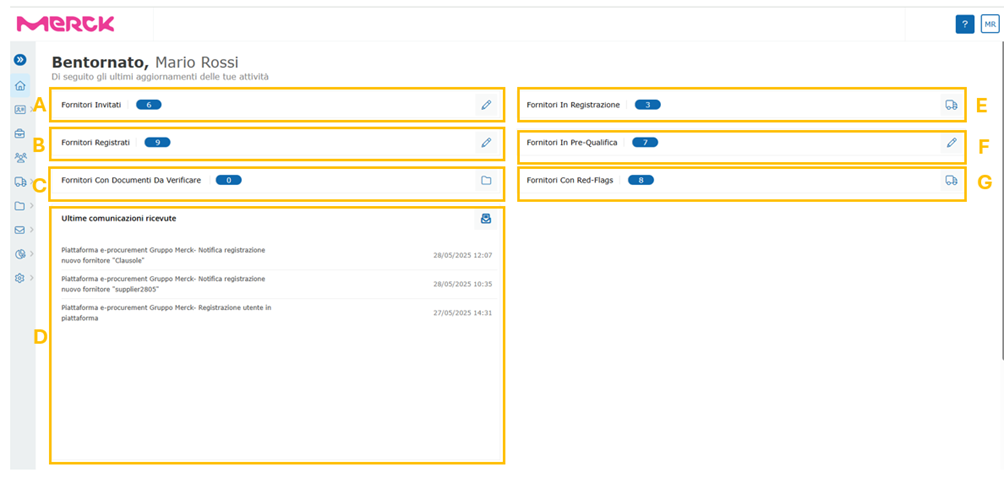
The central part of the Home page/Activity Overview, represents for the user, an information section closely related to the features used on the portal.
According to the specific user profile, the following short-cuts are displayed and accessible (ref. Figure 4):
o Invited Suppliers (A), which directs to the Supplier List page filtered by Status = Invited;
o Registered Suppliers, (B) which directs to the Supplier List page filtered by Status = Registered;
o Suppliers With Documents to Verify (C), which directs to the Vendor List page, containing the list of suppliers in pre-qualification;
o Suppliers in Registration (E), which directs to the Vendor List page filtered by Status = In Registration;
o Suppliers in Pre-Qualification (F), which directs to the Vendor List page filtered by Status = Pre-Qualification;
o Suppliers With Red-Flags (G), which directs to the Vendor List page filtered only for suppliers with one or more redflags to be verified;
In addition, it is possible to keep track of the latest received communications (D) that the portal sends to the user and vendor, sorted from most recent to least recent.
Was this article helpful?
That’s Great!
Thank you for your feedback
Sorry! We couldn't be helpful
Thank you for your feedback
Feedback sent
We appreciate your effort and will try to fix the article