The platform pages, when in logged-in mode, appear as follows:
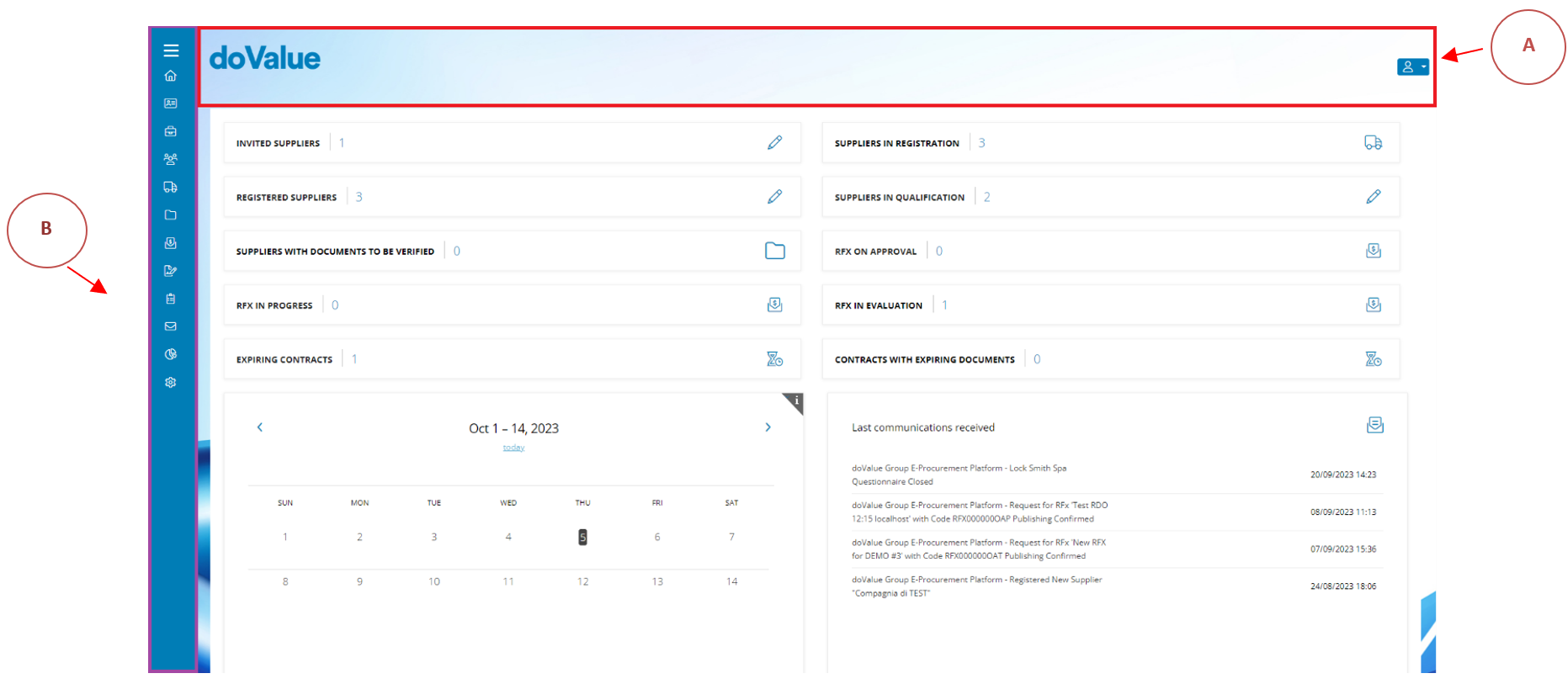
(A) The header of the page consists of the company logo on the left and the following features on the right:
- User Area: accessible via the icon, this section allows users to view their first name, last name, and username. Additionally, users can select the platform's display language, choosing between Greek and English. In this sections the user can also log out and proceed to change their password.
(B) Sidenav:
- Contains the icons that will let the user access the Platform’s modules
- By clicking the icon the user can expand the sidenav
The complete list of icons and their respective descriptions that will be visible to your application role is shown below:
Homepage
Personal Area:
Personal data
Received Communications
Users
Suppliers:
Companies
Vendor List
Invite to registration
Registration invitation
Registration verification
Audit
Advanced filter
Campaign Management
Homologation
Documents:
Qualification
Document Validation
System Communication
Report:
Supplier overview
Tender performance
Purchasing dashboard
Contracts monitoring
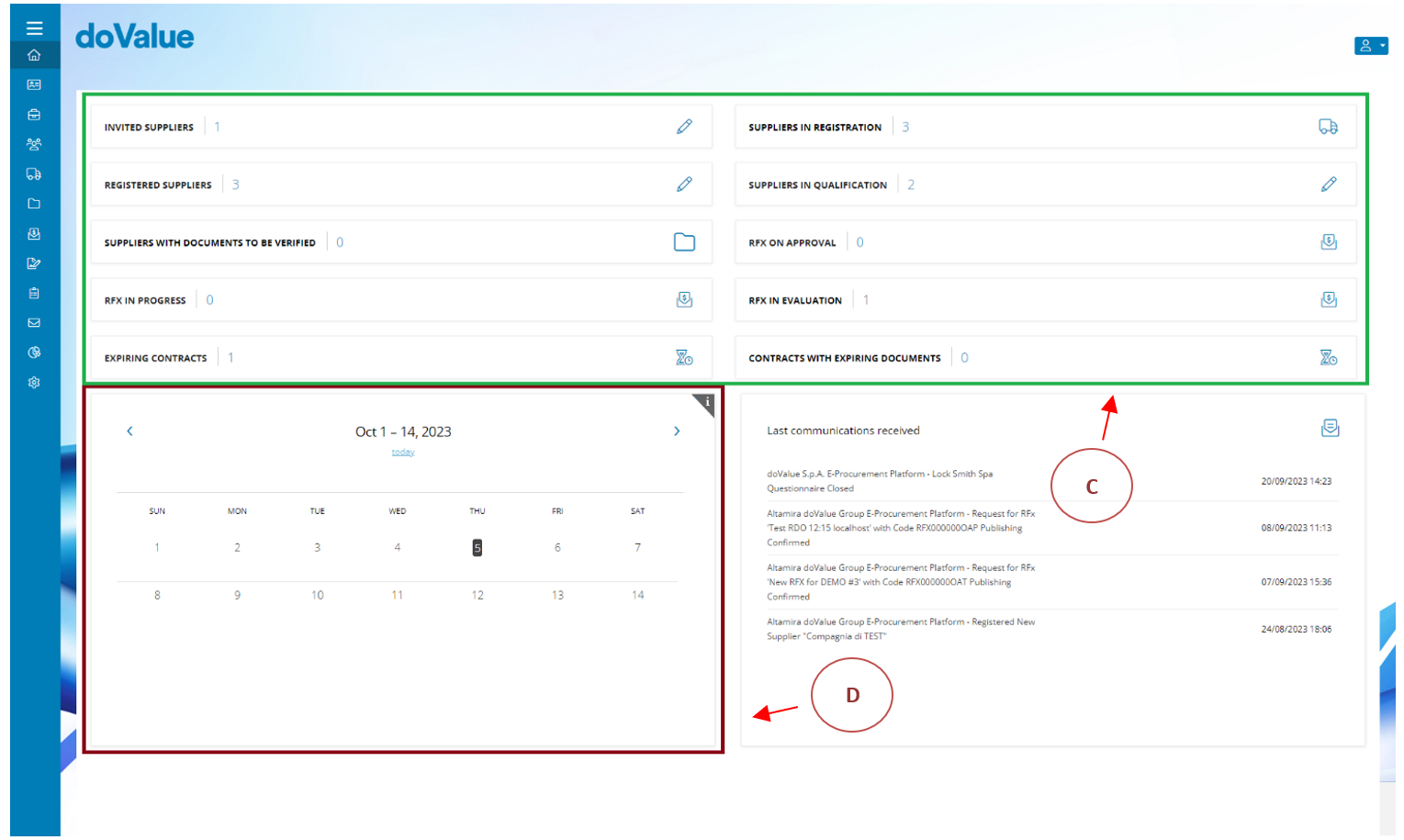
Depending on the specific user profile, the following shortcuts are displayed and accessible (C):
- Invited Supplier: This option directs the internal user to the Supplier List page, filtered by Supplier Status = "Invited". It provides a list of suppliers who have received an email invitation with a token to initiate their registration but have not yet commenced the Registration Process.
- Suppliers In Registration: This option directs the internal user to the Supplier List page, filtered by Supplier Status = "In Registration". It displays a list of suppliers who have received an email invitation with a token to initiate their registration and have already commenced the Registration Process
- Registered Suppliers: This option directs the internal user to the Supplier List page, filtered by Supplier Status = "Registered". It provides a list of suppliers who have received an email invitation with a token to initiate their registration and have successfully completed the Registration Process.
- Suppliers with documents to be verified: This option directs internal users to the Document Validation page.
(D) Shows the user activities and deadlines
Lastly, in the bottom right corner of the page, you'll find the latest communications received through the Platform, presented in chronological order.
Was this article helpful?
That’s Great!
Thank you for your feedback
Sorry! We couldn't be helpful
Thank you for your feedback
Feedback sent
We appreciate your effort and will try to fix the article