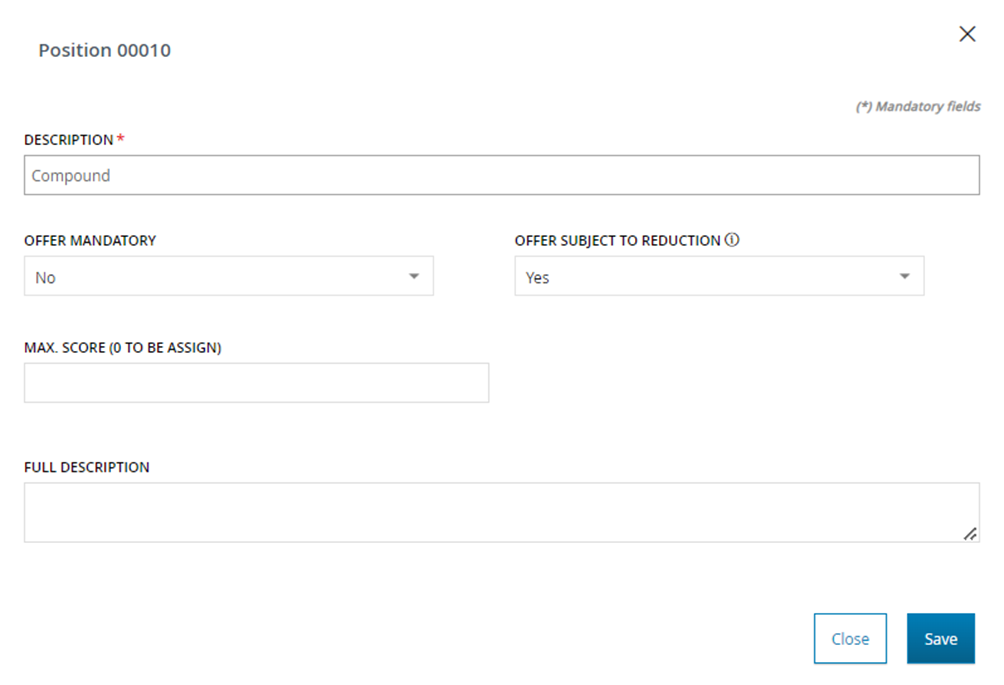
A 'Compound Position' refers to a container that gathers multiple simple sub-positions within it. When selecting the 'Composed' link, the internal user can access the window for entering information related to the position, which displays the following fields:
- Title: Automatically assigned by the system, this field contains the progressive number of the position.
- Short Description*: Provide a brief description of the position.
- Mandatory Offer: Define whether or not submitting an offer for this specific position is mandatory. The default value is 'No'.
- Charges Subject to Reduction: Determine whether or not this position is countable in the value placed in the tender. The default value is 'Yes'.
- Maximum score (<value> to be assigned): Enter the economic score to be attributed to the specific position, along with an indication of the remaining score to be allocated (which can only be valued if the 'By single position' option is selected in the 'Economic score calculation method' field of the 'Information' tab).
- Extended Description: This field provides a more detailed description and allows for additional information or notes related to the position.
As positions are added, the table will populate with records for each loaded position, including information such as Position Number (#), Description, Quantity, Unit of Measure, Base Price, Base Value, and Scores.
In the 'Actions' column, the internal user will find the following options available for each position:
- Edit position information using the
 icon.
icon. - Delete the record using the
 icon.
icon. - View the (non-editable) details of the position using the
 icon.
icon.
in the 'Sorting' column, the internal user can:
- Rearrange the order of the loaded positions using interactive
 and
and icons.
By clicking the icon, the internal user can access the window for entering information related to the sub-position of the compound position, which displays the following fields:
- Title: Automatically assigned by the system, this field contains the progressive number of the sub-position.
- Short Description: A brief description of the sub-position.
- Quantity*: Specify the quantity of goods/services requested.
- Unit of Measurement*: Select the unit of measurement from a drop-down menu.
- Current Price: The current unit price at which the good/service is purchased or the reference price to be set.
- Current Value: Automatically calculated as the product of quantity and current price.
- Basic Price: The unit price based on the invitation to tender for the good/service.
- Target Price: The target unit price for the good/service.
- Target Price Visibility: Define whether or not to make the target price visible to the supplier. The field defaults to 'No'.
- Full Description: This field provides a more detailed description and allows for additional information or notes related to the sub-position.
On the page, the internal user will see the 'Economic Offer' tab populated with simple positions, composite positions, and related sub-positions.
At the bottom of the page, there is the 'Economic Notes' field where you can enter any useful notes for all users who will view the details of the card.
At the bottom of the page, the internal user will find the 'Economic Notes' field where he can enter any useful notes for all users who will view the details of the card.
The internal user can also fill in the economic positions of the tender by importing an Excel file. The internal user has the option to download an Excel file using the  button and subsequently upload the completed Excel file using the
  button.

Was this article helpful?
That’s Great!
Thank you for your feedback
Sorry! We couldn't be helpful
Thank you for your feedback
Feedback sent
We appreciate your effort and will try to fix the article