doValue user, authorized for this task, can easily configure a tender on the Platform by simply selecting the RFx menu:
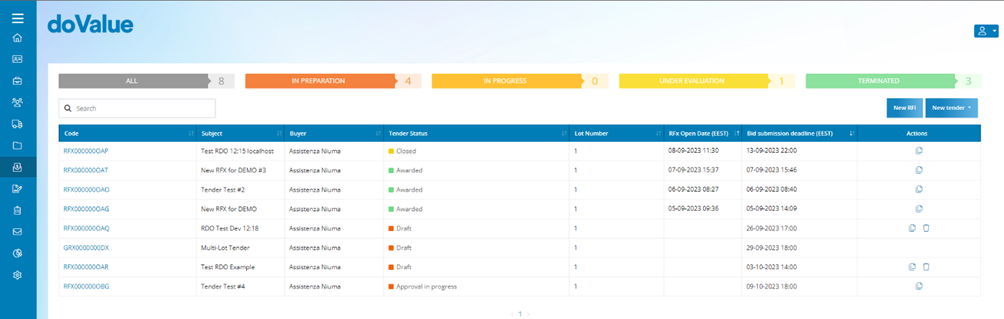
When the internal user clicks on the RFx List menu a new page will open, displaying a table listing the key details of the Platform's tenders. This table is organized with the following fields:
- Code: This field contains a code assigned to the tender by the Platform.
- Subject: This field contains the name or title of the tender.
- Created by: This field displays the name of the internal user who created the tender.
- Tender Status: This field reflects the current status of the tender.
- Lot Number: This field shows the number of lots included in the tender.
- RFX Open date: This field displays the date when the tender was created, in EEST format.
- Bid submission deadline: This field shows the date when the offer submission period ends.
- Actions: From this field, users can clone the tender using the icon or delete it using the icon.
At the top of the page, the internal user will find a set of filters that pertain to the status of the tenders. These filters include All, In Preparation, In Progress, In Evaluation and Finished. Each filter is color-coded for easy identification and selection.
Clicking on a filter will activate it and display the number of tenders associated with that status.
An additional data filtering function is available by entering free text in the Search field. When the internal user writes text, the system automatically searches for matching results across all pages, considering all fields in the table. Furthermore, the internal user can reorder the table by clicking on the column headings.
In the Code column of the table, the internal can access the details of the tender by clicking on the RFx Code. To create a new tender, the internal user can simply click the button located at the top right of the page. After that, the internal user can choose between the tender options Single-lot tender and Multi-lot tender to access the tender preparation screen.
Was this article helpful?
That’s Great!
Thank you for your feedback
Sorry! We couldn't be helpful
Thank you for your feedback
Feedback sent
We appreciate your effort and will try to fix the article