The internal user can specify one or more types of documents to be requested from the supplier for participation in the tender. This can be done in the Required Documents tab, which is initially empty.
At this stage, if the options Tender subject to technical verification and/or Tender subject to administrative verification were previously selected in the Type of Award field, the system will require the upload of at least one technical and/or administrative document to allow the proper saving of the tender in preparation.
Clicking will open a pop-up for uploading the data related to the new document to be requested from the supplier. This pop-up contains the following fields:
- Description*: The internal user can enter a brief description of the document in this field to make it easily identifiable.
- Document type*: The internal user can define the type of document being uploaded through a drop-down menu, which includes options such as Administrative, Technical, and Economic.
- the Mandatory *: This option allows the internal user to specify whether the supplier is required to upload the document or if it is optional.
- The Mandatory electronic signature* option allows the internal usre to specify whether it's required for the supplier to upload a digitally signed document. In such cases, if the supplier uploads a document that is not digitally signed or has an expired/unrecognized signature, a non-blocking message will be presented to the supplier.
- Full description: As a supplement to the Description mentioned above, this field enables the internal user to provide more detailed information about the document in question, along with any additional notes.
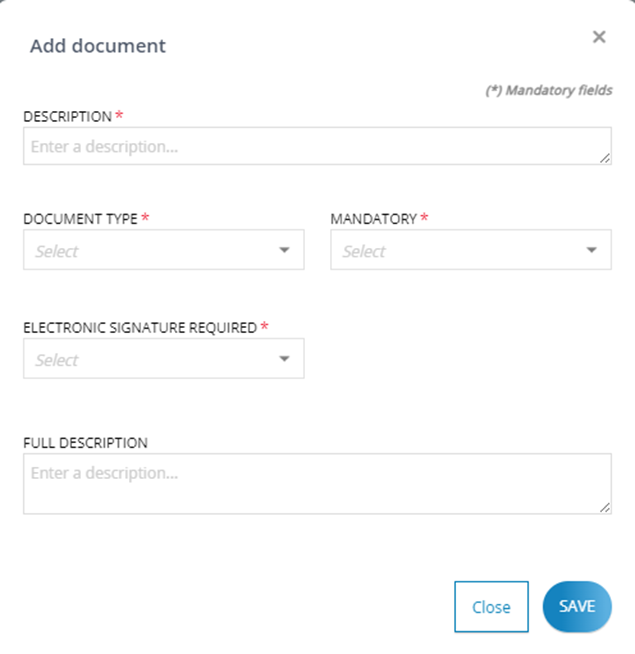
Clicking Close will close the pop-up without performing any database operations. On the other hand, selecting Save will initiate the document upload process, close the pop-up, and display the document in the list within the Requested Documents tab.
As the Requested Documents are uploaded, the Requested Documents table will be populated with records for each uploaded file. Each record will include information such as the line number (#), Description, Type, Mandatory, and Mandatory Digital Signature. Actions that can be performed on each record, including sorting, will be available in the Actions column. In the Actions column the internal user can:
- Delete the record for the requested document by using
 icon.
icon. - Modify the information of the requested document by using
 icon.
icon.
In the Sorting column the internal user can:
change order of the Requested Documents using interactive icons or
or 

Was this article helpful?
That’s Great!
Thank you for your feedback
Sorry! We couldn't be helpful
Thank you for your feedback
Feedback sent
We appreciate your effort and will try to fix the article