Selecting 'Simple' will grant the internal user access to the following fields for completion:
- Position ID: Automatically assigned by the Platform, this field contains the progressive number of the position.
- Description*: In this field, provide a brief description of the position.
- Quantity*: This field is for specifying the quantity of goods/services requested.
- Unit of measure* selectable from a drop-down menu.
- Basic price: The basic unit price for the good/service, which serves as the reference value for calculating reductions in the event of a downward tender.
- Base value: Automatically calculated as the product of quantity and base price.
- Target price: The target unit price for the good/service.
- Target value: Automatically calculated as the product of quantity and target price.
- Target Price Visibility: Here, the internal user can specify whether or not to make the target price visible to the supplier. The default value is 'No'.
- Mandatory Offer: Define whether or not submitting an offer for this specific position is mandatory. The default value is 'No'.
- Offer Subject to Reduction: Determine whether or not this position is countable in the tender value. The default value is 'Yes.' Positions of this type won't impact the total tender value and won't be considered in the award.
- Maximum Score (<value> to be assigned): Enter the economic score to be attributed to the specific position, along with an indication of the remaining score to be allocated (which can only be valued if the 'By single position' option is selected in the 'Economic score calculation method' field in the 'Information' tab).
- Full Description: This field provides a more detailed description and allows for additional information or notes related to the position.
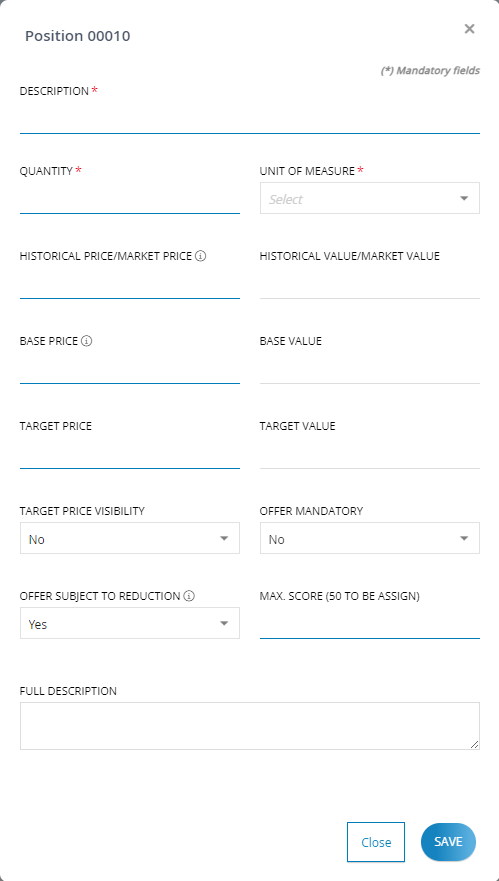
The internal user can either click the 'Close' button to close the pop-up without making any changes to the database, or click the 'Save' button to load the position, close the pop-up, and have the system display the position in the list within the 'Economic Offer' tab.
As positions are added, the table will populate with records for each loaded position, including information such as Position Number, Description, Quantity, Unit of Measure, Base Price, Base Value, and Score.

In the 'Actions' column, the internal user will find the following options available for each position:
- Edit position information using the
 icon.
icon. - Delete the record using the
 icon.
icon. - View the (non-editable) details of the position using the
 icon.
icon.
in the 'Sorting' column, the internal user can:
- Rearrange the order of the loaded positions using interactive
 and
and icons.
Was this article helpful?
That’s Great!
Thank you for your feedback
Sorry! We couldn't be helpful
Thank you for your feedback
Feedback sent
We appreciate your effort and will try to fix the article