In the Attached Documents tab, which is initially empty, the internal user can upload the documents to be attached to the tender.
To upload a document, the internal user can click the  button. Upon doing so, the system will display a pop-up for uploading a new document, featuring the following fields:
- Description *: This field allows the internal user to enter a brief description of the document, making it easily identifiable for the user.
- Upload document *: Using the
 button, the user can select the file from his computer and specify its location.
 - Visible to the supplier? *: This section allows the internal user to specify whether the document should be made visible to users with a 'supplier' profile or if it should be kept accessible only to internal users.
Full description: As a supplement to the Description mentioned above, this field enables the internal user to provide more detailed information about the document in question, along with any additional notes.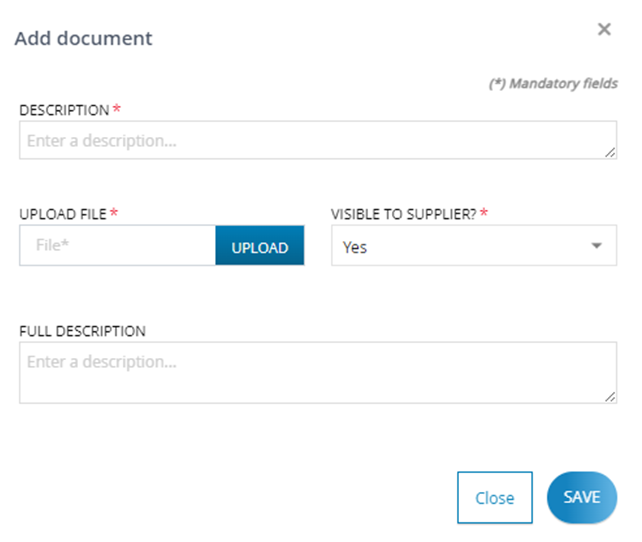
Clicking Close will close the pop-up without performing any database operations. On the other hand, selecting Save will initiate the document upload process, close the pop-up, and display the document in the list within the Attached Documents tab.
As documents are uploaded, the Attached Documents table will be populated with records for each uploaded file. Each record will include information such as the Row number (#), Description, File name, and whether it is visible to the supplier.

Additionally, actions that can be performed on each record will be available under the 'Actions' column:
- download the previously uploaded file, using the
 icon.
icon. - delete the record for the uploaded document using the
 icon.
icon. - edit the information of the uploaded document, using the
 icon.
icon.
Was this article helpful?
That’s Great!
Thank you for your feedback
Sorry! We couldn't be helpful
Thank you for your feedback
Feedback sent
We appreciate your effort and will try to fix the article