Once the internal user saved the contract information, he can access the Contract Attachments section. In this section, the internal user can view or add documents organized in a list with document information structured as shown below:
- Title: The title of the document.
- Document Type: The type of contract document that was entered.
- Version: The version of the document.
- Description: An extended description of the document.
- File Name: The name of the document that was entered.
- Inserted By: The username of the user who entered the document.
- Insert Date: The date when the document was entered.
- Subject to Expiration: Indicates whether the document is subject to expiration or not.
- Start Date Validity: The date from which the document is considered valid.
- End Date Validity: The date until which the document remains valid.
- Note: Any additional notes or comments related to the document.
Actions: Various actions that can be performed related to inserting or editing the document.
To insert Contract documents, click 
When clicked, a pop-up screen is displayed.
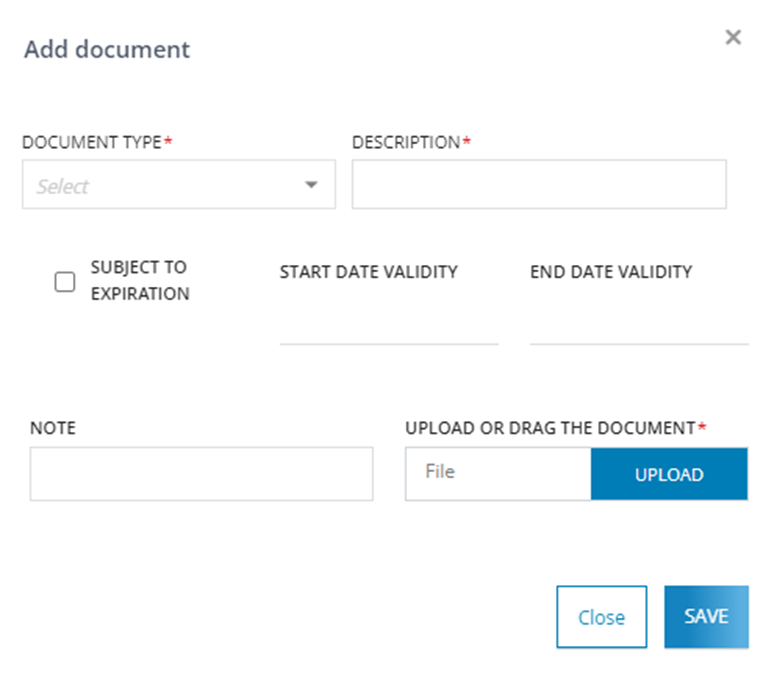
If a document is flagged as subject to expiration, the internal user can enter the Start date validity and the End date validity, which will determine the document status of the contract. Specifically, contract document statuses can be:
- Regular: if no documents are expired.
- Not Regular: if at least one document is found to be expired.
The document editing function is available for each individual document, but the process differs between documents subject to expiration and those not subject to expiration:
- For documents not subject to expiration, the following data can be changed:
- Document Type: Type of contract document entered. (Single selection, Mandatory)
- Description: Extended description of the document. (Text field, Mandatory)
- Subject to expiration: Document subject or not subject to expiration. (Single selection)
- Validity Start date: Valid from. (Date, if subject to expiration)
- Validity End date: Valid until. (Date, if subject to expiration)
- Note: Notes attached to the document. (Text field)
- Upload or drag the document: File document uploaded. (File upload field, Mandatory)
- For documents subject to expiration, when the document is at version 1, the internal user can edit the following data (entire document setting):
- Document Type: Type of contract document entered. (Single selection, Mandatory)
- Description: Extended description of the document. (Text field, Mandatory)
- Subject to expiration: Document subject or not subject to expiration. (Single selection)
- Start date validity: Valid from. (Date, If subject to expiration)
- End date validity: Valid until. (Date, If subject to expiration)
- Note: Notes attached to the document. (Text field)
- Upload or drag the document: File document uploaded. (File upload field, Mandatory)
- For documents subject to expiration, when the document is higher than version 1, the internal user can edit only the following data (entire document setting):
- Start date validity: Valid from. (Date, If subject to expiration)
- End date validity: Valid until. (Date, If subject to expiration)
- Note: Notes attached to the document. (Text field)
- Upload or drag the document: File document uploaded. (File upload field, Mandatory)
Documents subject to expiration can indeed be versioned, enabling internal users to handle cyclical expiration by maintaining contract documents and conducting scheduled monitoring up to the actual contract expiration. Therefore, the document versioning feature is exclusively accessible for this document type.
A document with an expiration date can be versioned using the versioning function by specifying the following new version data:
- Start date validity: Valid from. (Date, If subject to expiration)
- End date validity: Valid until. (Date, If subject to expiration)
- Note: Notes attached to the document. (Text field)
- Upload or drag the document: File document uploaded. (File upload field, Mandatory
The new version will be displayed as a fresh contract document in the document list.
The deletion function is available only for documents that can be deleted on the platform. The availability and behavior of this function depend on the document type:
- For documents not subject to expiration, they can be completely deleted from the system.
- For documents subject to expiration, the deletion options vary:
- If the document's version is 1, it can be completely deleted from the system.
- If the document has multiple versions (greater than 1), only the last version created can be deleted, while the previous ones are retained.
The contract document section is depicted in the following image:

The internal user can utilize the functionalities described under the Action column.
-
 - Download
  - Delete
 - Modify
 - Versioning
Was this article helpful?
That’s Great!
Thank you for your feedback
Sorry! We couldn't be helpful
Thank you for your feedback
Feedback sent
We appreciate your effort and will try to fix the article