To validate the documents, the internal user must choose the option Irregular in the Document Status field and then proceed to validate or reject individual documents on the subsequent page.
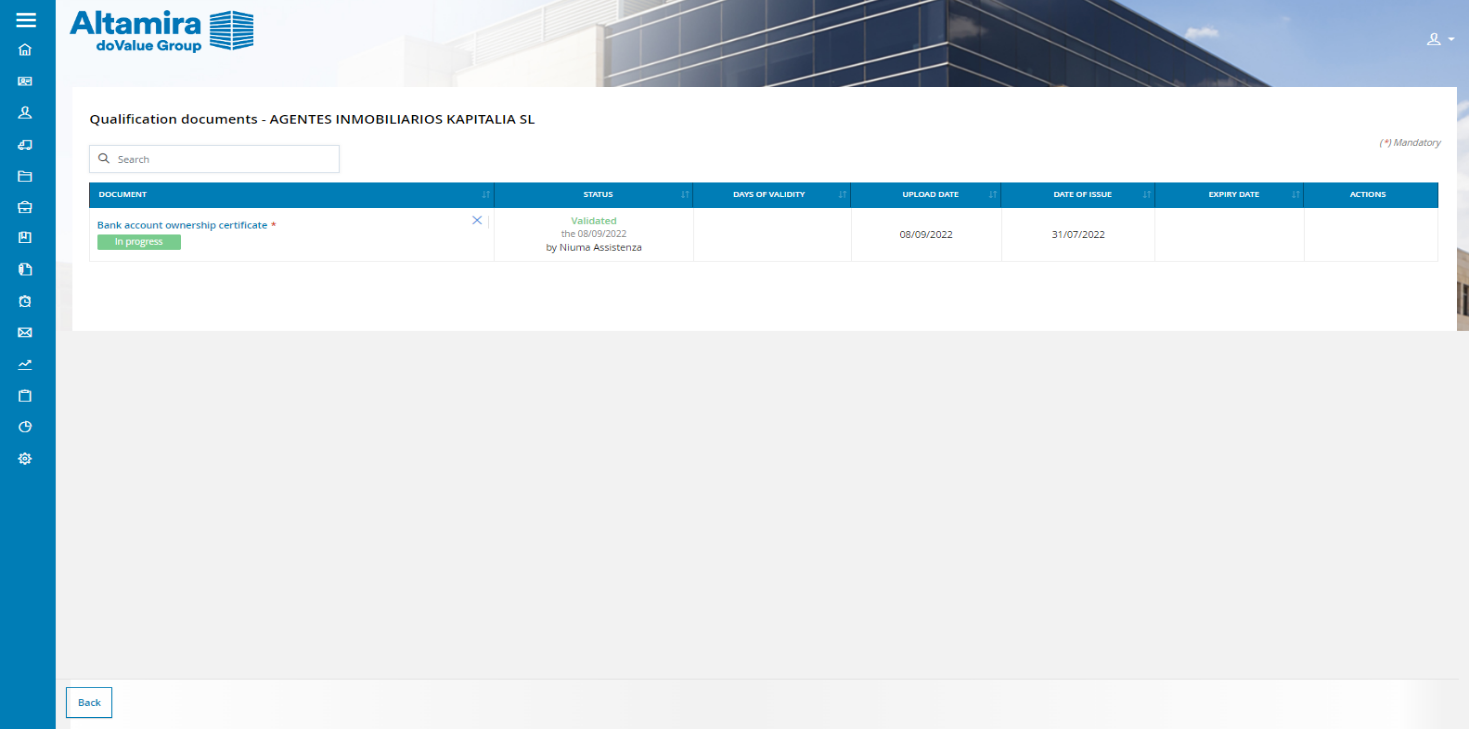
If you decide to reject a document, you must specify a reason for rejection in the pop-up that appears. The internal user can choose from the options provided in the drop-down menu, manually add a reason, or supplement a proposed reason with a custom note. For each document that is not validated, the supplier will receive an email notification explaining the reason for rejection and instructing them to update the rejected document by logging into the Platform with their user account.
Once all documents have been validated, you can conclude the supplier qualification process by clicking on the symbol  in the Qualification status field. A new pop-up screen will appear:
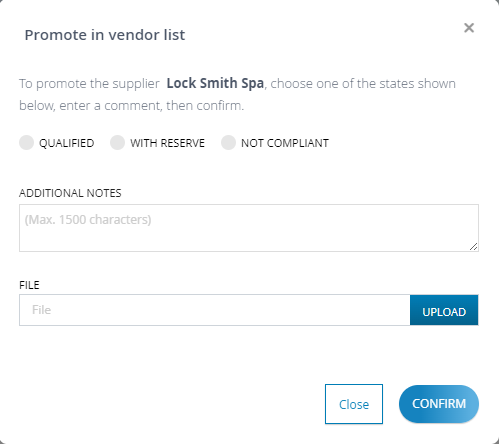
In the pop-up screen that appears, the internal can choose to either qualify the supplier (select the Qualified option), qualify it conditionally (select the With Reserve option), or deem it ineligible (select the Not Compliant option). The internal user has the flexibility to change the supplier's evaluation status at any time.
Was this article helpful?
That’s Great!
Thank you for your feedback
Sorry! We couldn't be helpful
Thank you for your feedback
Feedback sent
We appreciate your effort and will try to fix the article