In order to verify the enabling status of individual employees, the appropriately profiled internal user should have the ability to access the “Access Management” function to:
- Make the identification of the company or employee in the platform.
- Verify the company's master data.
- Verify the regularity status of the document list.
- View the answers given by the supplier in the questionnaire.
- View the status of enabling access to establishments.
- Validate the documentation.
Two sub-menu items, described below, should be defined to enable usability:
1. Clicking the Companies sub-menu item will show a new screen containing the following information:
o Company, where the company name of the supplier company is displayed.
o Tax Code, unique value of the supplier company.
o VAT Number, alphanumeric value of the supplying company.
o No. Authorized Employees (e.g., 4/9) consider only active employees with Regular document status.
o Supplier Status, the qualification status of the supplier on the register.
o Country, the supplier's reporting country.
The company will be shown in the “Company” subheading in Access Management when the supplier has registered an employee.
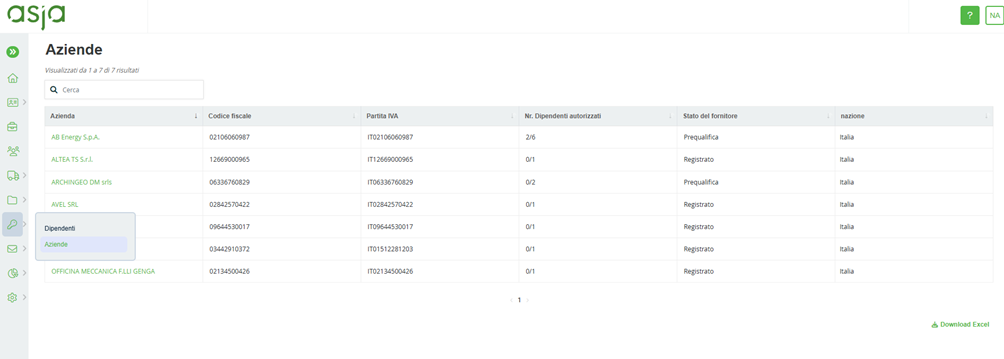
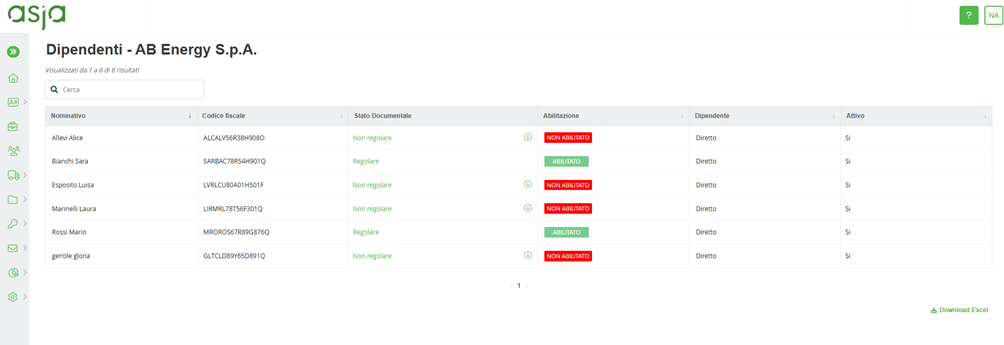
On this screen, using the search bar, it should be possible to locate the company of interest; once located, clicking on the company name should give access to a new screen where:
o view the complete list of the company's employees;
o view the document status of each employee;
o access the document list of the individual employee;
o download the report containing the list of employees pertaining to that particular vendor with all the information entered in the table on the page.
2. Clicking the Employees submenu item will show the following information:
o Name, the employee's first and last name;
o Tax Code, the employee's unique code;
o Company, the company name of the supplying company of which the employee is an employee;
o Document Status, the status in which the documents entered by the supplier are located;
o Enabled, the information derived from the document status (Enabled - if the documents have all been validated; Not Enabled - if the documents are expired and/or rejected).
o Active, the status highlighting whether or not the supplier is activated in the platform.
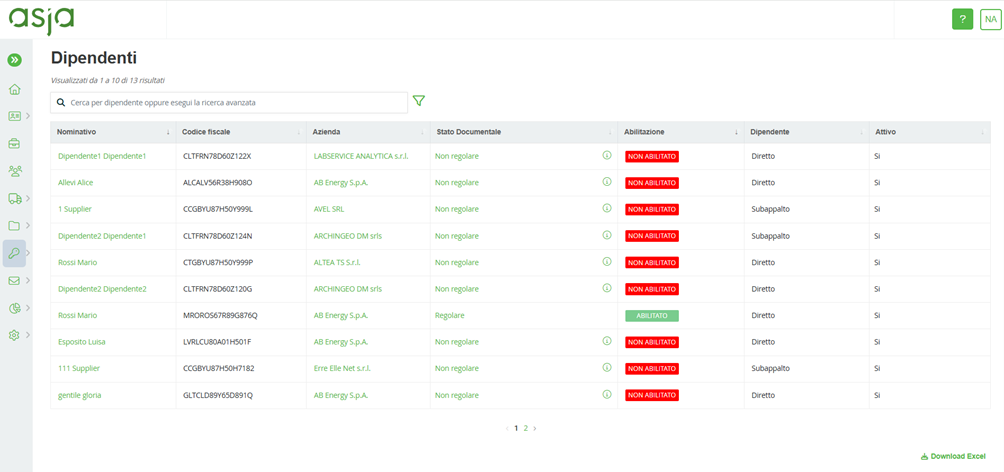
On this screen, using the search bar it should be possible to search the platform for the reference person's name or company. Once the employee has been located, by selecting the call sign it should be possible to access a new screen where:
o view the employee's master data;
o the questionnaire completed by the supplier with the answers given;
o view the list of documents uploaded to the platform for the individual employee.
Selecting the company should display the company detail screen indicated in 1. of this section.
Was this article helpful?
That’s Great!
Thank you for your feedback
Sorry! We couldn't be helpful
Thank you for your feedback
Feedback sent
We appreciate your effort and will try to fix the article