The ‘Homologation’ page, available inside the ‘Suppliers’ section of the Platform, allows the internal user to homologate or approve a supplier using preconfigured VDDAs (Vendor Due Diligence Assessments). The platform performs checks based on the supplier's country and legal entity to determine which documents are required for homologation. To successfully homologate a supplier, they must first be registered on the platform. After registration, suppliers can access the platform and upload the required documentation as per the homologation matrix criteria.
This process ensures that suppliers meet the necessary requirements and can participate in procurement activities through the platform.
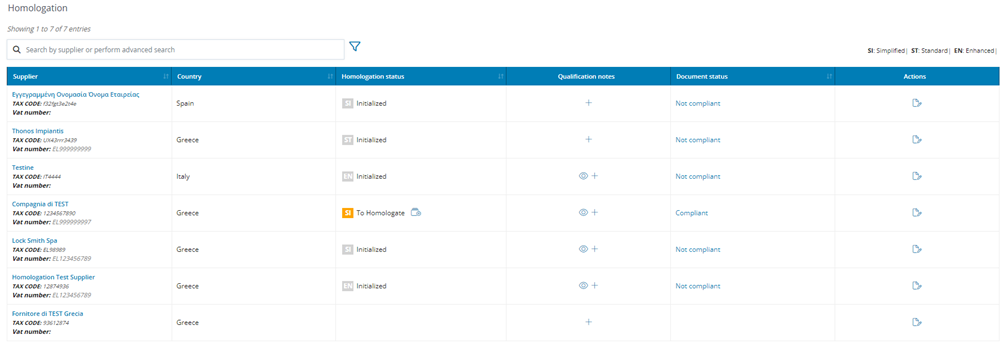
By clicking the  icon located in the Actions column, the internal user can choose to initiate one or more homologation processes:
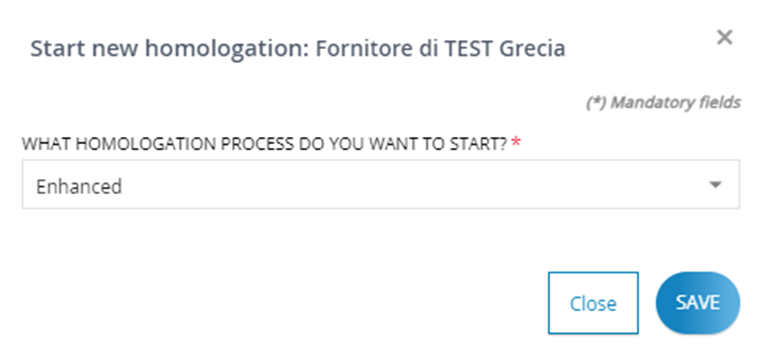
When the Homologation process is initiated, the supplier can upload the necessary documents in accordance with the Homologation Matrix criteria. The Homologation status will be indicated as ‘Initialized’ in the homologation status column.
Until the documentation is validated, the Document Status is displayed as  . Click on the link
  to manage the documents. This action provides access to the Document Validation page, which is related to the supplier's homologation:
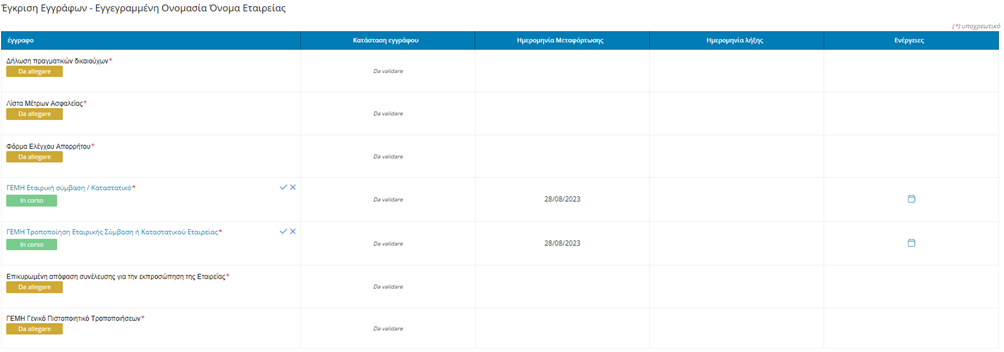
On this page, the internal user can review the documents uploaded by the suppliers.
For Supplier documents, the system will prompt the user to validate the documents once they have been uploaded by the suppliers.
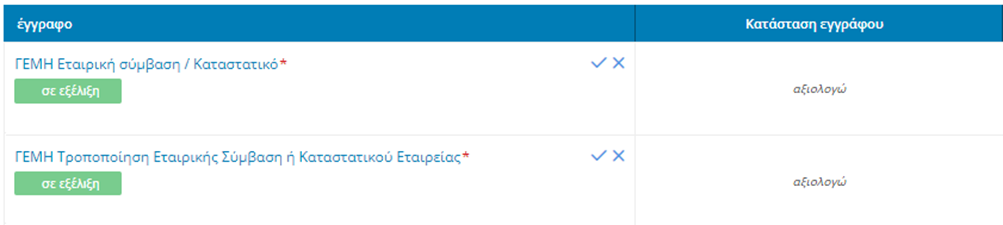
Click  to validate or
  to reject the documentation.
For each rejected document, the supplier will receive an email notification informing them of the reason for the rejection. Subsequently, the supplier can update the rejected document by logging into the Platform.
Click the  button to return to the Homologation main page. Once all the documents are validated, the status changes to
  . By clicking on
  the internal user can still access the Document Validation page to review the documents.
When the status of the documentation is compliant, the following icon is displayed under the Homologation Status column and next to the related supplier: 
Click the  icon to access to the promotion pop-up screen shown below:
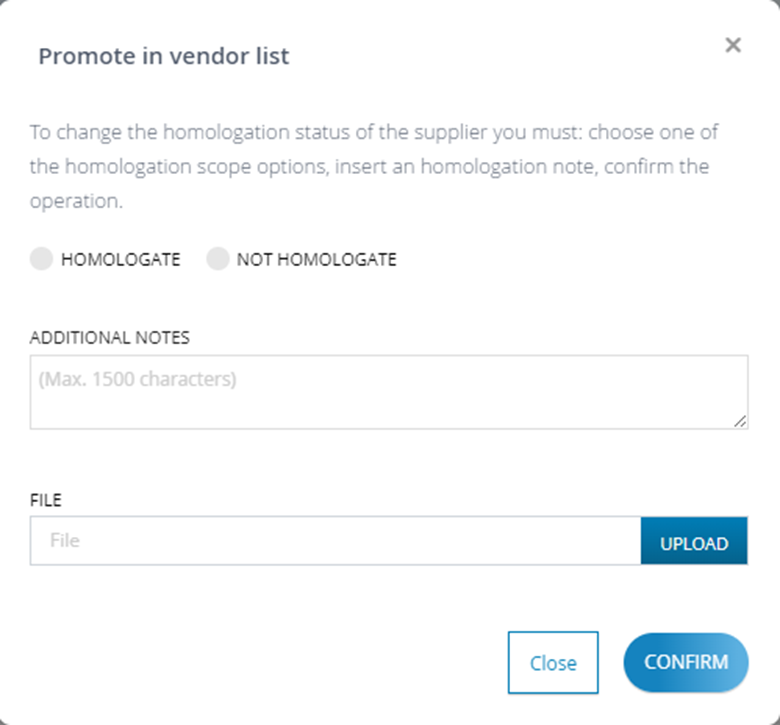
In this screen, you can either confirm the homologation or mark the supplier as "Not Homologated." Then, confirm your decision by clicking the  button.
Was this article helpful?
That’s Great!
Thank you for your feedback
Sorry! We couldn't be helpful
Thank you for your feedback
Feedback sent
We appreciate your effort and will try to fix the article