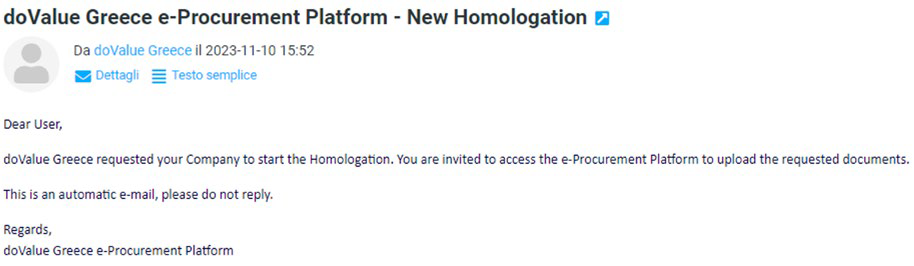
Upon initiation of the Homologation process, the Supplier will receive the following email
communication:
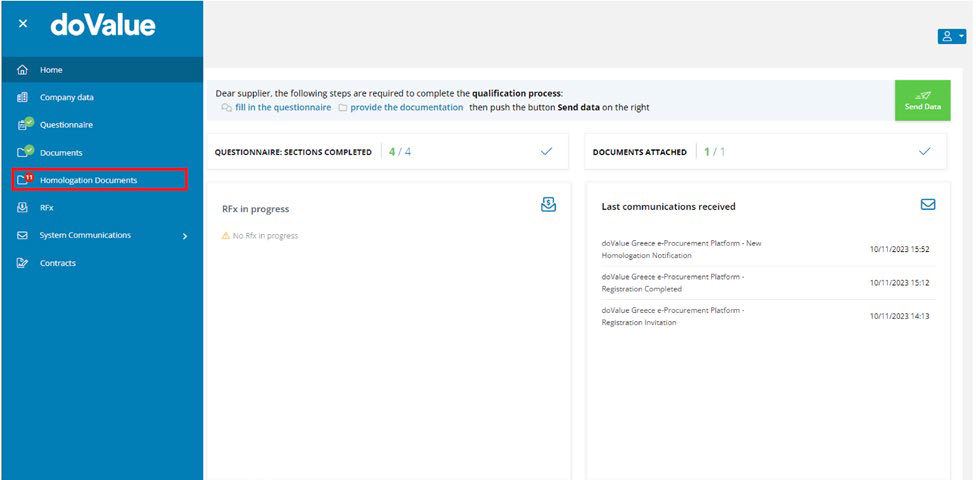
The system will present a notification icon. Subsequently, click on the Homologation Documents
tab, as illustrated below:
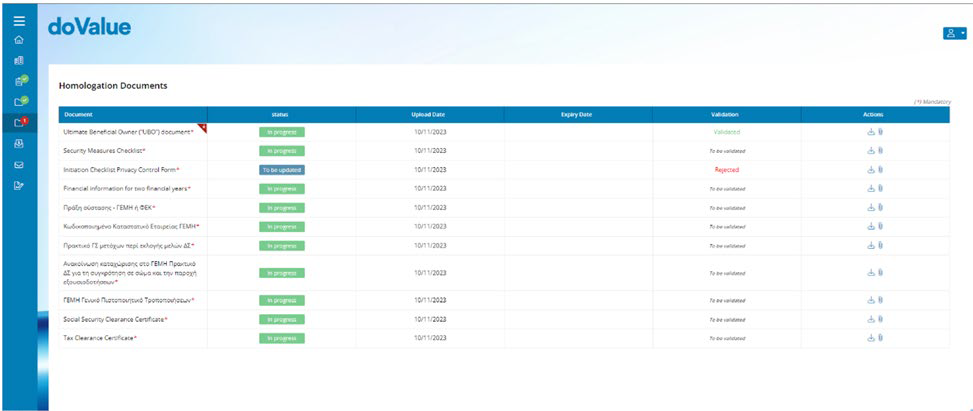
You will be directed to the Homologation Documents page, which will be displayed as follows:
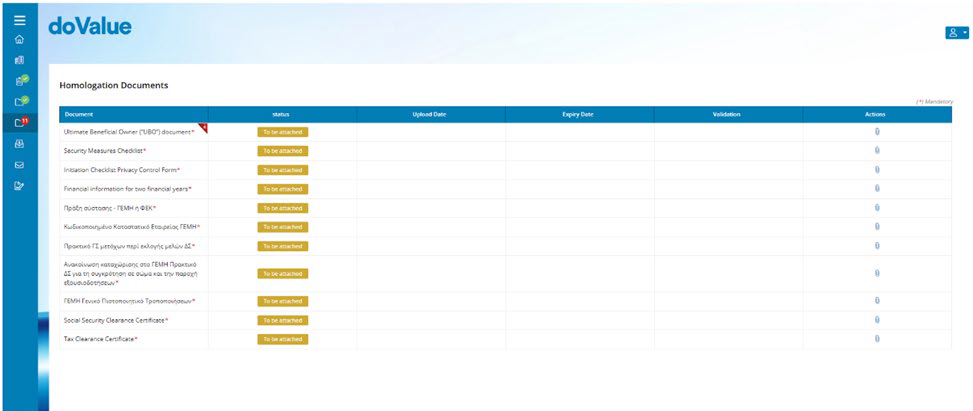
Click the button to upload the document, utilize the
 button to retrieve the uploaded
document, and use the button to view the upload history.
Note: Documents marked with a red icon are templates; click the icon to download them, as
illustrated below.

The system will display alerts with a badge to notify of any updates
After uploading, the status of the documents can be one of the following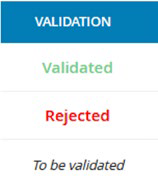
Click the button to upload the document, utilize the
 button to retrieve the uploaded
document, and use the button to view the upload history.
Note: Documents marked with a red icon are templates; click the icon to download them, as
illustrated below.
Was this article helpful?
That’s Great!
Thank you for your feedback
Sorry! We couldn't be helpful
Thank you for your feedback
Feedback sent
We appreciate your effort and will try to fix the article