The procedure required to obtain accreditation in the platform’s supplier register is divided into two main phases:
Registration Phase – During this phase, the supplier must enter certain information necessary to define their company profile.
Qualification Phase – In this phase, the supplier must complete specific questionnaires for each product category. This may require uploading certain documents and entering banking details.
To complete the registration process, the supplier must fill out various forms needed to define their company profile.
Registration is initiated through an invitation sent via email.
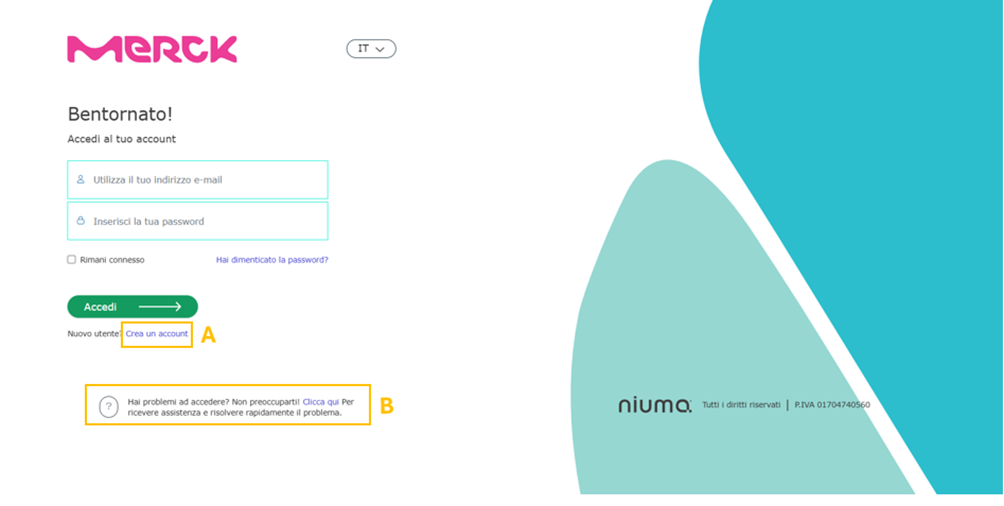
To proceed with registration, the supplier must access the Login page and click on the "Create an account" button.
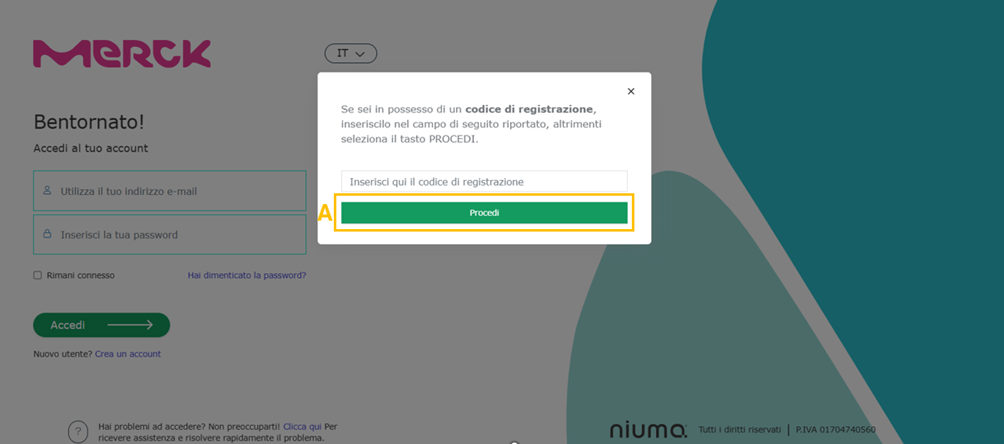
Next, a screen will appear where the pre-activation code (token) received via email must be entered. By clicking the “Proceed” button, the user will be directed to the registration form.
If the supplier needs assistance, they can click on the link found within the message: “Having trouble logging in? Don’t worry. Click here to get support and quickly resolve the issue.”.
By clicking this link, the supplier will be redirected to a new browser window where they can consult the instructions for accessing the platform.
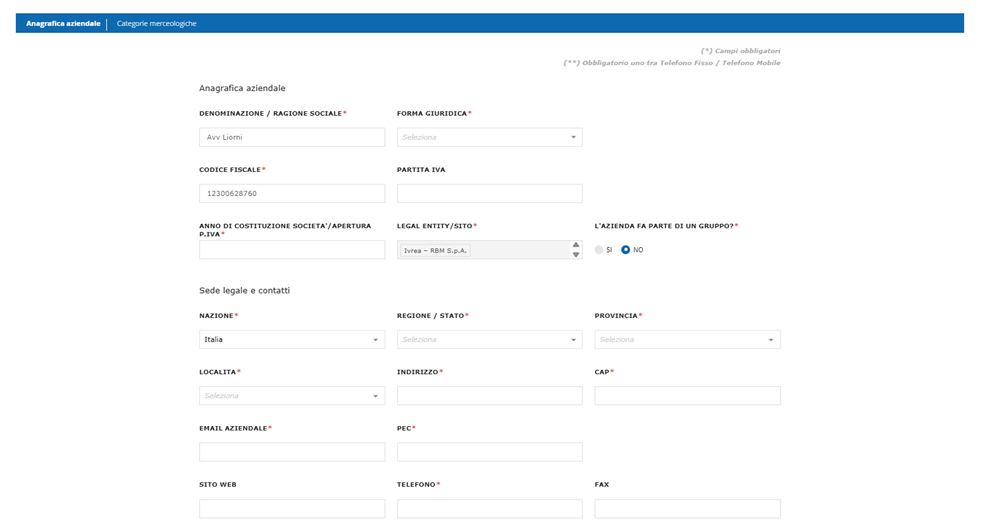
Within the registration forms, fields marked with an asterisk (*) are required fields; however, it is recommended that all fields be filled in in order to provide Merck Group with as much of the supplier company's data as possible.
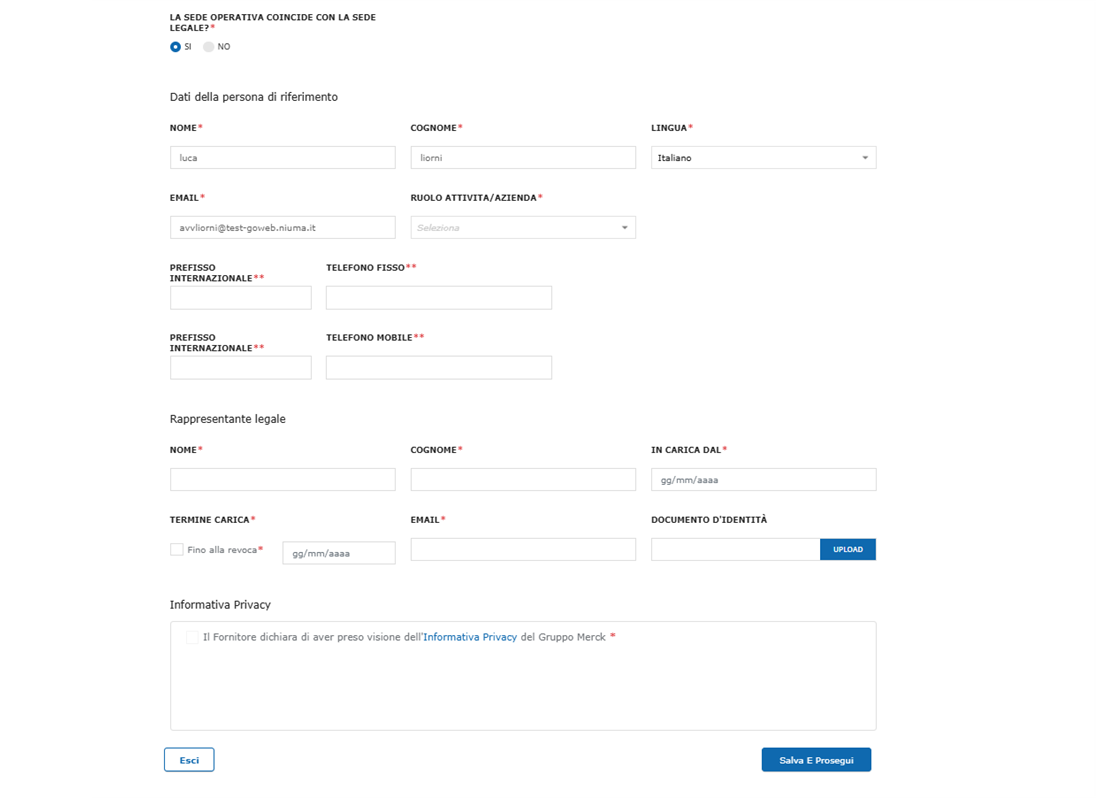
To submit and save each form, click Save and Continue at the bottom right; if you would like to suspend registration instead, click Exit. Once you have suspended registration, you can resume it at any time by re-entering the token code.
Please note that the token code is temporary and has a validity of 30 days.
The registration form consists of two forms and a concluding section in which the Legal Clauses are defined, which the supplier must obligatorily take note of:
Form No. 1: Company Master Data
Form No. 2: Commodity Categories
In the following paragraphs, the information to be entered in the individual forms will be described.
Module #1: Company Master Data
Within the first form “Company Master Data” (ref. Figure 3) it is possible to:
- enter the data required to complete the company registry;
- accept the Privacy Policy via flag (the flag is enabled after downloading the document).
After filling in all fields, to proceed with registration, click on Save and Continue.
Form #2: Commodity Categories
Within the second form “Commodity Categories,” the supplier will have to mandatorily select one or more commodity categories to which their products and/or services belong, or they will have to confirm the commodities that already selected by Gruppo Gruppo Merck in the invitation phase.
The questionnaires proposed in the subsequent Qualification phase will depend on the commodity categories entered in this form.
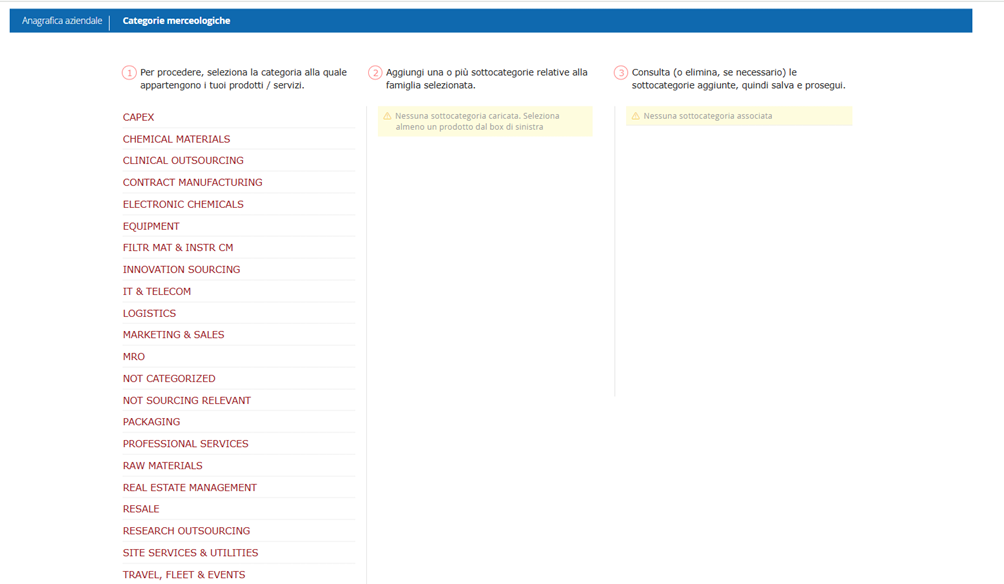
After selecting the commodity category (A), the supplier will be able to choose the relevant subcategory (B) inherent to the selected family by clicking the relevant button (+).
The selected subcategory will appear in the third column (C) and can be deleted by clicking the button.
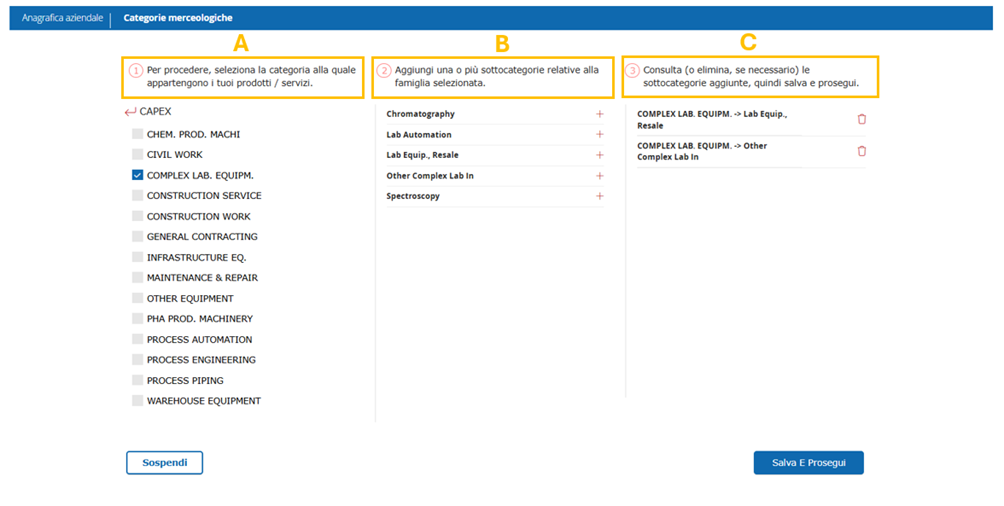
Once the commodities have been selected, it is necessary to click Save and Continue in order to finalize the registration.
Conclusion and submission
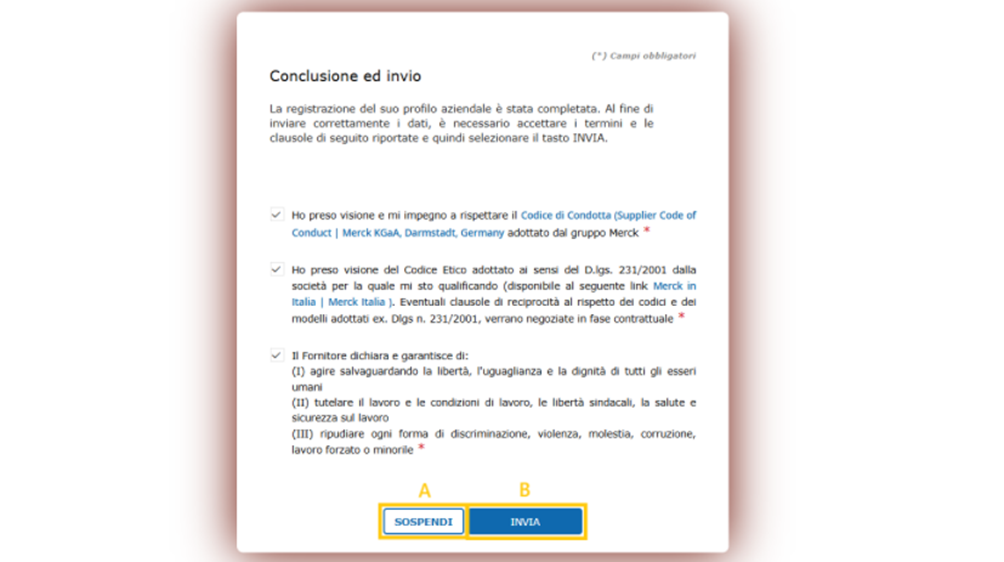
Upon completion of the forms outlined above, the supplier must declare that they have read the following legal clauses:
- I have read and agree to abide by the Code of Conduct adopted by the Merck Group;
- I have read the Code of Ethics adopted pursuant to Legislative Decree 231/2001 by the company for which I am qualifying (available at the following link Merck in Italy | Merck Italia). Any reciprocity clauses to compliance with the codes and models adopted ex. Dlgs n. 231/2001, will be negotiated in the contractual phase
- The Supplier declares and guarantees to: (i) act safeguarding the freedom, equality and dignity of all human beings; (ii) protect labor and working conditions, union freedoms, health and safety at work; (iii) repudiate all forms of discrimination, violence, harassment, corruption, forced or child labor;
Conclusion and sending
To accept this clause, the supplier will have to compulsorily download the file and then flag the box at the legal clause.
Once selected, click on Submit (A) to finish the registration. Should the user click on the Suspend button (B), the system will suspend the registration flow of the supplier, who can terminate it later using the token.
If all the registration process was successful, the page will open containing the following statement, “Thank you for completing the registration! You will receive a communication shortly containing all the necessary information and details about upcoming activities. Click “Close” to complete the process.”
To continue click on the CLOSE button (A)
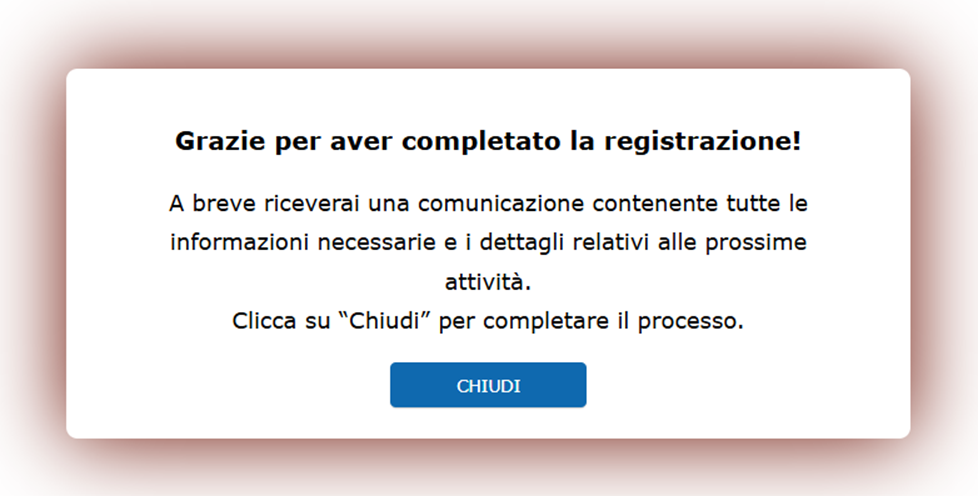
Following the submission of the data, the supplier should expect a communication with credentials (username and password), to be used for subsequent access to the platform. It should be noted that the token code will no longer be valid
Was this article helpful?
That’s Great!
Thank you for your feedback
Sorry! We couldn't be helpful
Thank you for your feedback
Feedback sent
We appreciate your effort and will try to fix the article