By clicking on Questionnaires: Completed Sections or selecting the "Questionnaire" link from the left-hand menu, you will access the questionnaire completion pages (see Figure 11).
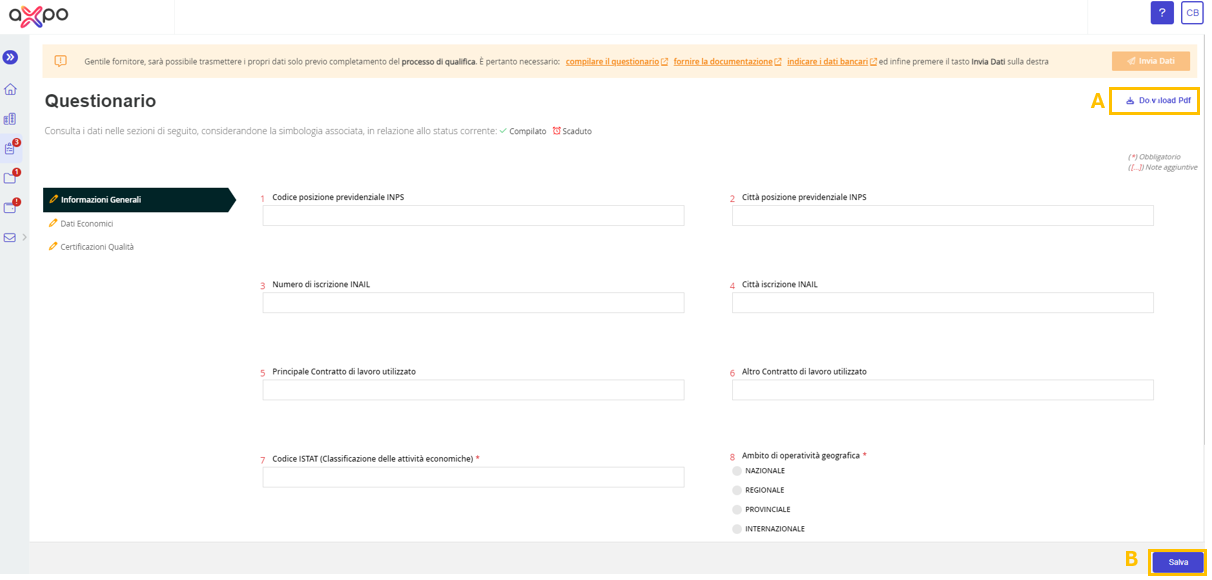
Figure 11: Axpo Portal - Qualification Questionnaires Section
In the modules, fields marked with an asterisk (*) are mandatory. However, it is recommended to complete all fields to provide doValue Group with as much information as possible about the supplier company.
If the supplier needs to download the questionnaire file, they can click on the “Download PDF” button (A) available on all pages.
To submit and save each module, click on Save (B) (see Figure 14). Once the module is saved, you will automatically proceed to the next one.
After saving the questionnaire, it will be marked with the symbol if it is “Completed” or with the symbol if it is “Expired”.
The data within each module can be modified at any time by clicking the “Edit” button (A) (see Figure 12).
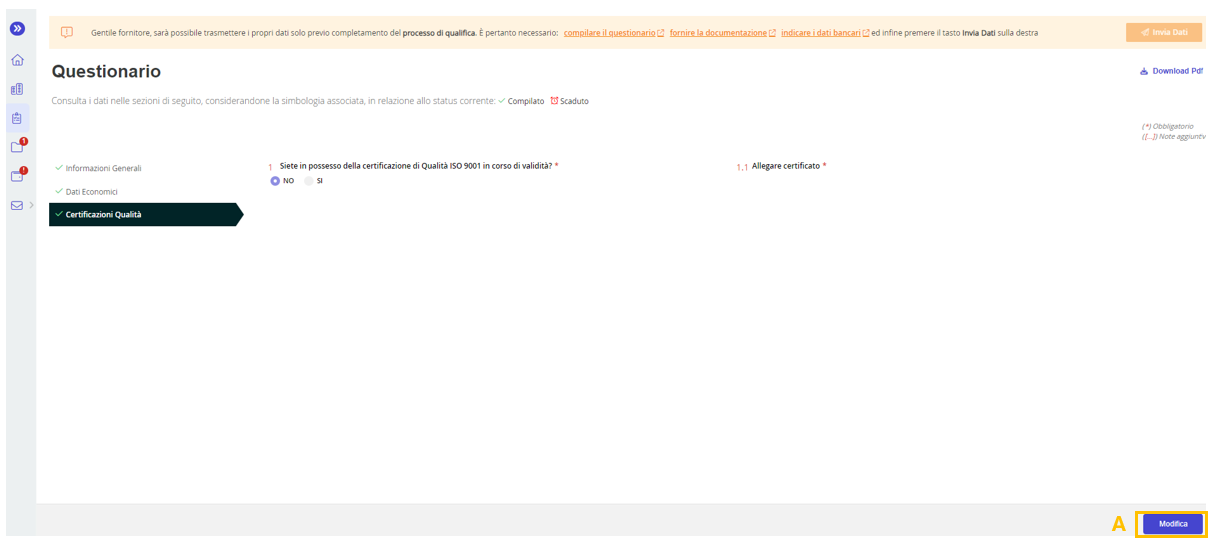
Figure 12: Axpo Portal: Completed Qualification Questionnaire
During the completion of the questionnaires, the supplier can attach the required documents (both mandatory and optional) (see Figure 13) by using the Upload button (A) and entering the issuance date of the document.
To save the document upload, the supplier should click on Save (C). If the supplier wishes to return without saving the document upload, they should use the Cancel button (B) (see Figure 13).
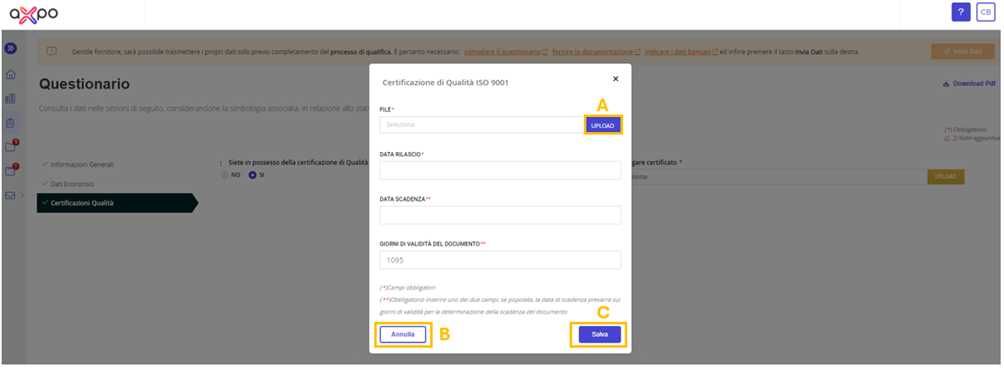
Figure 13: Axpo Portal: Document Upload During Questionnaire Completion
Within the "Bank Details" section (see Figure 14), the supplier can enter the details of their bank account, with the option to add one or more IBANs.
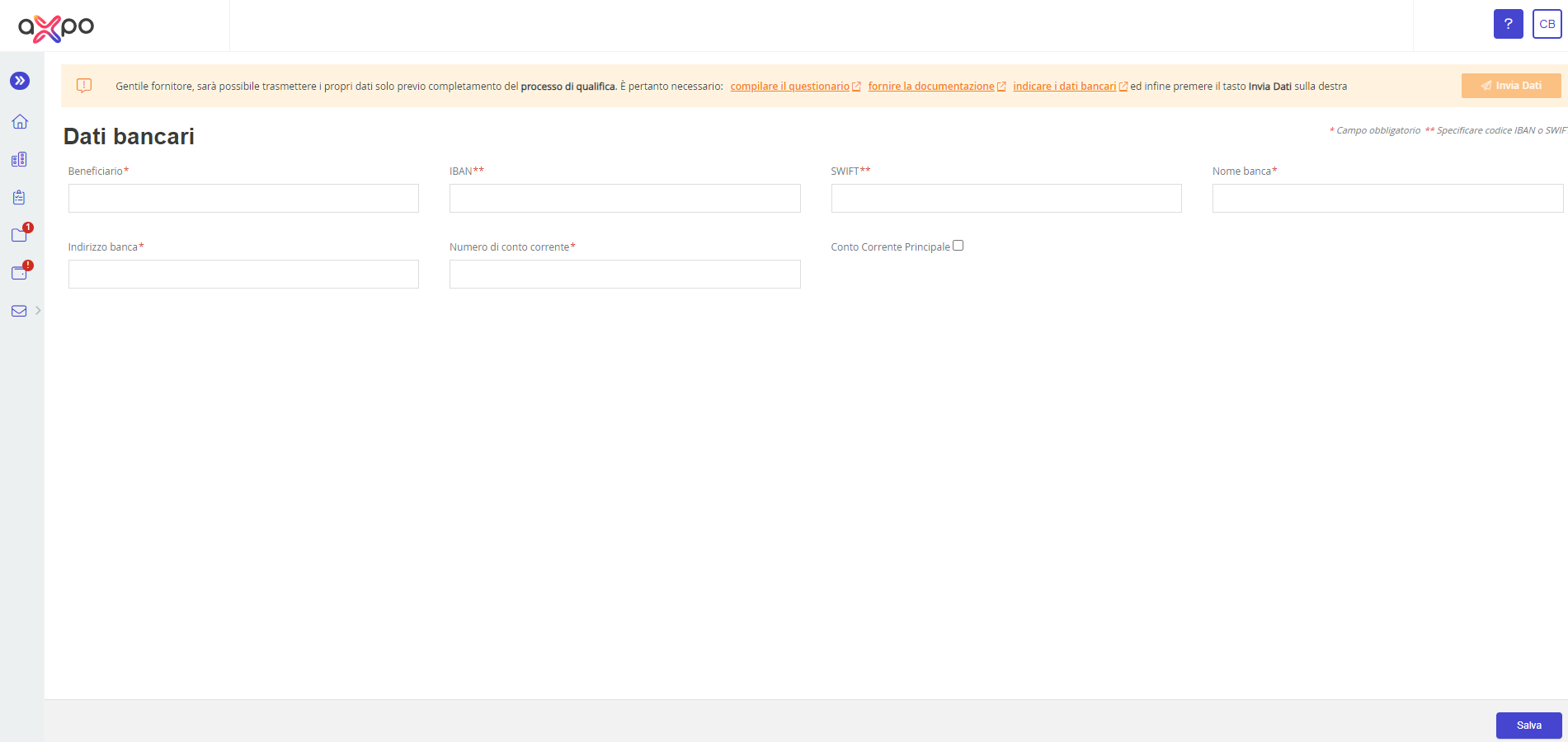
Figure 14: Axpo Portal: Bank Details
Once the details for the main bank account have been entered, the supplier can add new accounts by clicking the "Add Bank Account" button (A) (see Figure 15).
Additionally, by clicking the icon in the "Actions" column, it is possible to modify the details of an already registered bank account (B) (see Figure 15).
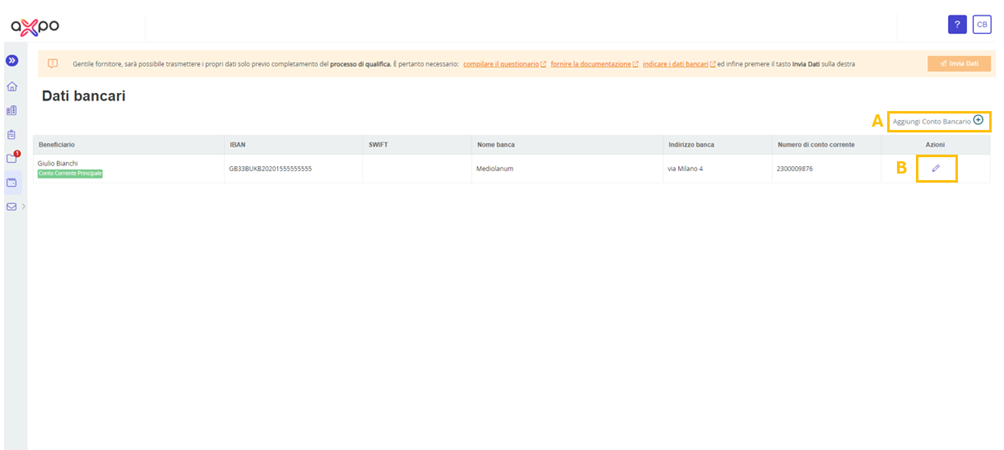
Figure 15. Axpo Portal: Bank Details - Add Bank Account
If multiple IBANs have been registered, the supplier can delete one or more of them (A), provided that they are not marked as the "Main Bank Account" (B) (see Figure 16).
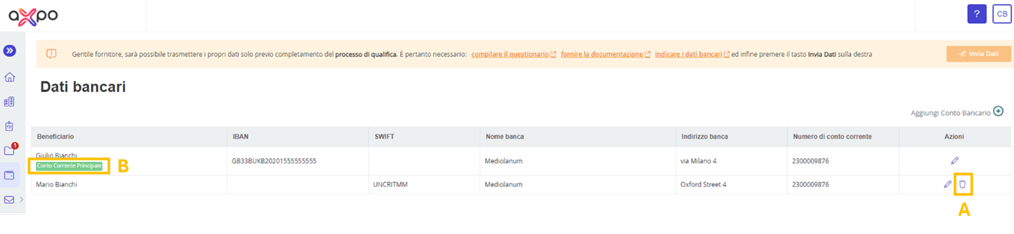
Figure 16. Axpo Portal: Bank Details – Delete Bank Account
In the "Supplier Documents" section, the supplier can attach the required documents, which may be mandatory (such as DURC or Certification of registration in the Suppliers’ Register) or optional (such as a Curriculum Vitae or DURF).
Within the STATUS column of the table (see Figure 17), the following informative labels may be displayed:
- To be attached: if the supplier has not yet provided the required documentation.
- In progress: visible when the supplier has uploaded documentation that is currently valid.
- To be updated: this label will be visible only when the uploaded documentation has expired over time.
In this section, the supplier has the option to re-upload expired documents using the icon (B), view the history of all attached documents (if any) by clicking on (C), and finally, download the documentation they have uploaded using icon (A) (see Figure 17).
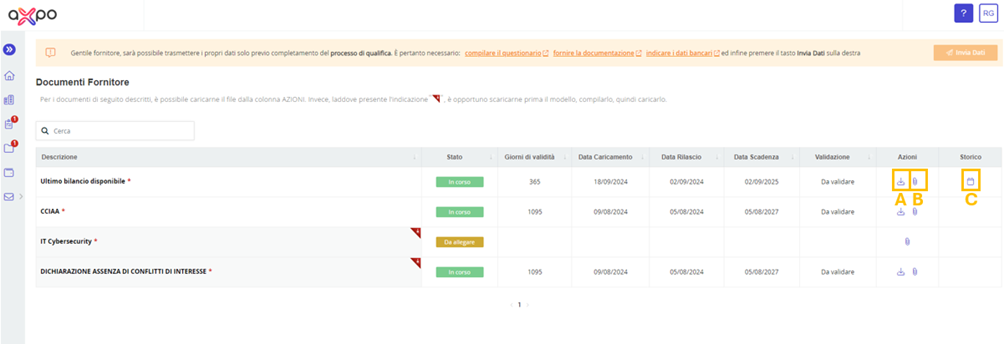
Figure 17. Axpo Portal: Supplier Documents Section
After completing the proposed questionnaires and providing the requested documentation, the supplier can finalize the qualification process by submitting their data using the orange button "Submit Data" (A), which will automatically be enabled upon completion of the qualification process (see Figure 18). Otherwise, this button will remain disabled (see Figure 15).
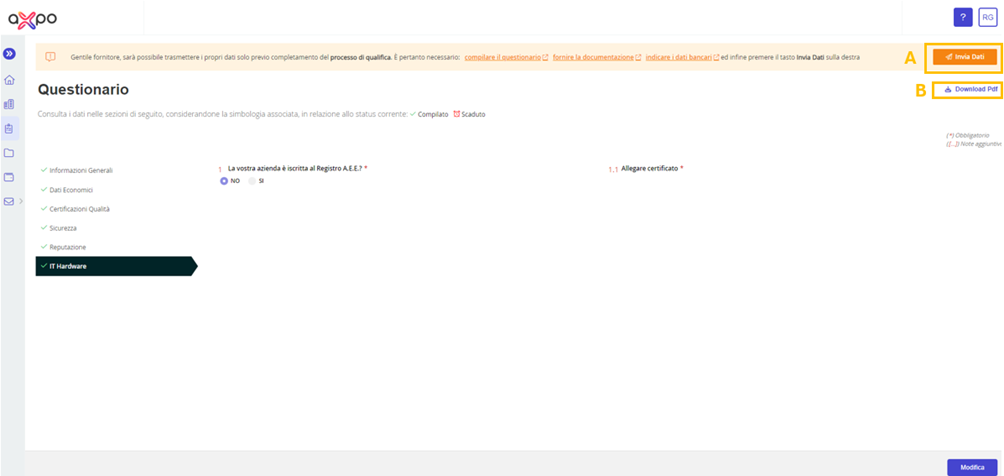
Figure 18. Axpo Portal: Activation of the Submit Data Button upon Completion of the Qualification Process
After completing the qualification process, the supplier will have the ability to:
- View/modify/download (B) the completed questionnaires.
- View the attached documents.
- Upload new documents.
These actions can be performed using the left-side menu or through the widgets available on the Home Page (see Figure 13).
Was this article helpful?
That’s Great!
Thank you for your feedback
Sorry! We couldn't be helpful
Thank you for your feedback
Feedback sent
We appreciate your effort and will try to fix the article