To complete the registration process, the supplier must fill out various forms required to outline the company profile.
Registration is initiated through an invitation sent via email. To proceed with registration, you will need to go to the Login page and click on the "Create an Account" button (A) (see Figure 1).
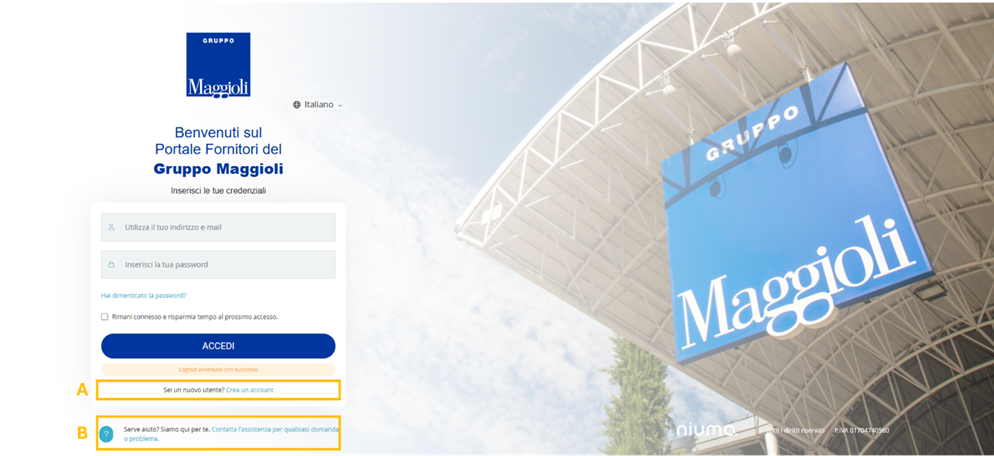
Figure 1: Maggioli Portal - Login Page
Next, a window will appear where you must enter the pre-activation code (token) received via email and click on the "Proceed" button (A) (see Figure 2). This will take you to the registration form.
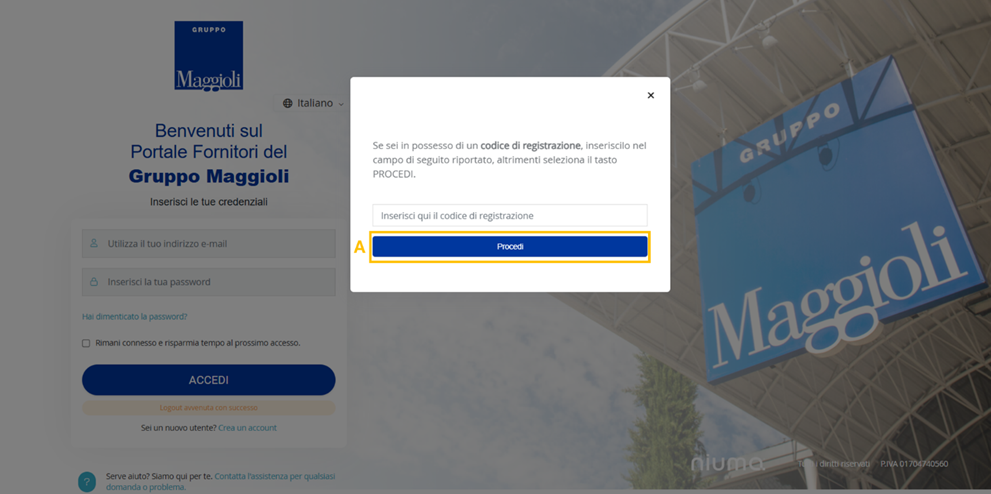
Figure 2: Maggioli Portal: Token entry pop-up
In case the supplier needs assistance, you can click on the link under the heading ‘Having problems logging in? Don't worry Click here to receive assistance and solve the problem quickly’. (B) (ref. Figure 1). Upon clicking on the above link, the supplier will be directed to a new navigation window where it will be possible to consult the instructions aimed at accessing the platform.
Within the registration forms, fields marked with an asterisk (*) are mandatory fields; however, we recommend that you fill in all fields in order to provide Maggioli with as much data as possible from the supplier company.
To submit and save each form, click on Save and Continue at the bottom right; if you wish to suspend registration, click on Exit. Once registration has been suspended, you can resume it at any time by re-entering the token code.
Please note that the token code is temporary and is valid for 30 days.
The registration form consists of 2 forms and a final section in which the Legal Clauses, which the supplier must read, are defined:
Module no. 1: Company details
Module no. 2: Product Categories
In the following paragraphs, the information to be entered in the individual modules will be described.
Module n°1: Company Information
In the first module, Company Information (see Figure 3), you can:
-Enter the required data to complete the company profile.
-Accept the Privacy Policy by checking the corresponding box.
After filling in all the fields, to proceed with the registration, click on Save and Continue (A) (located at the bottom right – see Figure 3).
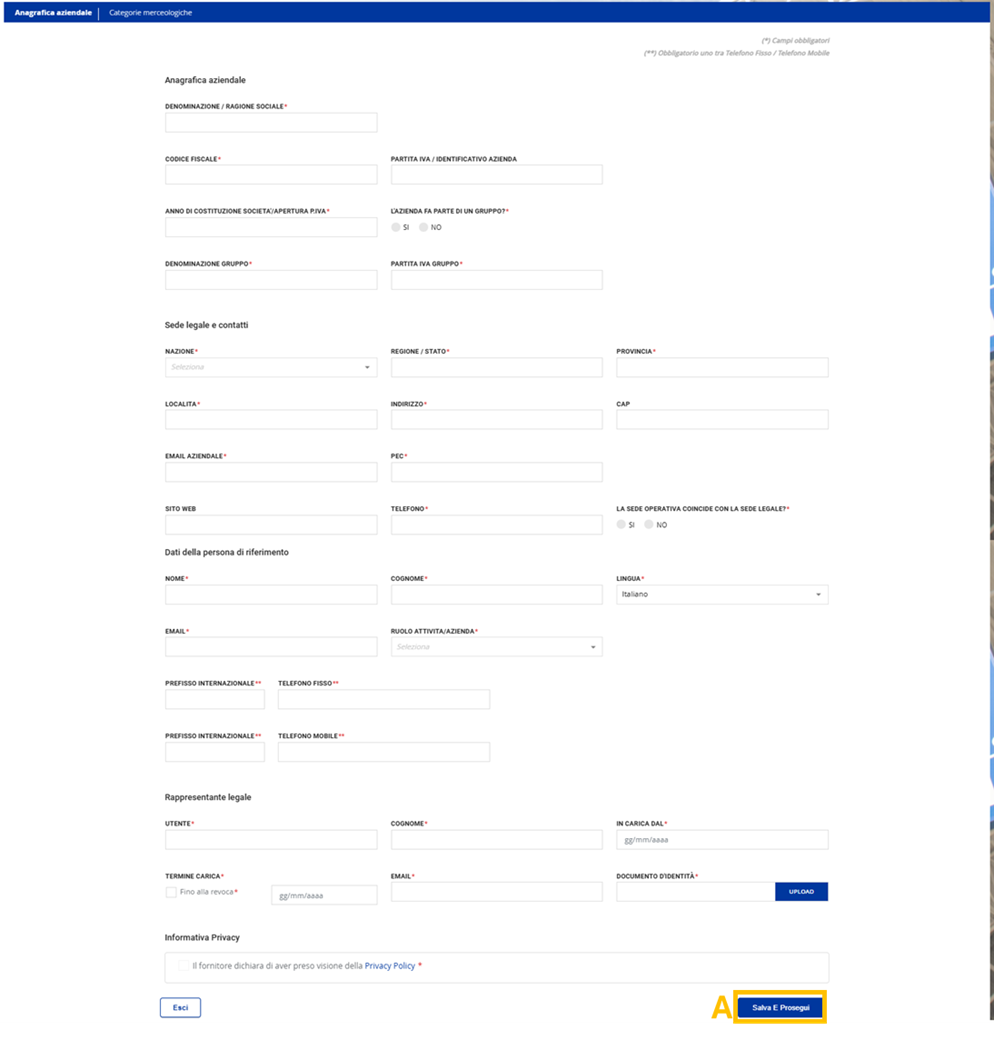
Figure 3: Maggioli Portal: Registration Process - Company Information Module
Module n°2: Product Categories
Within the second form ‘Merchandise Categories’, the supplier shall mandatorily select one or more merchandise categories to which its products and/or services belong or shall confirm the merchandise categories already selected by Maggioli during the invitation phase.
The questionnaires proposed in the subsequent Qualification phase will depend on the product categories entered in this form (ref. Figure 4).
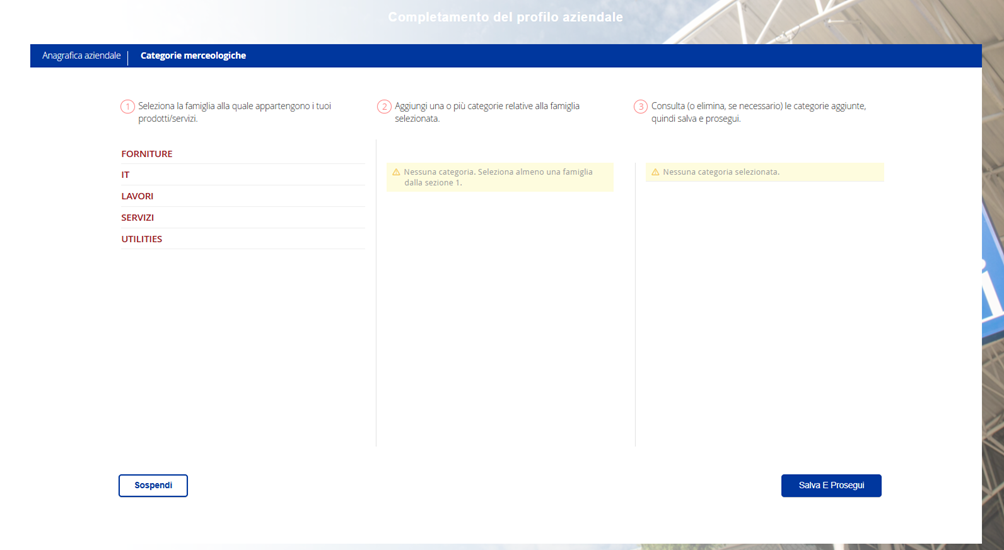
Figure 4: Maggioli Portal: Registration Flow - Commodity Categories Module
After selecting the product category (A), the supplier may choose the relevant sub-category (B) inherent to the selected family by clicking the relevant button (+) (ref. Figure 5)
The selected sub-category will appear in the third column (C) and may be deleted by clicking on the button:

.
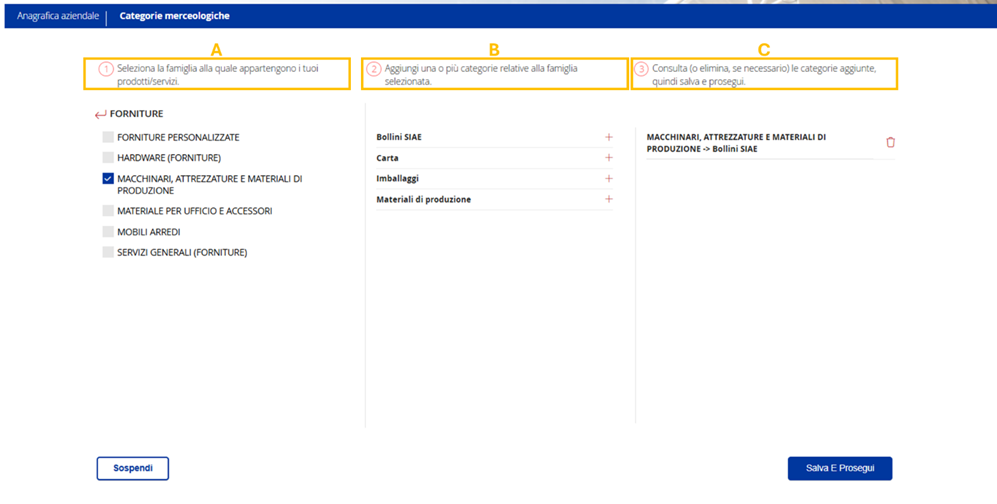
Figure 5: Maggioli Portal: Registration Flow - Selection of Commodity Categories and Subcategories
Once you have selected the goods, you must click on Save and Continue to complete the registration.
Conclusion and Submission
Upon completion of the forms outlined above, the supplier shall declare that he has read the following clause:
- The supplier declares:
o (i) to have taken note of the contents of the Suppliers' Code of Conduct and to share them;
o (ii) to undertake to comply, also on behalf of the partners, directors, employees and collaborators of the declaring Firm/Company involved in the relations with the Maggioli Consortium, with the Suppliers Code of Conduct according to an approach oriented towards development and continuous improvement
o (iii) to undertake to obtain from the subcontractors and sub-subcontractors used in relations with the Maggioli Consortium the signature of a declaration concerning the full sharing and acceptance of the Suppliers Code of Conduct
or (iv) to undertake to promote compliance with the Suppliers Code of Conduct by their supply chain used in the service of the Maggioli Consortium.
- I hereby declare that I have read and accept the General Purchasing Conditions on the Maggioli suppliers portal.
To accept these clauses, the supplier must download the Supplier Code of Conduct and General Purchase Conditions file and then tick the box next to the individual legal clause:

Once all items have been selected, click on Submit (A) to finish registration (ref. Figure 6). If the user clicks on the Suspend button (B), the system will suspend the registration flow of the supplier, who can terminate it later using the token.
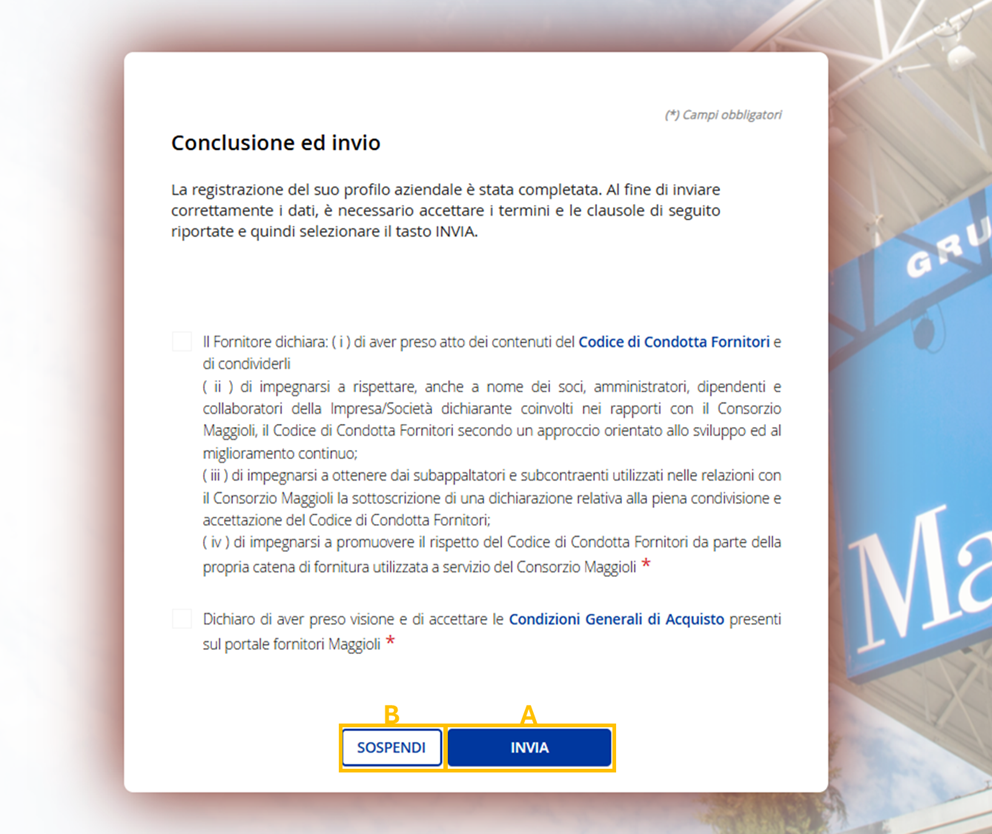
Figure 6: Maggioli Portal - Registrations Flow - Legal Clauses
If all the registration process was successful, a page will open (ref. Figure 7) containing the following wording: ‘Thank you for completing the registration! You will shortly receive a communication containing all the necessary information and details of upcoming activities. Click on ‘Close’ to complete the process.’
To continue, click on the CLOSE button (ref. Figure 7).
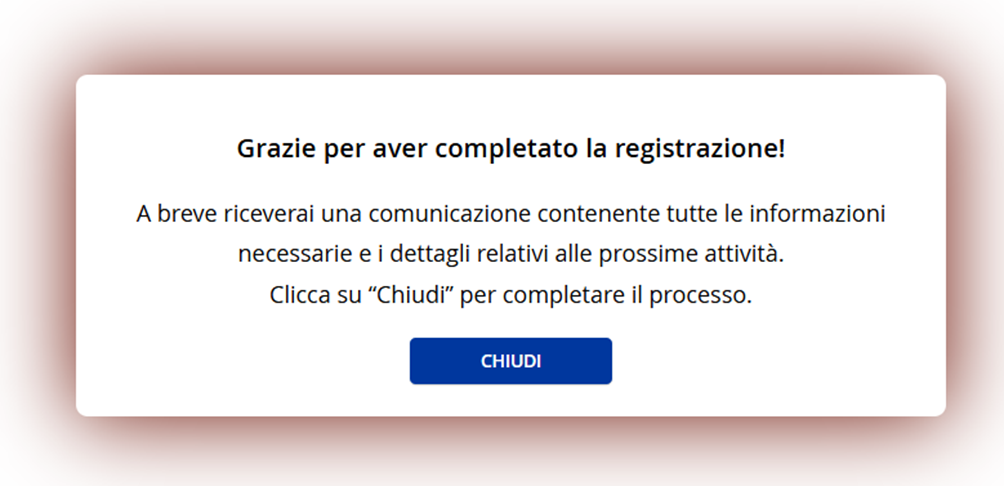
Figure 7: Maggioli portal: Registration flow completed
Following the submission of the data, the supplier will have to wait for a communication with the credentials (username and password), to be used for subsequent access to the platform. Please note that the token code will no longer be valid.
Was this article helpful?
That’s Great!
Thank you for your feedback
Sorry! We couldn't be helpful
Thank you for your feedback
Feedback sent
We appreciate your effort and will try to fix the article