Once the registration process has been completed, the supplier will be notified and will receive the login credentials to be able to access the e-Procurement portal and continue with the next qualification phase (Figure 1).
At this point, the supplier will have to perform the following actions on the page:
1. Enter Username and Password (A)
2. Click on the Login button (C)
If the supplier has forgotten his password, he will have the opportunity to change it using the ‘Forgot your password?’ link (B).
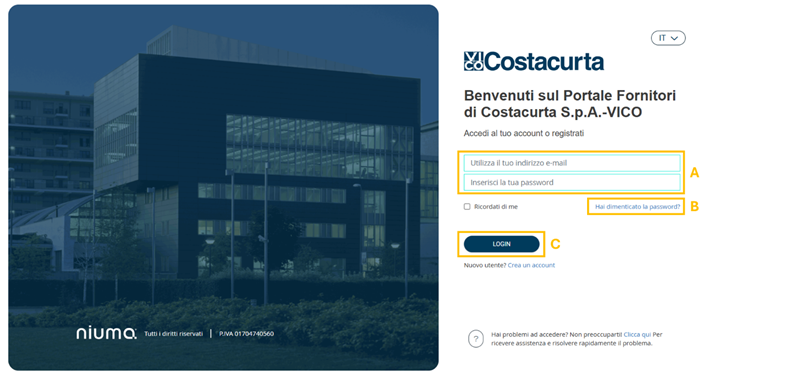
Figure 1. Log-In page
When logging in for the first time, the system asks the supplier to change the password (Figure 2).
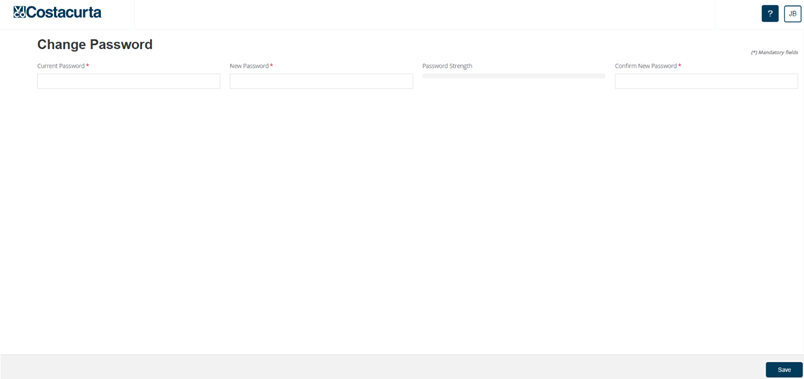 Figure 2. Password Change
Once the credentials have been entered, access is gained to the Homepage (Figure 3) of the area reserved to the supplier, who has the possibility of:
- complete the proposed Questionnaires;
- upload the documents which, although not compulsory, are of great relevance for their qualification within the Supplier Register.
- Enter their Bank Data.
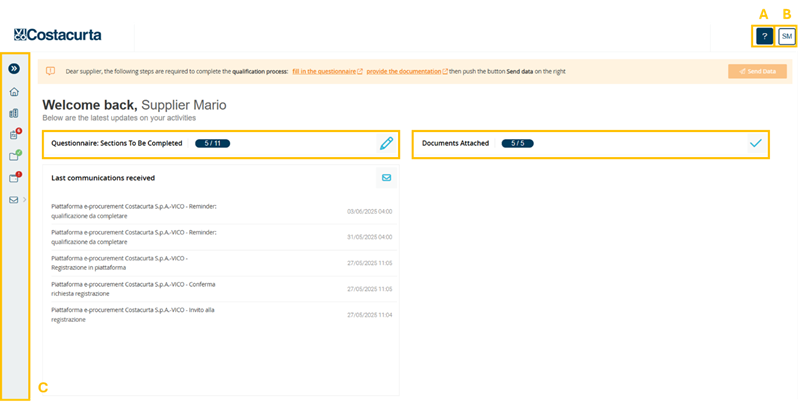
Figure 3. Supplier Homepage
The main sections are shown below, highlighted in the figure above (Figure 3):
A. Technical support (A): by clicking on this button you will be redirected to a new window where you can consult the user manual or ask for assistance.
B. User area (B): by clicking on this button you will be able to view your Name and Username, change your Password, change the portal display language between Italian and English and log out.
C. Main Menu (C): through this menu, the supplier can view and edit company data, questionnaires, documents, their bank details and communications received.
D. Questionnaire: Completed Sections (D): widget from which to access the questionnaires to be completed.
E. Attached Documents (E): widget through which you can access the documentation area and attach the required documents.
F. Latest communications received (F): section containing the summary of communications automatically received by the system.
If the questionnaire or qualification documents expire, the supplier will receive a communication asking him to fill in the questionnaire or upload the documents again.
Filling in questionnaires
By clicking on Questionnaires: Completed Sections or by selecting the link ‘Questionnaire’ from the left-hand menu, you can access the pages for filling in the questionnaire (Figure 4).
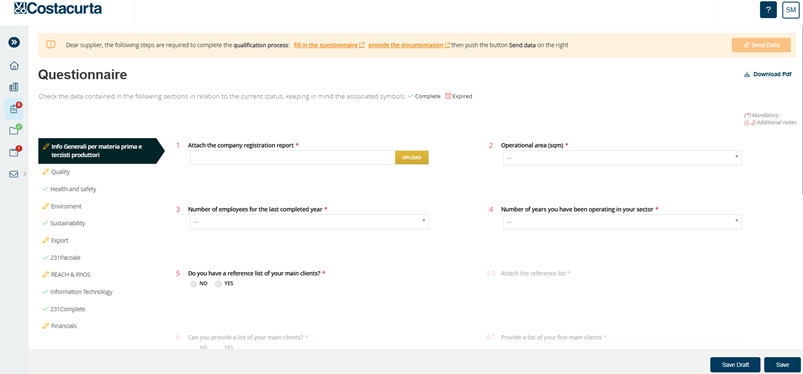
Figure 4. Qualification questionnaires
Within the forms, the fields marked with an asterisk (*) are compulsory fields; however, it is advisable to fill in all the fields in order to provide the Company with as much data as possible about the supplier.
Should the supplier need to download the file relating to the questionnaire, he may click on the ‘Download pdf’ button (A) present on each page of the questionnaire.
To submit and save each form click on Save (B) (Figure 4). Once a form has been saved, you will automatically move on to the next one.
Questionnaires to be completed will be marked with the symbol:  Once a form has been completed and saved, it will be marked with the symbol:
 If a completed questionnaire is out of date, it will be marked with the symbol
 and must be completed again.
The data within the individual modules can be changed at any time via the ‘Edit’ button (Figure 5).
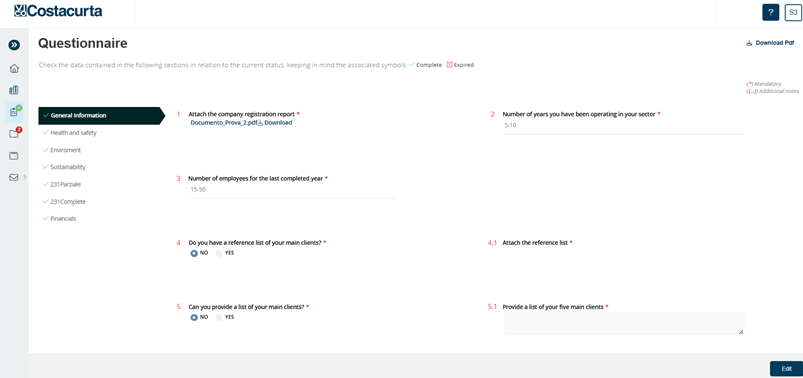
Figure 5. Completed questionnaire
While filling in the questionnaire, the supplier will be asked to attach documents (mandatory and not) (Figure 6). In order to attach a document, when the relevant pop-up opens, it is necessary to click on the Upload button (A) and enter the date of issue of the document in question. In order to save the document insertion, the supplier must proceed by clicking on the Save button (B); on the contrary, if he wants to go back without saving the insertion, use the Cancel button (C) (Figure 6).
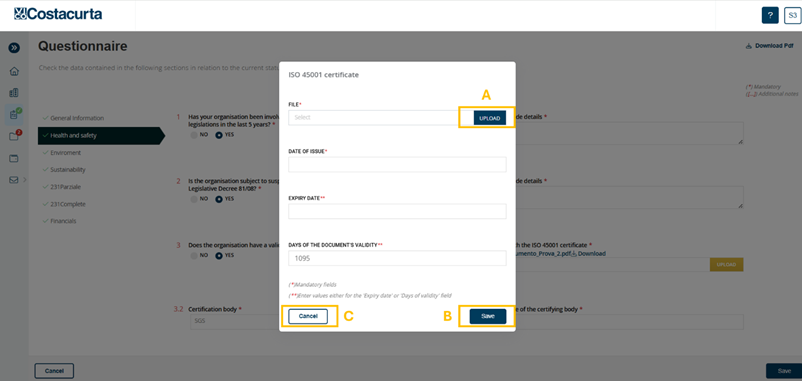
Figure 6. Document Upload into the questionnaire
Uploading Documents
In the ‘Supplier Documents’ section, the supplier may attach the required documents; these may be mandatory and non-mandatory.
Within the STATUS column of the table (Figure 7), some information labels may be displayed:
- To be attached: if the supplier has not yet inserted the required documentation.
- In progress: this label will be visible when the supplier attaches valid documentation to the platform.
- To be updated: this label will only be visible if - with the passage of time - the documentation entered has expired.
In this section, in fact, the supplier has the possibility of uploading or reloading expired documents using the icon  viewing the history of all attached documents - if any - by clicking on the icon
  and finally downloading the documents he has attached using the icon
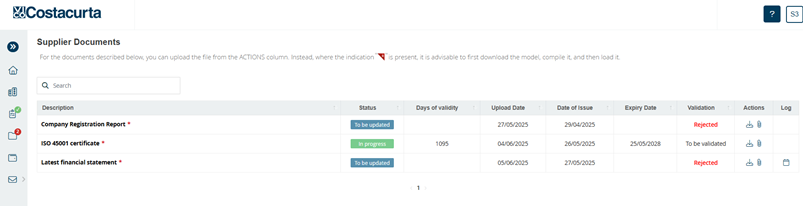
Figure 7. Supplier Documents
Bank Data Entry
Within the ‘Bank Data’ section (Figure 8), the supplier can enter the details of his bank data with the possibility of entering one or more Bank Accounts.
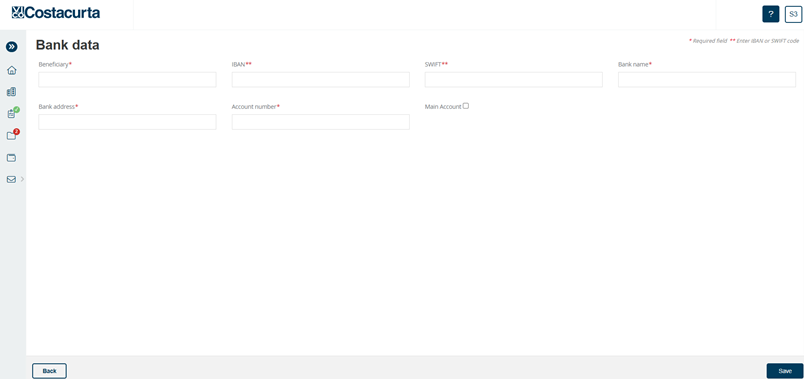
Figure 8. Bank Data
Once the data related to the main current account have been entered, through the ‘Add Bank Account’ button (Figure 9) it will be possible to enter new ones.
Moreover, by clicking on the icon  in the ‘Actions’ column, it will be possible to modify the data of an already registered bank account (Figure 9).
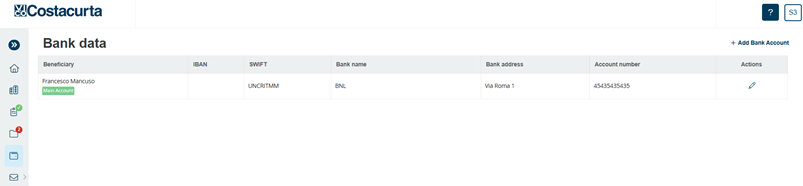
Figure 9. Bank Data - Add Bank Account
If more than one Bank Account has been registered, it will be possible to delete one or more of them (Figure 10) provided that this one is not marked as ‘Main Account’ (Figure 10).
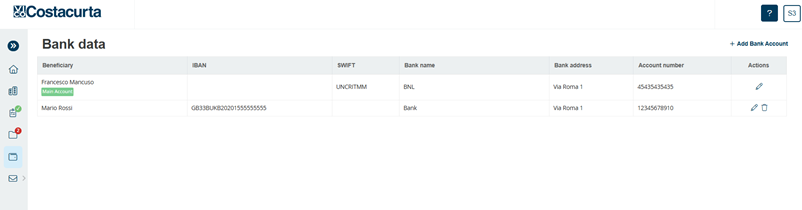
Figure 10. Bank Data - Delete Bank Account
The supplier, after having filled in the proposed questionnaires and provided the required documentation, may complete the qualification process by transmitting its data, using the orange-coloured button ‘Send Data’, which will be automatically enabled upon completion of the qualification process (Figure 11).
Otherwise, this button will be disabled.
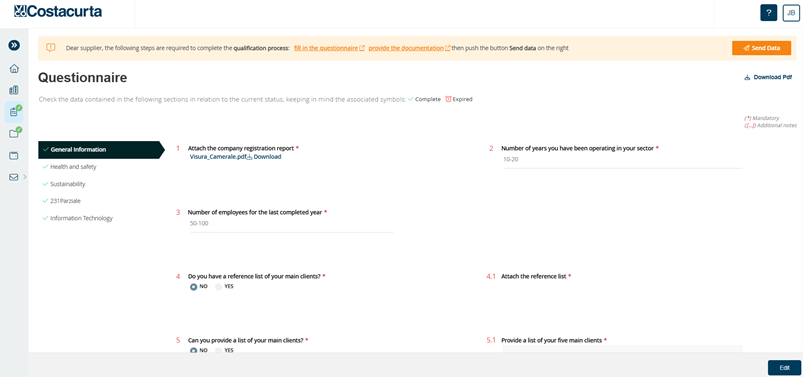
Figure 11. Qualification Complete – Send Data
The supplier, once the qualification process is completed, has the possibility to
- view/edit the completed questionnaires
- view attached documents
- upload new documents;
- view/edit bank accounts;
- add new bank details.
These actions can be carried out using the left-hand side menu or through the widgets on the Home Page (Figure 3).
Was this article helpful?
That’s Great!
Thank you for your feedback
Sorry! We couldn't be helpful
Thank you for your feedback
Feedback sent
We appreciate your effort and will try to fix the article